Songs page
You can access the song library from the Songs page in the mobile app. The action you can take on the Songs page depends on the permissions you have.
Viewers and schedulers can view songs and files, but might not have access to this page. If you need access, contact your leader.
Editors and administrators can add songs from RehearsalMix and the CCLI database, create new songs, or edit song arrangements and sequences.
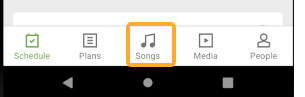
To access the Songs page on the mobile app, tap Songs in the bottom navigation.
 |
Add a song
On the Songs page, tap the ➕ plus icon.
Start typing in the name of the song. You can create a new song or search for songs using Popular Recordings or All Songs.
Popular Recordings allows you to search the RehearsalMix database for popular song recordings. You can click on the album art or play a preview clip for a song to determine if this is the version of the song that you want. When you select a song from the Popular Recordings list, the information will be pre-filled for your chosen arrangement.
All Songs allows you to search for all songs in the CCLI SongSelect database.
Once you've selected the song or entered a new song title, update the arrangement information, such as time length, BPM, and meter.
Choose a starting key, end key, and alternate keys as necessary.
(Optional) Use the toggles to import from RehearsalPack, SongSelect, PraiseCharts, or RehearsalMix if you have those services enabled in your Planning Center account.
Tap Next in the top right corner.
Edit the song and arrangement tags, and then tap Save to complete adding the song to your library.
Edit an arrangement
You can make additional changes to an arrangement you just created or edit an existing arrangement.
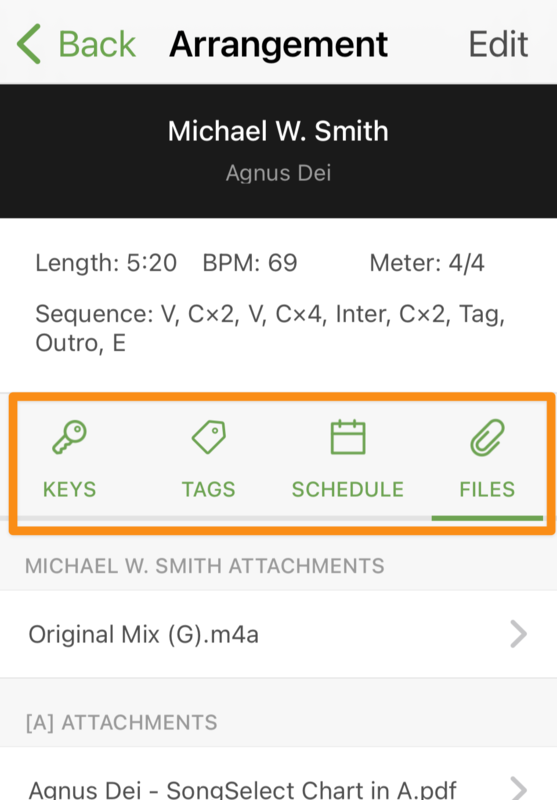
On the Arrangement screen, use the tabs to create additional keys, manage the tags on this song, view its upcoming schedule, and add files to the arrangement.
 |
Edit song sequences
Add a sequence to your song arrangement! Sequences appear at the top of any chord charts you create in the Lyrics & Chords editor (not uploaded PDFs).
Create or edit a sequence from an arrangement on the songs page or from the song on a plan.
Edit from an arrangement
Tap Songs in the bottom navigation.
Select the song you want to edit.
Select an existing arrangement or tap Add Arrangement to create a new one.
In the Sequence section, tap Create to add a new sequence. If one already exists, tap the current sequence to edit it.
Tap the ➕ plus icon in the bottom right to add a section label (e.g., Verse, Chorus, Bridge).
Select a default label and tap Save to add it to your sequence.
Or, tap New Label to create a custom label. Name your label, then tap Confirm. Tap Save to add it to your sequence.
Drag and drop labels to reorder your sequence.
Swipe left on any label to access the quick action options.
Select the duplicate icon to duplicate the current label.
Select the 🗑️ trash icon to delete the current label.
Once you're done editing your sequence, select Save at the top right.
Edit from a plan
From the Order tab of a plan, tap the song item you want to edit.
Tap Sequence at the bottom of the page.
Make your changes on the Edit Sequence page.
Tap the ➕ plus icon at the bottom right to add a section label. Tap New Label on the next page to add a custom label.
Drag and drop labels to reorder your sequence.
Swipe left on a label and select the 🗑️ trash icon to remove it from your sequence.
Swipe left on a label and select the duplicate icon to duplicate it in your sequence.
Tap the Update Arrangement Sequence toggle to save these changes to the arrangement for future use. Leave this unchecked if this is a one-time change.
Tap Save in the top left to apply your changes.
Tap the ✅ green checkmark in the top left of the Edit Item page to return to your plan.