Add a file
There are several ways to add files to your songs on the Services mobile app, depending on what type of device you are using.
Important
Only administrators and editors can upload, edit, or delete files. Editors can only delete files they uploaded.
Add files within the app
You can add files to a media item, a song, a song arrangement, or a single key within a song arrangement.
From a media item or song, select the Files tab, then tap Add File.
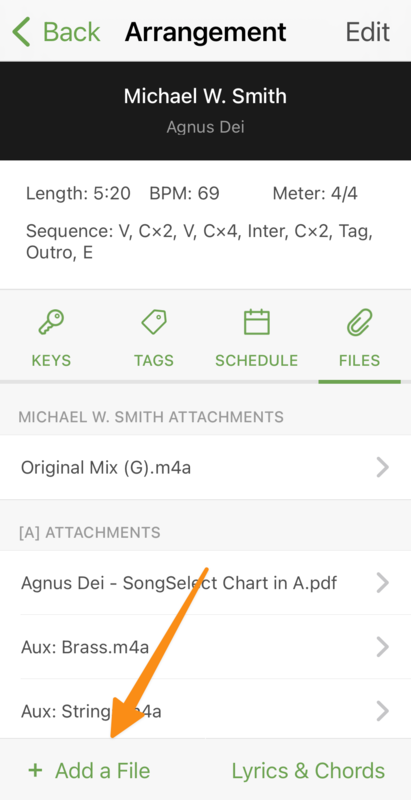
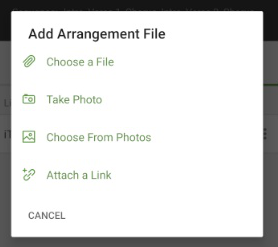
Add a file or photo from your device or attach a link to the item.
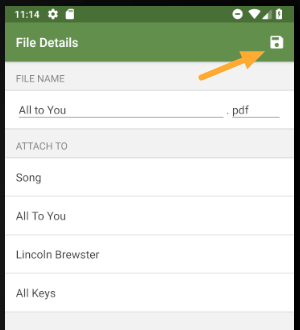
In the file details, name your file.
Check the Attach To section to confirm the file is being uploaded to the correct location. The file will show in the attachments section of the item.
Tap the Save icon to add the file to the item.
Tap the Options menu for the file to edit the file name or delete the file.
From a media item or song, tap Add a File.
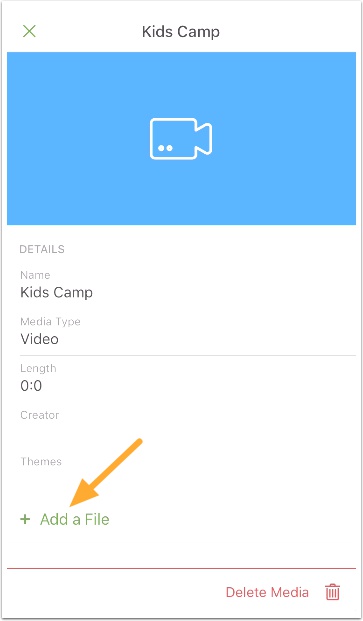
Add a file or photo from your device, attach a link, or scan a document.
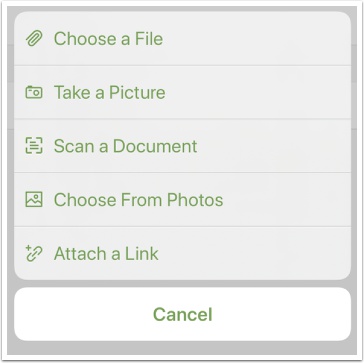
In the file details, name your file.
Check the Attach To section to verify that the file is being attached to the correct place.
Tap Upload to add the file to the item. Once attached, you can access the file from any device!
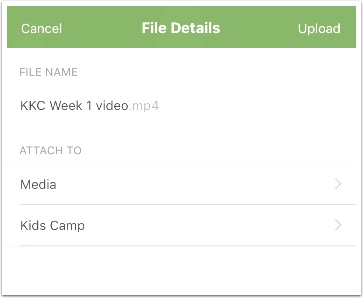
Swipe the attachment to edit its information or delete it.
Scan a document
If you're using an Apple device, you can use your camera to take a picture of a document and upload it as a PDF to a song or media
Important
This feature is not available on Android devices.
From a media item or song, tap Add a File.
Choose Scan a Document from the menu.
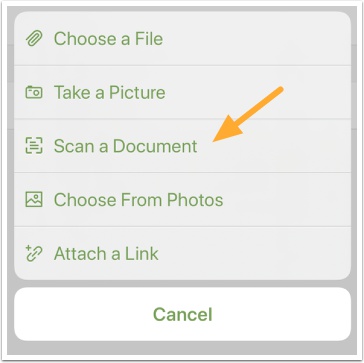
Use your camera to take a picture of a document and upload it as a PDF to a song or media. Your phone should automatically recognize a page if there is sufficient contrast with its surroundings; if not, you can manually snap a picture.
Continue scanning additional pages, and then tap Save to capture it all in a single PDF.
In the file details, name the file.
Make sure that the file is attached in the correct place.
For a song file, tap the Import Text into Lyrics & Chords toggle to make it green.
Tap Upload. If you uploaded a song file, double-check the text recognition by tapping Lyrics & Chords after completing the upload.
Upload files from your device
If you're already viewing a file and want to upload it to a song or media item in Services, tap Send file... from the Options menu in the upper right corner.
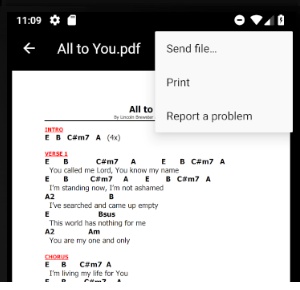
Tap Add to Services.
Go to the song or media item where the file is going and make sure the Attach To section of the File Details page is correct.
Tap the save icon. Once uploaded, you can access the file from any device!
If you're already viewing a file and want to upload it to a song or media item in Services, tap the share icon on the file.
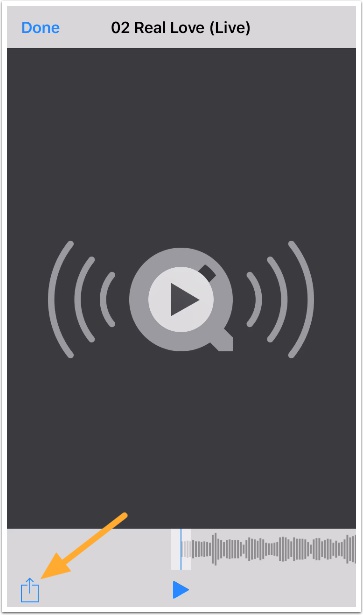
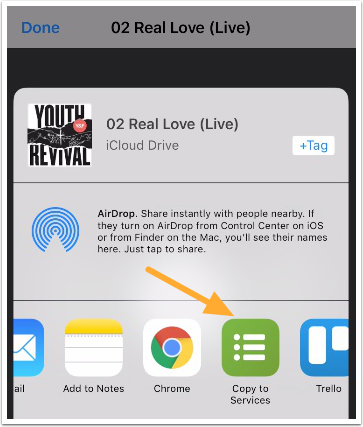
Tap Copy to Services from the menu. You may have to scroll to find the button or use More to move Services to the beginning of the menu.
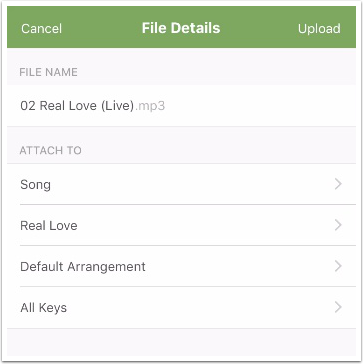
Use the Attach To section to choose the correct song or media item, then tap Upload. Once the file is uploaded, you can access it from any device!
Swipe the attachment to edit its information or delete it.