Team leader tools
After you've created your teams, set a team leader, and assigned team members, you can set scheduling preferences, assign split team times, and email teams from the team's member list.
To access your team's member list:
Select the People page from the top navigation in Services.
Select the Teams tab to view a list of teams in your organization.
Use the dropdown in the top left to filter the list by My Teams (teams where you're a leader or member), All Teams, Archived Teams, Recently Deleted Teams, or specific service types.
Select a team name to open that team's member list. You can also search for a specific team using the search bar at the top.
Set scheduling preferences
If you know your team members' scheduling preferences, you can update them from the position list. If you try to schedule someone to a plan that does not adhere to their preferences, you will see conflict warnings that can help you decide if you'd like to schedule someone else instead.
Select the People page from the top navigation in Services.
Select the Teams tab to view a list of teams in your organization.
Use the dropdown in the top left to filter the list by My Teams (teams where you're a leader or member), All Teams, Archived Teams, Recently Deleted Teams, or specific service types.
Select a team name to open that team's member list. You can also search for a specific team using the search bar at the top.
Select a position from the left sidebar.
Hover over a person's current preferences in the Preferences column and select the ✏️ edit icon that appears.
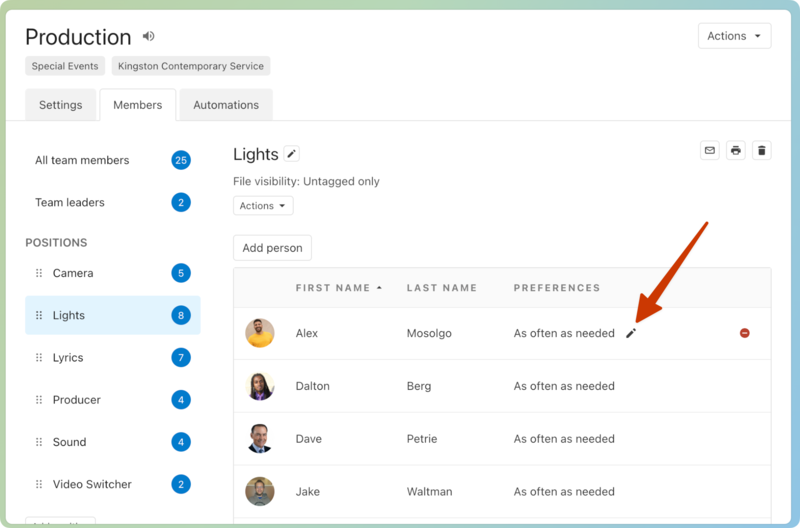
Choose a new scheduling preference from the dropdown.
If you want to assign the person to specific weeks, like the 1st and 3rd weeks of the month, select Choose Weeks, and then select the specific weeks.
Assign time preferences and filter split teams
You can set time preferences for each person on a split team.
Select the People page from the top navigation in Services.
Select the Teams tab to view a list of teams in your organization.
Use the dropdown in the top left to filter the list by My Teams (teams where you're a leader or member), All Teams, Archived Teams, Recently Deleted Teams, or specific service types.
Select a team name to open that team's member list. You can also search for a specific team using the search bar at the top.
Select a position from the left sidebar.
Hover over a person's preferred times in the Times column and select the ✏️ edit icon that appears.
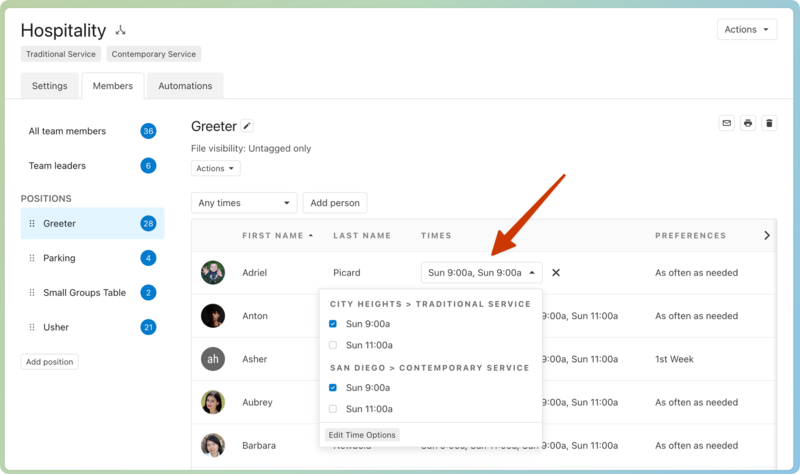
Select the dropdown to view all possible service times, then check the boxes next to the time preferences you'd like to set.
You can also filter the split team member list by time preference by selecting the Any times dropdown and choosing which service time preferences to include.
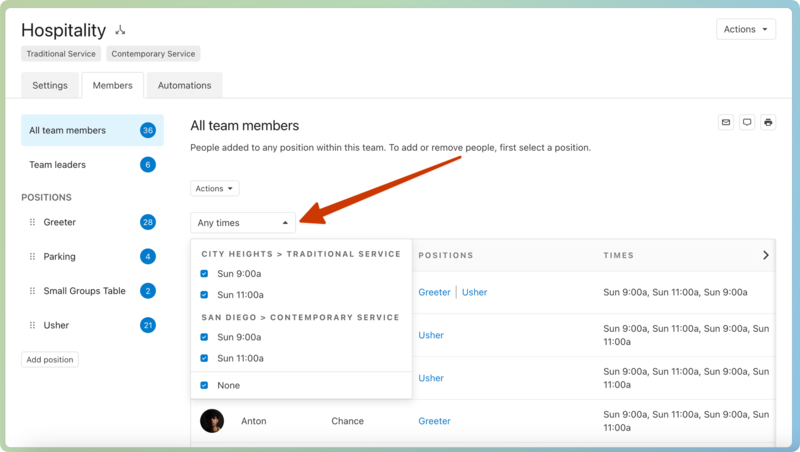
Tip
If you filter your team to a specific time, adding a person will automatically assign them to the times in that filter
Email team members
You can email team members from the All Team Members tab or a specific position list.
Select the People page from the top navigation in Services.
Select the Teams tab to view a list of teams in your organization.
Use the dropdown in the top left to filter the list by My Teams (teams where you're a leader or member), All Teams, Archived Teams, Recently Deleted Teams, or specific service types.
Select a team name to open that team's member list. You can also search for a specific team using the search bar at the top.
Select the All Team Members tab or a specific position from the left sidebar.
(Optional) If this is a split team, select the Any times dropdown at the top right of the list to filter team members by their preferred time.
Select the ⚙️ settings icon in the top right.
Choose Email from the dropdown.
Choose an email template and edit the email as needed.
Select Send.
Print a list of team members
Select the People page from the top navigation in Services.
Select the Teams tab to view a list of teams in your organization.
Use the dropdown in the top left to filter the list by My Teams (teams where you're a leader or member), All Teams, Archived Teams, Recently Deleted Teams, or specific service types.
Select a team name to open that team's member list. You can also search for a specific team using the search bar at the top.
Select the All Team Members tab or a specific position from the left sidebar.
Select the ⚙️ settings icon in the top right.
Choose Print from the dropdown.
Leader notifications
If a leader is set as the replies to person in the team settings, they can choose whether to receive notifications whenever team members accept or decline scheduling requests. Any team leader can choose to receive notifications when team members add blockout dates.
Select the People page from the top navigation in Services.
Select the Teams tab to view a list of teams in your organization.
Use the dropdown in the top left to filter the list by My Teams (teams where you're a leader or member), All Teams, Archived Teams, Recently Deleted Teams, or specific service types.
Select a team name to open that team's member list. You can also search for a specific team using the search bar at the top.
Select Team leaders from the left sidebar.
Check the boxes in the Notifications column to choose which notification types each leader should receive.
Any of these options can be checked for each leader, but the Accept and Decline options only apply if the leader is set as the replies to person:
Accept: The leader will receive an email every time a team member accepts an assignment.
Decline: The leader will receive an email every time a team member declines an assignment. The leader will have the option to reschedule the position from the decline email.
Blockouts: The leader will receive an email every time a team member sets blockout dates.
If the person who schedules someone is not a leader of that team, their notification options come from the replies to defaults set on the team settings tab.
Notifications
Everyone who can log into Planning Center can view their notifications across all Planning Center products by selecting the 🔔 bell icon in the toolbar. Selecting a notification takes you to that product. Or, if you select the three-dot button next to the notification, you can either mark it as read or add it as a task in your To do list. You can filter your notifications by selecting Show read or Hide read at the top of the toolbar.