Manage your household's schedule
If you're part of a household in People, you can manage other household members' schedules in Services! Respond to scheduling requests, use signup sheets, and block out dates for your entire household.
Important
You must be part of a household in Planning Center People to use the household scheduling features in Services and Church Center.
Want to watch a video before you get started? No problem! This four-minute video covers the My Schedule page and household scheduling.
Tip
You can also manage your household's schedule in Church Center!
Set up your household
If you're not already part of a household, ask your leader to set up a household for you in Planning Center People. You can contact your team leader by selecting the Email My Leader button on the My Schedule page.
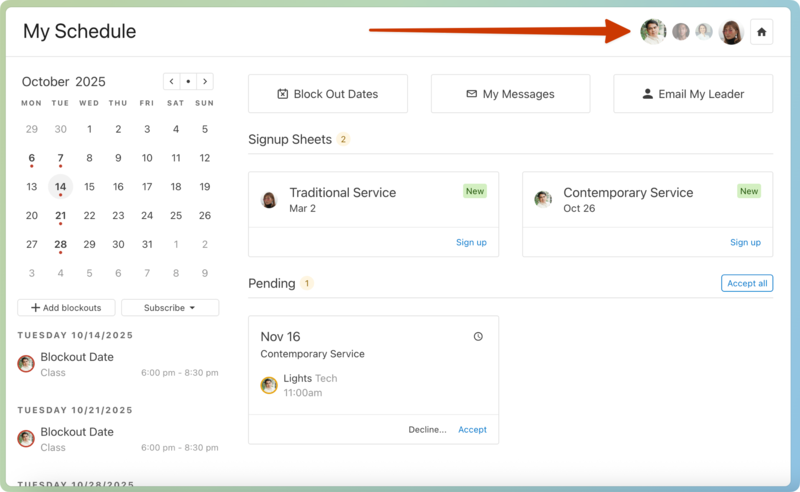
Once your household is set up, you'll see your household members' profile icons in the top right of the My Schedule page.
Tip
You can set up household scheduling preferences on your profile page after being added to a household!
View household members' schedules
View your household members' schedules so you know when everyone needs to be at church!
Select the My Schedule page from the top navigation in Services.
Select a household member's profile icon from the top right to view their scheduled plans along with yours on the My Schedule page. The household member's profile icon will appear next to each of their requested positions.
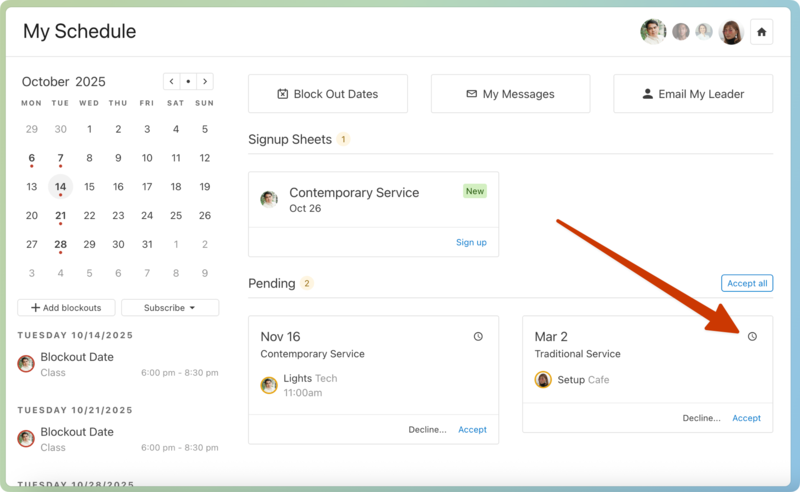
(Optional) Select the clock icon in the top right of any plan card to view a household member's assigned times.
Select the Schedule page from the bottom navigation in Services Mobile.
Tap your name in the top left to open the Household Members page.
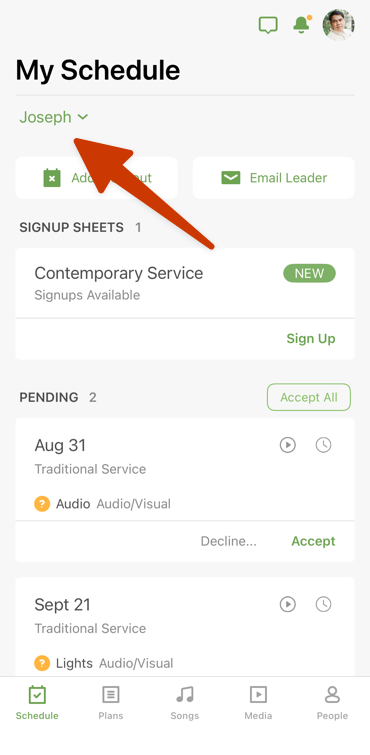
Choose which household members' schedules you'd like to view.
Tap Done in the top right to go back to the My Schedule page. Each selected household member's profile icon appears next to their requested positions.
(Optional) Tap the clock icon in the top right of any plan card to view a household member's assigned times.
Manage household scheduling permissions
On the web version of Services, you can choose which household adults can manage your schedule. If you manage a teenager's schedule, you can also choose to receive copies of all their Services emails.
Select the My Schedule page in the top navigation.
Select the house icon in the top right, next to your household members' profile icons.
Edit each household member's permission settings, depending on whether they're a child or an adult:
Adults: Use the dropdowns to choose which household adults should have permission to manage your schedule.
Children: Check the Copy me on [child's] emails box to receive copies of all Services emails that are sent to your child's profile.
Important
This option only appears if the child has a primary email address listed on their profile that is not the same as yours.
(Optional) Select Edit Households to join another household.
Select Submit to apply your changes.
Respond to your household's scheduling requests
You can respond to scheduling requests for any household member whose schedule is included on your My Schedule page.
Select the My Schedule page from the top navigation in Services.
Select a household member's profile icon in the top right to view their scheduling requests in the Pending section. Their profile icon appears next to each requested position.
Important
You must request permission from other household adults before you can manage their scheduling requests.
If you select a household adult for whom you still need to request permissions, select Send Request in the Request Permission popup to send them an email asking for permission.
Respond to each selected household member's pending scheduling requests individually or all at once:
Accept all requests: Select Accept All in the top right of the Pending section to accept all visible requests for each selected household member.
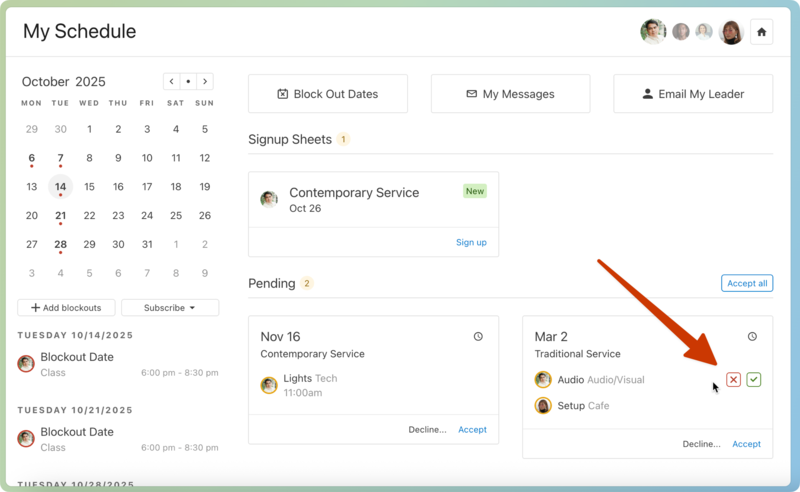
Respond to a specific position: To respond to a specific position request on behalf a household member, hover over that position and select the ❌ red X or the check mark that appears.
If the volunteer replacement setting is enabled for the household member's team, you can select a replacement when declining a request.
Respond for everyone requested on a plan: Select Decline all or Accept pending in the bottom right of a plan card to send the same response for all visible household members requested for that plan.
Important
If you don't personally have access to a plan, you can still respond to it for someone in your household, but the plan itself will be grayed out.
Block out dates for your household
If your household will be unavailable at the same time, you can block out dates for the entire household!
Use signup sheets for your household
You can sign up your household members for open positions if their team uses signup sheets.