Manage membership
Many churches define membership differently, but most churches agree that they'd like a way to know who is active in their church. Planning Center helps you manage that information by creating membership types. Membership types can be used to communicate, categorize activity levels, and limit access to member-only content on Church Center.
Define membership
You can define membership based on your church's values by customizing the Membership type fields, which are found on the Personal tab of the Customize fields page.
You can also add reasons for making someone inactive by customizing the Inactive Reason fields.
Important
Deceased cannot be edited or removed.
Assign membership
Once your types are in place, update profiles according to their involvement in your church.
From a person's profile, select the Membership type dropdown and choose the appropriate membership type.
Tip
Use a bulk action to update membership type or status for multiple people simultaneously.
If people have steps they need to take to change membership, you can automate those changes as the steps are completed.
For example, if you have a membership class that promotes people to members once they complete it, create a list to change their membership type when the class is completed automatically.
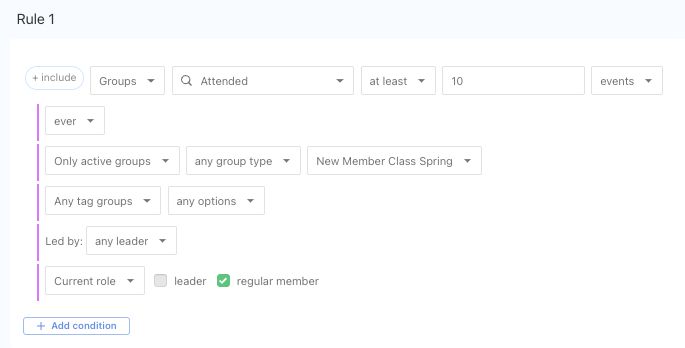
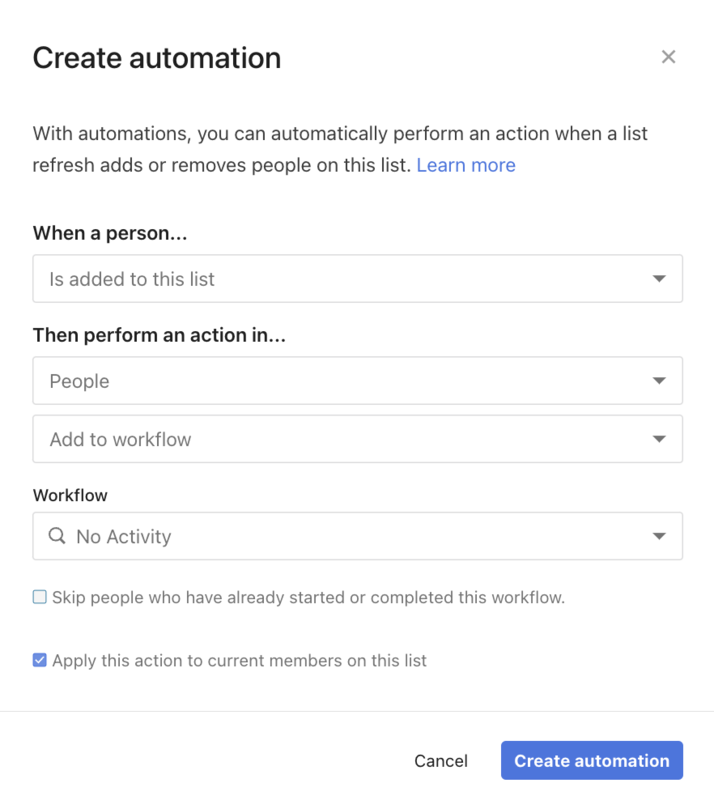
Create an automation to set their membership type to the desired type.
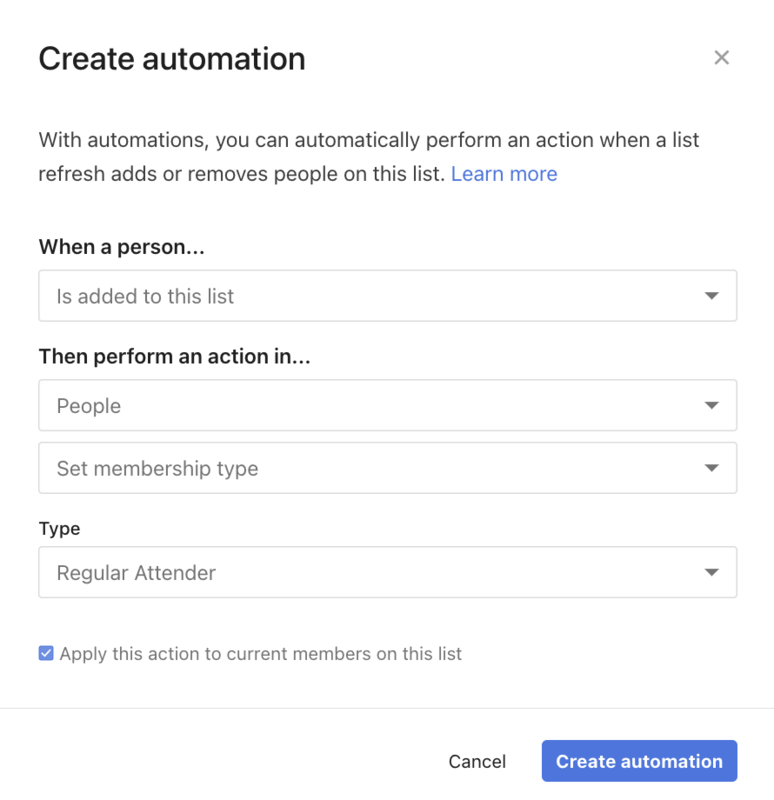
Create a list of membership statuses
Once you've assigned membership, create a list of people with a specific membership type to begin following up with them.
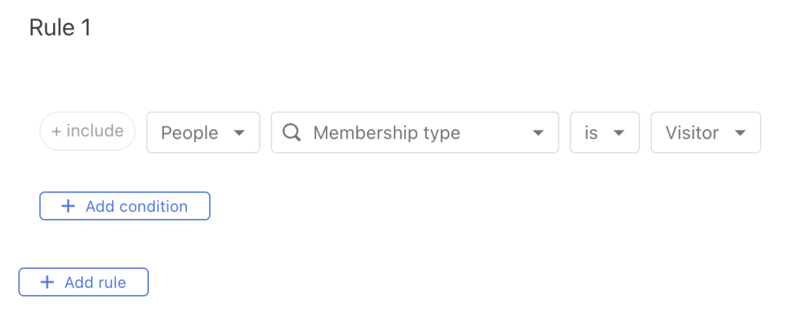
Update membership
Use workflows and lists to be automatically notified about someone's activity in order to keep their membership up to date.
Create a workflow based on the steps you want to take to follow up with people who have not been active.
Create a list of people who need to be followed up with.
To find people with no activity, make a rule for each Planning Center product that shows they haven't had activity in that product in a set amount of time.
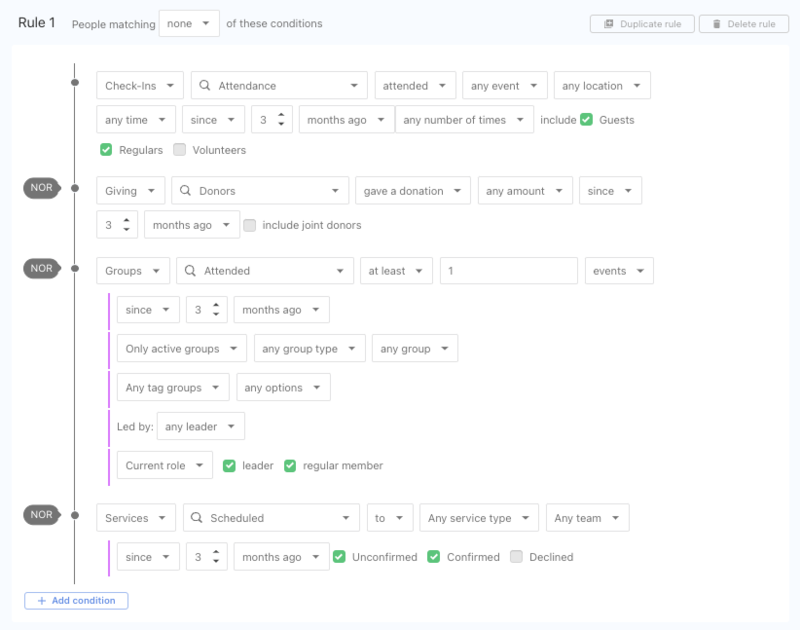
Once you submit the list, set your list automation to send people to the workflow you created before, which will notify the person assigned to the first step.
If the person no longer attends your church, you can set them as inactive on their profile, and they will no longer appear in searches. If they attend your church in the future, it's easy to reactivate their profile.
You can manage other database aspects by creating common lists and automations.
Unassign membership type
When setting profiles to inactive, you'll see the option to Clear membership status. A person can reactivate their profile by acting through Church Center, but clearing the membership status ensures that they no longer show up on lists based on membership or can view limited access pages in your Church Center navigation.