Manage and email group members
Whether you're organizing, updating, or staying connected with your members, Groups gives you the tools to manage it all in one place—no spreadsheets or sticky notes required.
Important
Emails are sent to the primary email address, except for Account settings. Account settings sends an email to every email address listed on an organization administrator's or billing manager's profile.
Manage group members
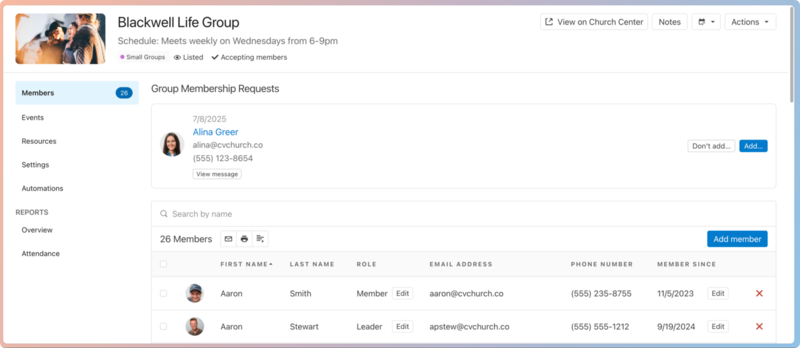
You can manage your group's membership, communicate with members, and update group records on the Members tab!
 |
To open a group's Members tab:
Select the Groups page from the top navigation in Groups.
Select a group from the list.
Select the Members tab from the left sidebar.
Take the following actions on the member list:
Manage membership requests: Group leaders receive an email notification when someone requests to join their group. They can add or reject requests using the email link or in Groups. Administrators and group type managers can only take action in Groups.
Send an email: All permission levels can select the ✉️ email icon to message specific or all group members.
Export the member list: All permission levels can download a PDF or CSV using the 🖨️ print icon or CSV export button.
Add members: Administrators and group type managers can select Add member to add people directly to the group using the People database. Group leaders can use that button to send an email invite to potential members.
Remove members: All permission levels can select the red X to remove an individual member.
Change a member's role: Administrators and group type managers can select Edit next to a role to promote a member to a leader or designate the member to take attendance.
Update membership date: All permission levels can select Edit next to the join date to make changes.
Email members of one group
Any permission level can message individual members or the entire group. For example, if you add a new file to the Resources tab, you can email the group to let them know it's available. Group leaders can also email their group members using Church Center!
Tip
To email group members about a specific event, send a reminder email with a link to the event.
Follow the steps below to email members of a specific group:
Select the Groups page from the top navigation in Groups.
Select the group you want to message.
Select the Members tab from the left sidebar.
(Optional) To email specific members, check the boxes next to their names.
Select the ✉️ email icon at the top of the member list.
In the popup, verify that the list of recipients is correct.
Select a reply-to email address using the From dropdown.
Important
Groups emails are sent from
no-reply@churchcenteronline.com, but recipients can send responses to the selected reply-to email address.Add a subject line.
Compose your email in the editor, using the formatting tools at the top as needed.
Select the 📎 paperclip icon in the toolbar to upload an attachment. You can only upload attachments up to 10MB each, up to 5 per email, for a total of 10MB.
Add images using the 🖼️ image icon in the toolbar, or drag and drop the image file directly into the editor. Refer to the image sizing guide for file size restrictions.
The {{ }} placeholder dropdown lets you insert dynamic text, such as the recipient's full name, the sender's first name, etc.
Select Send email in the bottom right.
Email members from multiple groups
Administrators can email members from multiple groups at once. For example, you can email all small groups to let them know they're not meeting next week due to a church-wide event.
Important
Groups lets you email up to 500 members at a time. To reach more than 500 people, use the Mailchimp integration in People.
Follow the steps below to email members of multiple groups:
Select the People page from the top navigation in Groups.
Filter the list to the people you want to include.
(Optional) To email only specific members from the list, check the boxes next to their names.
Select the ✉️ email icon at the top of the list to email the selected members.
In the popup, verify that the list of recipients is correct.
Select a reply-to email address using the From dropdown.
Important
Groups emails are sent from
no-reply@churchcenteronline.com, but recipients can send responses to the selected reply-to email address.Add a subject line.
Compose your email in the editor, using the formatting tools at the top as needed.
Select the 📎 paperclip icon in the toolbar to upload an attachment. You can only upload attachments up to 10MB each, up to 5 per email, for a total of 10MB.
Add images using the 🖼️ image icon in the toolbar, or drag and drop the image file directly into the editor. Refer to the image sizing guide for file size restrictions.
The {{ }} placeholder dropdown lets you insert dynamic text, such as the recipient's full name, the sender's first name, etc.
Select Send email in the bottom right.