Add musical notation in Music Stand
Add a short line of music notation to a chart so you can remember a melody, an intro lick, or a hook. Notation sits on the PDF with your other annotations, plays back so you can check it, and changes key when you transpose the chart.
Notation doesn't check rhythm or add bar lines, so it works best as a memory aid for a few measures at a time.
Important
Notation is only available in Music Stand 6 and later on iOS and in Web Music Stand.
People using an older version of Music Stand or Android won't see notation, but they can still see and edit your other annotations without changing it. To add notation in Web Music Stand, see Use Web Music Stand
Add notation to a PDF
Tap the circled back arrow < (iPhone) or the sidebar icon (iPad) in the top left to open the sidebar.
Select the Plans tab.
Select a plan date from the list to open it.
Select a song from the service order to open the PDF.
Tap the center of the screen to show the top toolbar.
Tap the 🖊️ annotation icon in the top right.
Tap the ♪ notation icon to the right of the Aa text icon.
(Optional) Tap the filled-in circle that appears next to the ♪ notation icon to choose a different color for your notation.
Tap the area of the page to which you'd like to add notation. The notation editor opens with the clef, key, and meter filled in from the song.
Add your notes. See Place and edit notes for more details.
(Optional) Choose what shows on the PDF.
On iPhone: Tap View, then choose whether to show the Clef, Key signature, or Time signature on the PDF. The clef and key signature are shown by default.
On iPad: Use the On the page options at the bottom of the editor to choose whether to show the Clef, Key signature, or Time signature on the PDF. The clef and key signature are shown by default.
Tap the ✓ check mark in the top right to place the notation on the PDF. It appears where you tapped, in your ink color.
Tap Done in the top right to finish annotating the PDF.
Place and edit notes
In the notation editor, choose a note value, then place notes on the staff one at a time.
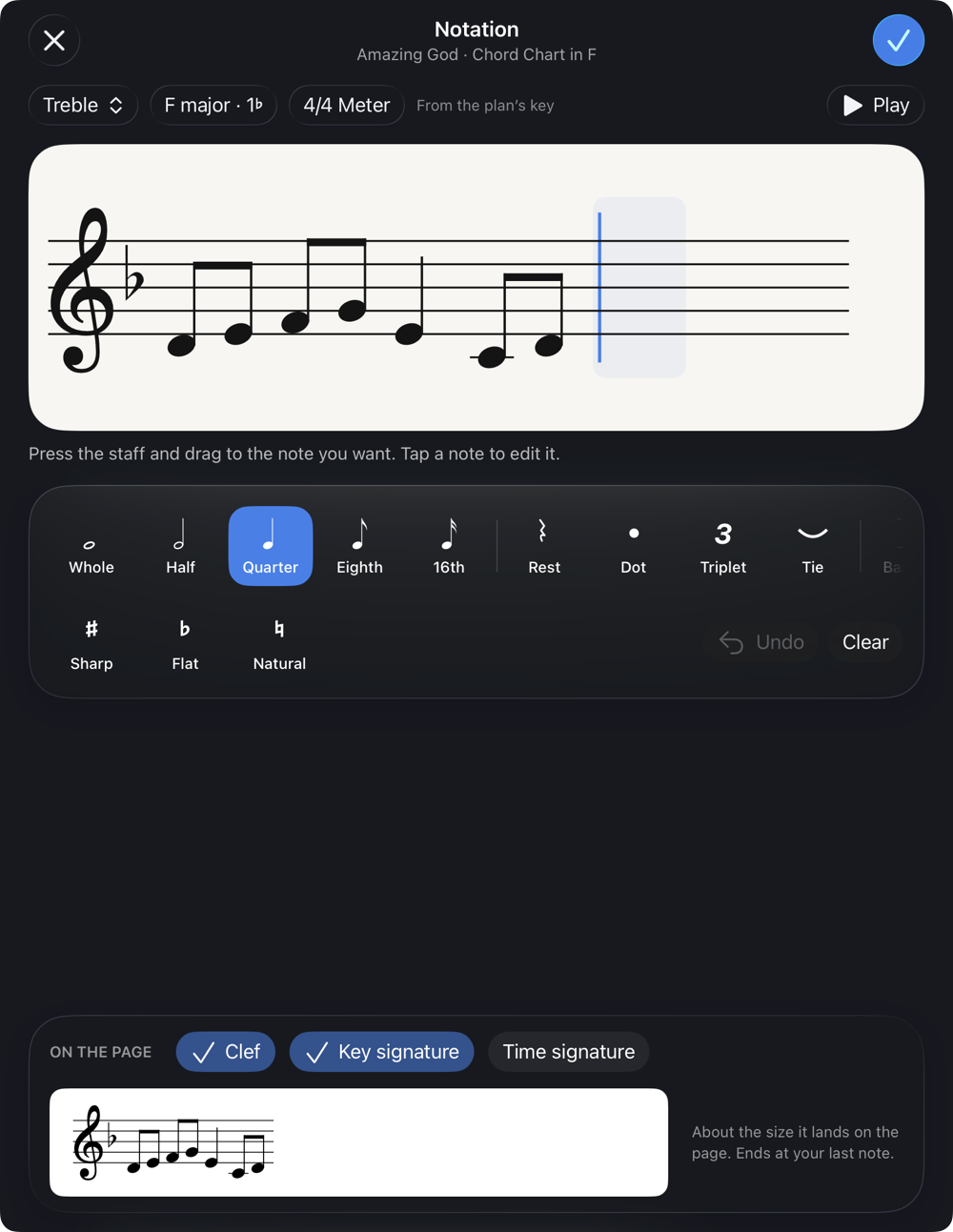
Choose a note value: Tap Whole, Half, Quarter, Eighth, or 16th before you place a note.
Place a note: Press and hold the staff, then drag up or down until the label shows the note you want. Lift your finger to finish placing the note.
Rest, Dot, and Triplet: Tap to turn them on. They stay on until you tap them again.
Sharp, Flat, and Natural: Tap one to apply it to the next note you place.
Tie: Select a note and tap Tie, then tap a note value to add the tied note at the same pitch.
Barline: Tap Barline to add a barline. Music Stand doesn't add barlines for you.
Play it back: Tap the ▶️ Play button in the top right to hear the line at the song's tempo.
Tip
On iPhone, swipe left on the note palette to see Rest, Dot, Triplet, Tie, and Barline. If you use an Apple Pencil, hover over the staff to preview where a note will go before you touch the screen.
To change notes you've already placed:
Select a note: Tap a note to select it. Drag it up or down to change its pitch, or tap a note value, accidental, or Tie to change it. You can also choose Insert before, Insert after, or Delete.
Add notes in the middle: Tap between two notes to open a gap, then place notes in the gap. Tap the X to close it.
Undo or Clear: Tap Undo to step back through each change, or Clear to start over.
Move, resize, or remove notation
After you place notation on a PDF, you can change it like your other annotations.
Tap the circled back arrow < (iPhone) or the sidebar icon (iPad) in the top left to open the sidebar.
Select the Plans tab.
Select a plan date from the list to open it.
Select a song from the service order to open the PDF.
Tap the center of the screen to show the top toolbar.
Tap the 🖊️ annotation icon in the top right.
Choose how you'd like to change an existing notation:
Edit: Tap the notation to open it in the editor. Change the notes or what shows on the PDF, then tap the ✓ check mark.
Move: Drag the notation to a new spot.
Resize: Drag the corner handle.
Copy, cut, or delete: Tap and hold the notation, then choose an option. To paste it, tap and hold on another page of the same song.
Tap Done in the top right to finish annotating the PDF.
How notation works with other features
Transposing: When you transpose a chart, notation changes to match the new key and is respelled for that key.
Importing and sharing: Notation is included when you access other annotations or share your annotations. If you import annotations into a file in a different key, the notation changes to match that file's key.
Administrator-transposed PDFs: PDFs that an administrator transposed in Services are separate files, so notation doesn't carry over to them.
Dark mode: Notation follows the Invert PDFs setting in light and dark mode.
Clearing annotations: Clearing all annotations also clears notation.
Notation doesn't support slurs, chord symbols, lyrics, more than one staff, or chords (more than one note at a time).