Access other annotations
You can access other people's annotations and merge them with your own or replace your existing annotations. If you have song viewer permissions or higher in Services, you can also access annotations that were made in another key from the same arrangement.
Important
Annotations made while you're offline will sync once you reconnect to the internet, but annotations aren't available to others until they're synced.
Access another person's annotations
The process for accessing another person's annotations differs based on the device you're using.
On an iOS device
Tap the menu icon (three horizontal lines) in the top left to open the sidebar.
Select the Plans tab.
Select a plan date from the list to open it.
Select a song from the service order to open the corresponding PDF.
Tap the center of the screen to show the top toolbar.
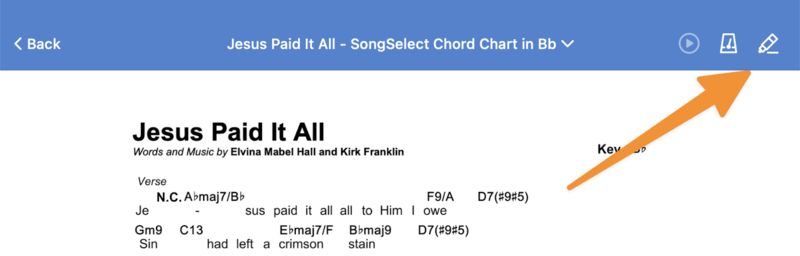
Tap the annotation icon in the top right.
Tap My Annotations in the center of the top toolbar.
Tap Annotator and choose a different annotator.
Tap Done to view that annotator's PDF.
(Optional) If you use the annotation tools in the top toolbar to edit the annotation, you must choose whether to replace or merge annotations in the popup that appears:
Replace: Permanently delete your existing annotations and replace them with the other person's annotations.
Warning
If you choose to replace your annotations, you will not be able to get your previous annotations back.
Merge: Add this person's annotations to yours, so you can see and edit them both.
Cancel: Go back to the file without editing the annotation.
After choosing to merge or replace annotations, tap Done to save your changes.
On an Android device
Tap the menu icon (three horizontal lines) in the top left to open the sidebar.
Select the Plans tab.
Select a plan date from the list to open it.
Select a song from the service order to open the corresponding PDF.
Tap the center of the screen to show the top toolbar.
Tap the annotation icon in the top right.
Tap the person icon in the top left.
Tap Annotator and choose a different annotator.
Tap Done to view that annotator's PDF.
(Optional) If you use the annotation tools in the top toolbar to edit the annotation, you must choose whether to replace or merge annotations in the popup that appears:
Replace: Permanently delete your existing annotations and replace them with the other person's annotations.
Warning
If you choose to replace your annotations, you will not be able to get your previous annotations back.
Merge: Add this person's annotations to yours, so you can see and edit them both.
Cancel: Go back to the file without editing the annotation.
After choosing to merge or replace annotations, tap Done to save your changes.
Access annotations from another key
If you have song viewer permissions or higher in Services, you can access annotations made in a different key if they're in the same arrangement.
Tap the menu icon (three horizontal lines) in the top left to open the sidebar.
Select the Plans tab.
Select a plan date from the list to open it.
Select a song from the service order to open the corresponding PDF.
Tap the center of the screen to show the top toolbar.
Tap the file name in the center of the top toolbar.
Select Import from another file... from the PDF Options.
Choose the file and/or key from which you want to import annotations.
Tap Done.