
Manage your profile
From your profile, you can update your contact information, respond to scheduling requests, and set blockout dates. You can also view emails and access teams, tags, help, and settings.
Important
People with scheduler permissions or above can edit other people's profiles. From the People tab, select a name to open their profile.
Access your profile
To access your profile, follow these steps:
Tap your photo or initials in the upper right corner of the app.
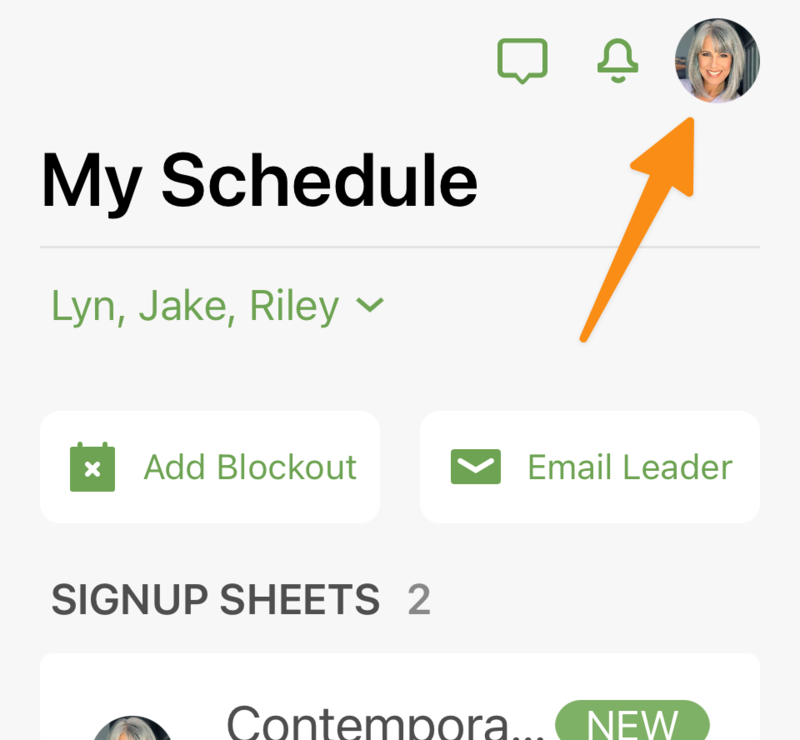
Tap the menu with your church's name at the top and select another church if you have linked accounts. You can also use this menu to log out of your Services Mobile.
Update your profile information
Keep your profile up to date by editing your picture and personal information!
Select Edit in the upper right of your profile page to update profile information.
Tap Update Photo to upload a new profile picture.
Tip
If you can't upload a photo, it's likely that the image is too large. Try taking a screenshot of the photo to create a duplicate image with a smaller file size before uploading.
Enter your information in the corresponding fields (email address, phone number, address, birthday, and anniversary). Updating your email address here does not change your login method.
Profile actions
Select the buttons below the profile name to view teams and tags. Only people with scheduler permissions and above can see a person's Tags.
Teams: Tap on Teams to view which teams you're assigned to and set scheduling preferences for each team. Schedulers and above can update team assignmentson this page.
Tags: Schedulers can tap on Tags to view which tags have been added to this profile. Select Edit to add more tags.
Select the Schedule, Blockouts, or Messages tab to take the following actions:
Schedule: View the upcoming plans in your schedule.
Select a date to open the plan page. You can respond to pending scheduling requests on the plan page.
Tap Subscribe to Calendar to add a calendar feed of your scheduled plans to a personal calendar application.
Blockouts: View and manage your blockout dates.
Select a date to edit the blockout details or delete the blockout.
Tap Add Blockout to create a new blockout.
Messages: View your unread, received, and sent messages.
Select a message to view the email. Tap a button in a scheduling email to open the corresponding plan page.
Tap Mark all as Read to clear all of your unread messages.
Important
You can only view your own schedule and block out dates from the profile. To access your household schedule, go to the My Schedule page.
Access help and settings
Tap the Help button at the bottom of your profile to access support. You can view help documentation, read about new features, submit a support request, or write a review.
Tap the Settings button to manage your notification preferences and app settings. You can also link another account or log out on this page.
Tip
If plan information isn't loading properly, you may have some bad data stuck in the app. Clearing your cache could help!
If you're on an iOS device: Tap the Settings button, then tap Reset under “Cached Data” to reset the app's cached data.
If you're on an Android device: Open your device's settings page, then select Apps → All Apps → Services → Storage → Clear Cache.