Update team assignments
In this section:
Schedulers can assign an individual person to a team from their profile and update their scheduling preferences.
To access a person's teams:
Go to the People tab.
Search for and select a person's name to access their profile.
In the person's profile, tap Teams.
Assign to a team
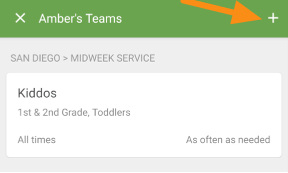
Tap the + sign at the top of the person's Teams page.
 |
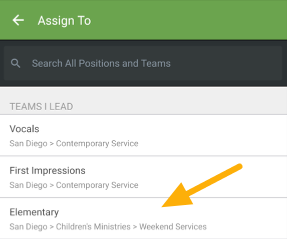
Tap one of the teams that you lead to assign the person to it. If the team you want to assign them to is not on the list, you can search for it.
 |
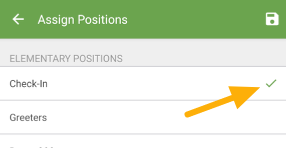
Check the position on the team that you want to assign the person to, and then tap the save icon.
 |
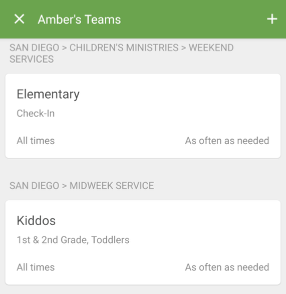
The team and position will be listed in the person's Teams page.
Edit position
You can tap on the position to change the person's position in the team or update their scheduling preferences.
 |