Add video to Services LIVE
Connect a paid streaming video channel (such as LiveStream, YouTube, or Facebook Live) with Services to show live video in your Services LIVE display.
Administrators can set up video integration on the web browser, but everyone can see the video feed once it's set up.
Important
LiveStream doesn't allow embedded videos at their free level. You can get an embed code, but when you select the play button in Services LIVE, you'll be directed to their site to watch.
You can see the video when you use the Lower and Lower Third views.
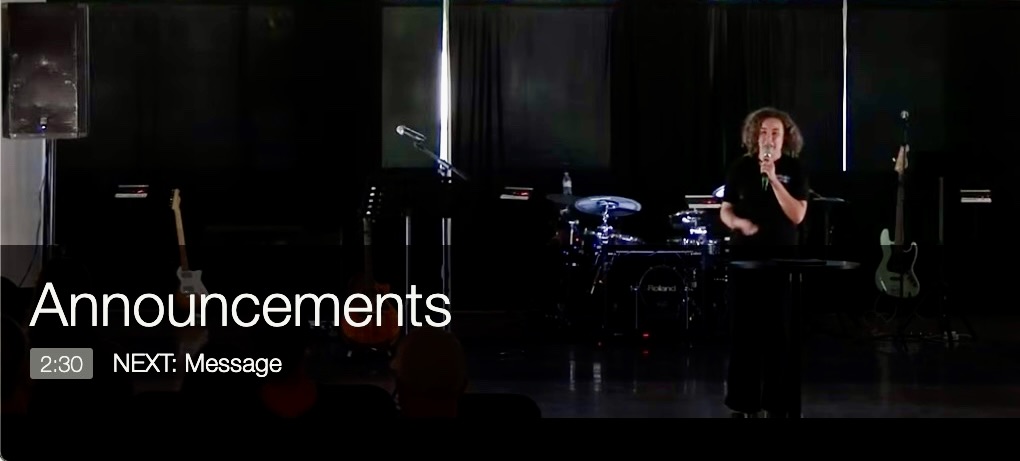
Expand the sections below to see how to copy the embed code from each service.
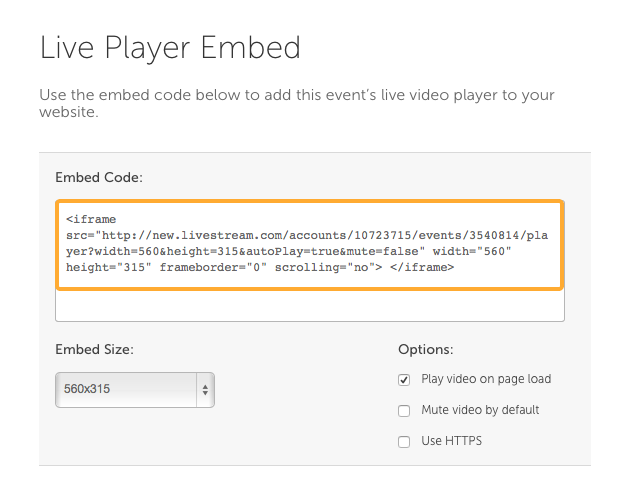
On your LiveStream video page, select </> Embed to go to the code.
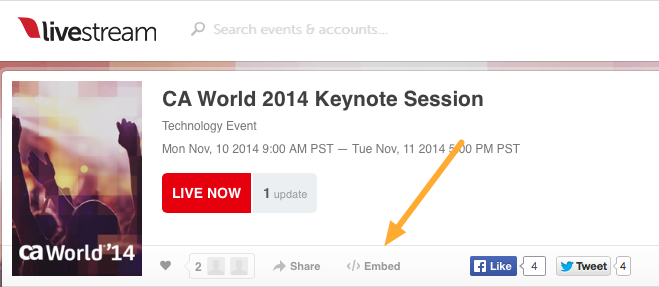
Highlight and copy the embed code.
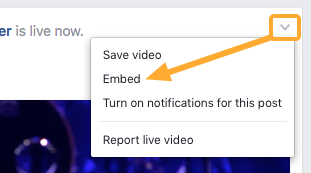
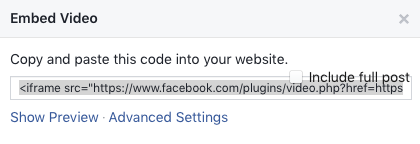
On your Facebook video stream, select the arrow in the upper-right of the post and choose Embed from the dropdown.
Highlight and copy the entire code. Do not check the Include full post box.
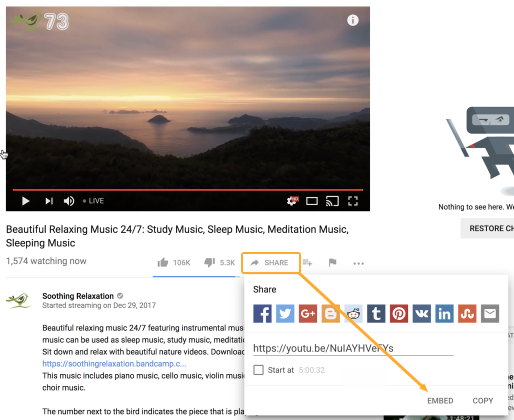
On your YouTube video stream, select Share under the video and choose Embed.
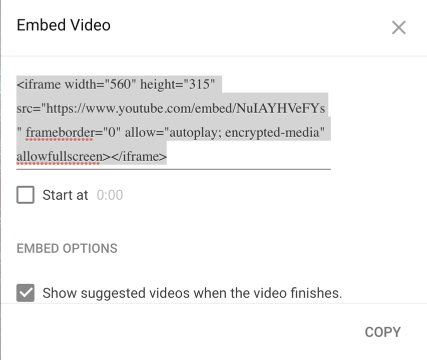
Highlight and copy the entire code.
Add embed code to Services LIVE
Once you've copied your embed code, return to Services LIVE. Hover your mouse over the top of the screen to view the toolbar, and then select the arrow next to the video icon.
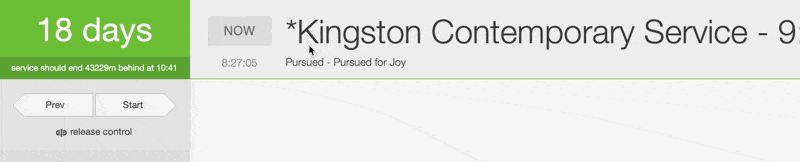
Paste the embed code into the white textbox.

Select Save to enable your video stream.
Tip
You can add your live service and Services LIVE feed to nurseries so volunteers can see how much service is left:
Add embed code.
Copy permalink.
Paste the link in the browser.