Services LIVE permissions
Services LIVE is a powerful tool that involves multiple people across your campuses. Anyone scheduled to the plan can view Services LIVE, but chatting and controlling the service timing is based on the service type settings.
Who can use LIVE?
Administrator | Editor | Scheduler | Viewer | Scheduled viewer | |
|---|---|---|---|---|---|
Control LIVE | ✓ | ✓ | * | * | * |
Access chat | ✓ | ✓ | ✓ | ✓ | |
View LIVE | ✓ | ✓ | ✓ | ✓ | ✓ |
✓ Available by default
* Available depending on settings
Those who cannot control LIVE will only see the button once a controller has started the session. They do not have access if no one is controlling it.
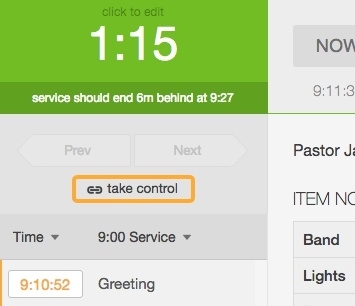
Control LIVE
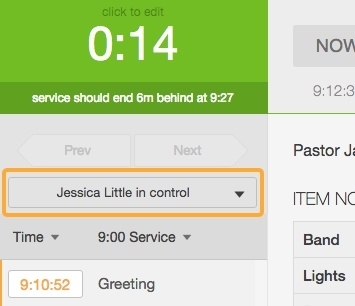
Only one person can move between items in the service as they happen. This updates any screens, so it stays in sync everywhere. It also records the time for the LIVE report.
 |
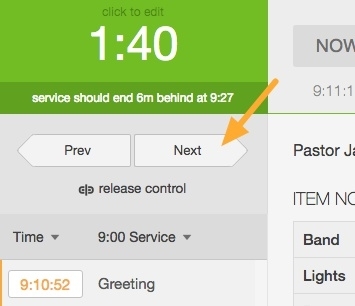
To record the actual time for each item, select Next when it's time to move to the next item.
Tip
Use these keys to control movement between the items.
Next: Use the up arrow key, right arrow key,
page down, orspace.Previous: Use the down arrow key, left arrow key,
page up, orshift+spacekeys.
Release control
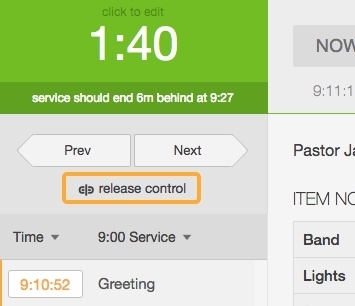
You can release control so that someone else can take it.
Services LIVE chat
Important
Only people with viewer permissions or higher can see the LIVE chat.
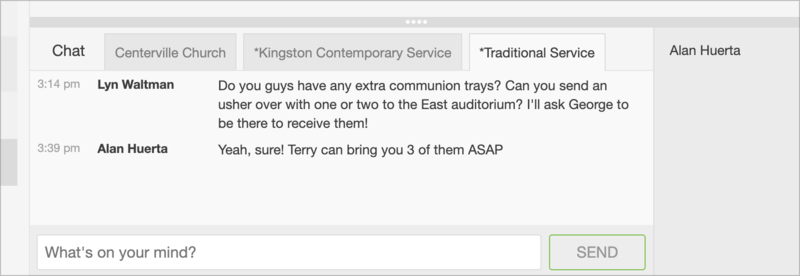
Services LIVE chat is an excellent tool for sending real-time messages to your team about an ongoing service!
If you watch multiple services simultaneously, each service shows in a new tab. Different chat tabs have different audiences, so select a chat tab based on who you need to message:
Organization-level chat: Select the tab with your organization's name to message everyone watching a LIVE session. This tab is visible for anyone with chat access, regardless of which service type they're viewing.
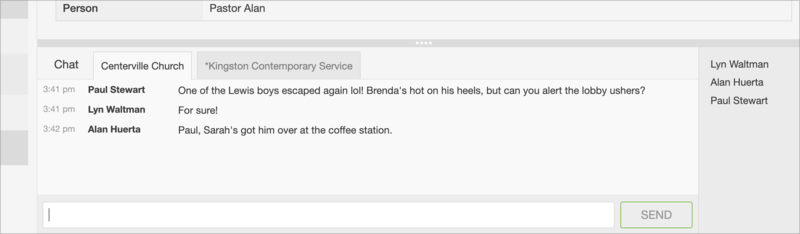
Service type chats: Select a service type tab to chat with those viewing a LIVE session in a specific service type. Use these tabs when you only need to communicate with people from a particular service.