Manage recorded LIVE times
One of the benefits of using Services LIVE to record your plan is you can revisit it later to review how long each item took and adjust plans accordingly. Anyone accessing the plan can see these recorded times; only administrators and editors can edit the times and export reports.
View the recorded times
Recorded times are placed in a new column in your plan so you can see them side-by-side with the items. It will be titled with your service time to see what both services did (if you have multiple services). Red numbers indicate that the item went longer than planned.
Use the column icon in the top right (three vertical lines) to select which service times you want to see.
Edit LIVE recorded times
Administrators and editors can change the time in LIVE if it wasn't recorded correctly.
In the share menu, select the LIVE button.
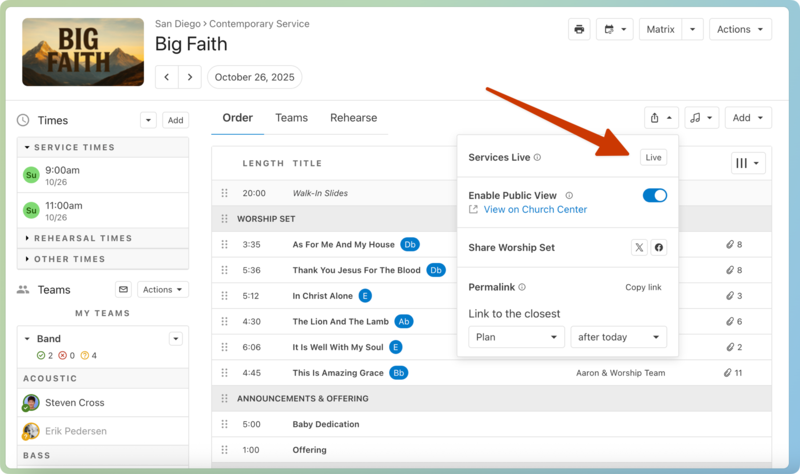
Go to the end of the LIVE session.
Scroll up to find the item you want to edit. You may need to change the service time.
Select the time you want to change and enter the corrected time. The rest of the times will shift accordingly.
Warning
If you don't want to keep the times, an administrator can select Reset from the top banner to clear the recorded times. This is useful if you've timed a rehearsal and want to reset for the service.
Export recorded times reports
To export the recorded times, select the 🖨️ print icon in the top right of the plan. From the Report dropdown, select LIVE: Recorded Times , which shows the times reported for each service item.
Important
All the conversations in chat are also printed in this report.