Update Services LIVE displays
Set a LIVE display format that makes the most sense for the needs of the location it's in: put one display style in the green room, another in the nursery, and a third style in the lobby!
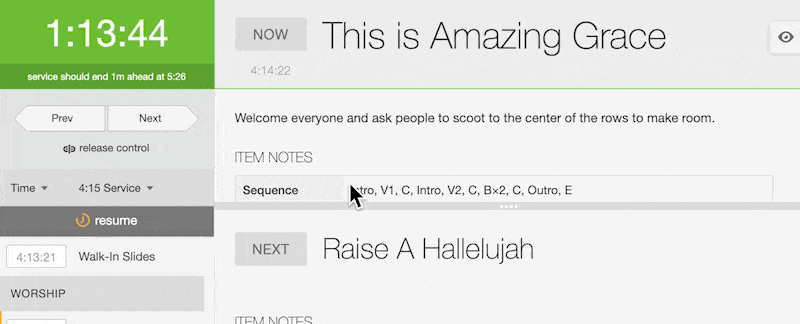
LIVE opens in the normal layout, where you can see the service order, chat, and more. Change the view from the toolbar by hovering your mouse over the top of the screen.
Tip
The normal layout is for controlling the service. If you want to use this layout, check out the Services LIVE article to learn more!
Countdown Full
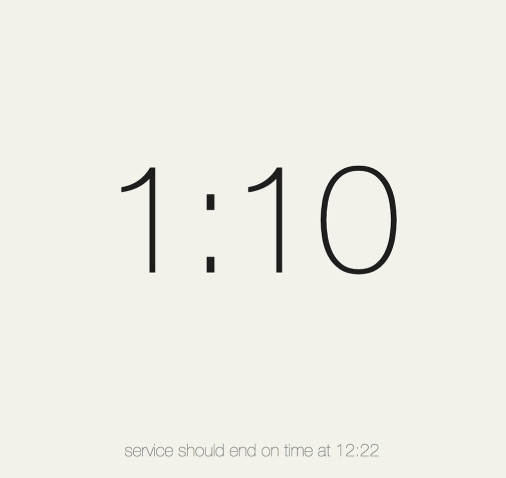
The Countdown Full view shows only the main countdown and the estimated time the service ends. It is ideal to use as a confidence monitor when the speaker needs to see quickly how much time they have left.
Important
The countdown modes do not change the service end estimator at the bottom of the screen.
Countdown Lower
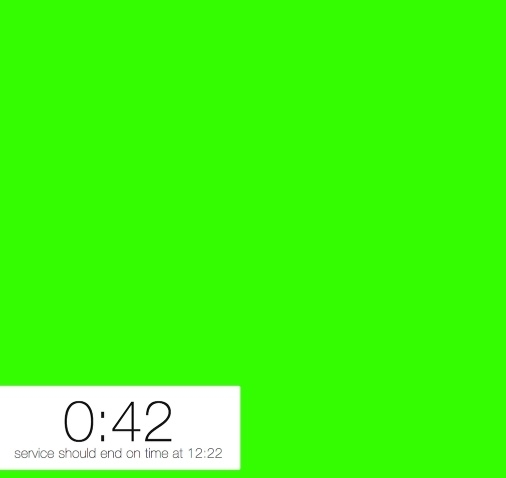
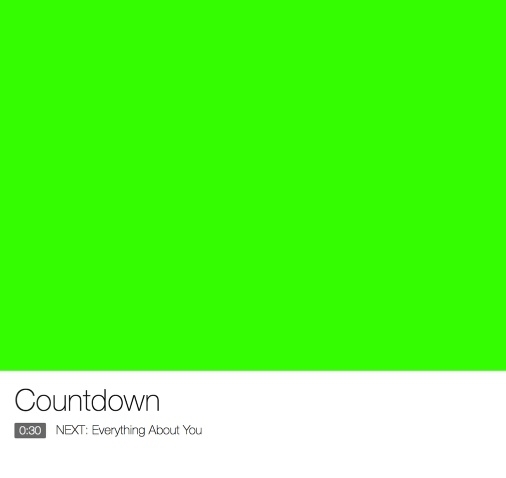
The Countdown Lower view allows you to use video while maintaining a smaller countdown in the lower left. By default, the screen is green, allowing you to use a live video mixer to replace the green with your video. If you already have a stream, you can add the video to replace the green with your streaming video.
This view can be helpful to those in different parts of the building, like the nursery, so they can still quickly monitor what's happening in the auditorium.
Lower Third
The Lower Third view is nearly identical to the Countdown Lower view, except it displays the current and next item in the service instead of a countdown. When combined with video, it works well for lobby/foyer displays.
Fullscreen Overview
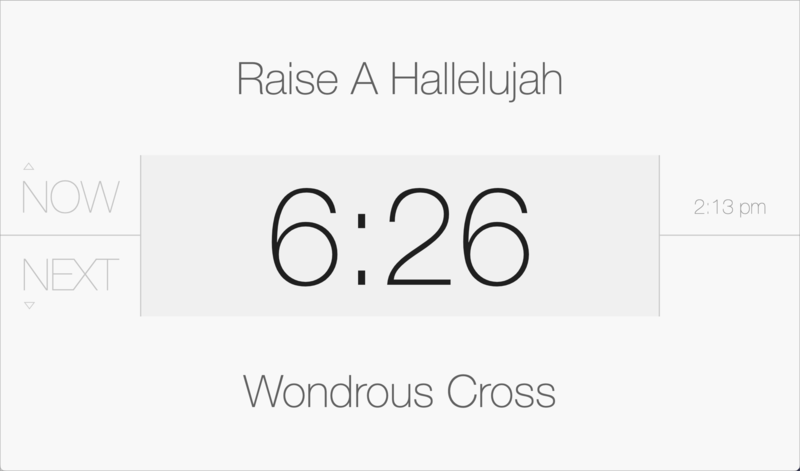
The Full-screen Overview prominently displays the time left in the current item while also showing what's next and the current time, making it a great confidence or backstage monitor to help a speaker lead in or introduce the next item or speaker.