Create song reports
Use song reports to pull up song usage data across multiple service types. You will need at least one of these reports for your licensing agency unless you use a company that auto-reports, like MultiTracks or SongSelect.
Important
You must have editor permissions on the Songs page to create reports.
Create a song report
To create a song report:
Select the Songs page in the top navigation.
Select the report icon in the top right.
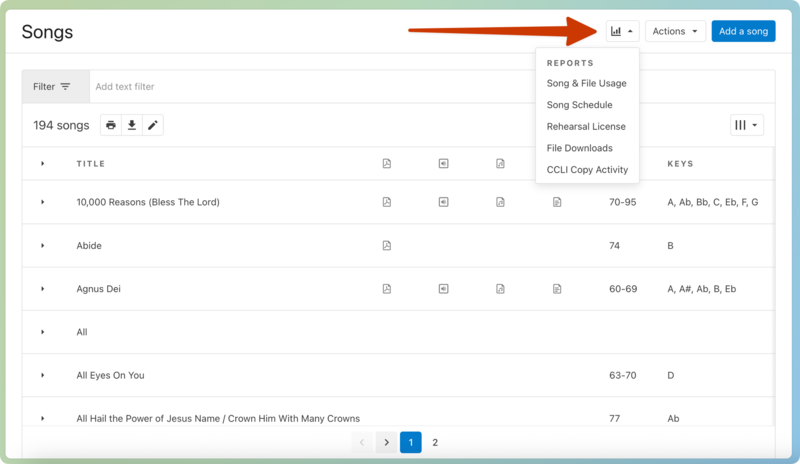
Choose a report type from the dropdown.
(Optional) If you chose the Song & File Usage, Song Schedule, or CCLI Copy Activity report, choose which service type(s) you want to include.
Set the report's date range at the bottom of the popup.
Select Generate Report to open the report in your browser.
Use the print function in your browser to print the report, or select the CSV download button ⬇️ in the top right to download it as a CSV file.
Expand the sections below for more information about each report.
The song and file usage report shows information about the selected service types during the specified date range. It includes the number of:
Plans that a song is used in
People who have downloaded each song
People who downloaded each file format
View the songs scheduled over a selected timeframe. This link takes you to the service type report page, where you can specify a date range and sort the results in the way that works best for your needs.
View the information needed to fill out CCLI's Rehearsal License report. The numbers in the rehearsal report don't change how much you pay for licensing; they only help CCLI determine how to distribute funds to the license holders. Use this report if requested by CCLI.
Each song arrangement header includes bold numbers that you'll usually report to CCLI. The bold numbers represent the total number of downloads for all files in that arrangement and the highest number of potential listeners for any file in that arrangement.
Downloads: The number of downloads is per file and includes every time an audio file is downloaded, even if the file is downloaded again. Each download counts.
Potential Listeners (Streams): This is the number of unique people who had access to the song from any plan, whether they listened or not. In addition, if the file was originally uploaded during your reporting dates, the number will increase by the number of users who have access to the song page during your report dates, usually users with viewer permissions or higher in your account. This second number is not included if a song wasn't uploaded during your date range.
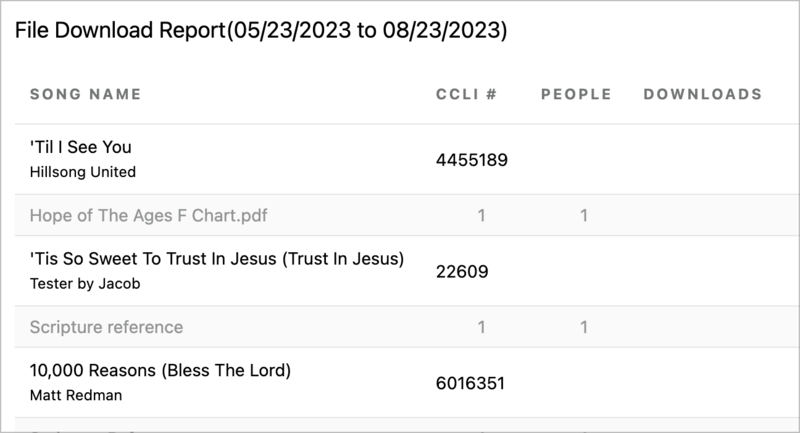
The file downloads report shows the total downloads and the number of people who downloaded each song file.
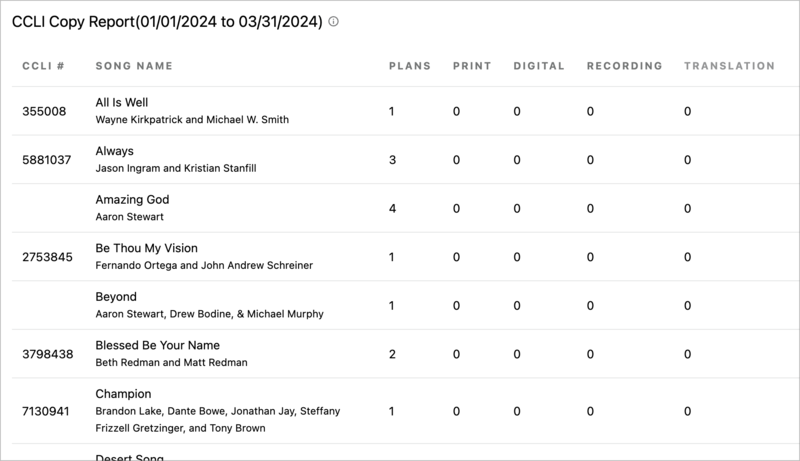
If you are not using auto-report, you can use the CCLI Copy Report to assist you in adding your data to the CCLI Reporting website. The CCLI Copy Report shows the total number of plans in which the song is used and the totals for each reporting category for each song.
This information comes from the CCLI Reporting fields on a song item. You can track this information whenever you add a song item to a plan:
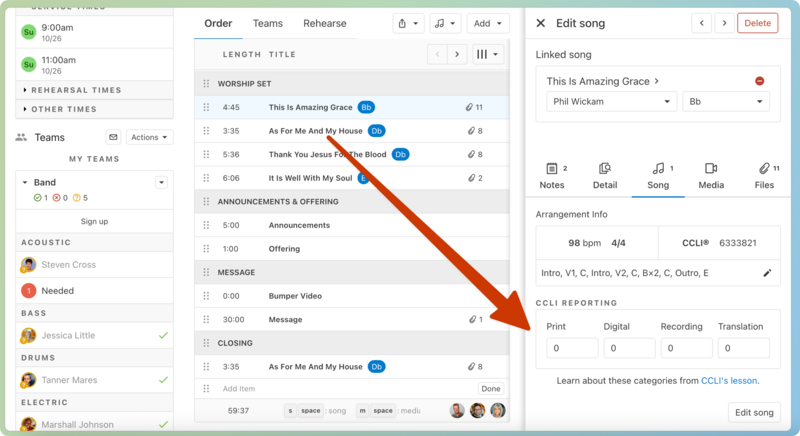 |
Print: Use for reproducing the lyrics, chord sheets, lead sheets, or vocal sheets for the congregation or if you have made a custom musical arrangement.
Digital: Use when you've projected a song's lyrics.
Record: Use if you've recorded (audio or video) a song's live performance.
Translation: Use when you've translated the song into a different language (where no authorized translation exists).