CCLI reporting
It's essential to report your song usage to the licensing agency. If you are using CCLI for this, you can either automatically report your usage directly to CCLI or manually report it by running a CCLI Copy Activity report and inputting those numbers into their website.
Important
People with song editor permissions or higher can view the integration settings, record song usage, and run reports, but only song administrators can enable the CCLI integration.
Enable CCLI reporting
Select the Songs page in the top navigation.
Select the Actions button in the top right.
Choose CCLI Settings from the dropdown.
Set up the CCLI Settings in the popup.
Select Link CCLI account to link the CCLI account from the Song File Integrations page to CCLI reporting.
Check the Enable Auto Reporting box to enable auto-reporting.
Select Submit to save your settings.
Auto-report to CCLI
If enabled, your song usage for the previous week is automatically reported to CCLI each Monday. Reports take up to a day to process, so your report may not appear in CCLI until Tuesday.
Auto-reporting covers Streaming and Copyright licenses, but it does not cover the Rehearsal License or the Streaming Plus license subscriptions. Here are some tips to ensure the best accuracy:
Be sure that your plans accurately reflect what songs you used, as you can modify this until it is reported.
Songs without a CCLI number are not included in auto-reporting.
Each song used in the week is only counted once, regardless of how many campuses or service types it was used in.
Record song usage for manual reporting
Report song usage in each plan when you reproduce the words of a song for a worship service (i.e., project, type out, copy and paste).
Select the song in a plan.
Go to the Song tab in the Edit Song panel.
In the CCLI Reporting section, enter the occurrence for each type of usage (e.g., Print, Digital, Recording, Translation).
Generate a CCLI report for manual reporting
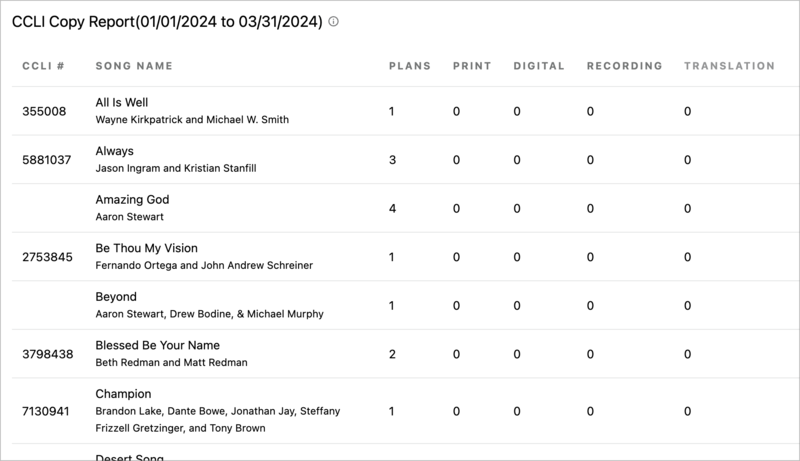
You can pull up your CCLI copy activity for manual reporting.
Select the Songs page in the top navigation.
Select the reports icon to the left of the Actions button.
Choose CCLI Copy Activity from the dropdown.
From the Service Types dropdown, select the service types you want to include in the report.
Set the dates for the reporting period.
Select Generate Report.
Warning
Recorded CCLI data is only saved for two years. Attempting to run a report for a date older than two years in the past will reset the From date field.
Your report will look like this: