Create matrix reports
Matrix reports allow you to see and print information across many plans.
Print or download a report
Open the matrix view for which you'd like to generate a report.
Select the 🖨️ print icon in the top right of the matrix.
Select a report type from the dropdown.
Choose whether to generate your report as a PDF or a Web Page.
Select Submit. If you create a PDF report, the PDF file downloads to your computer.
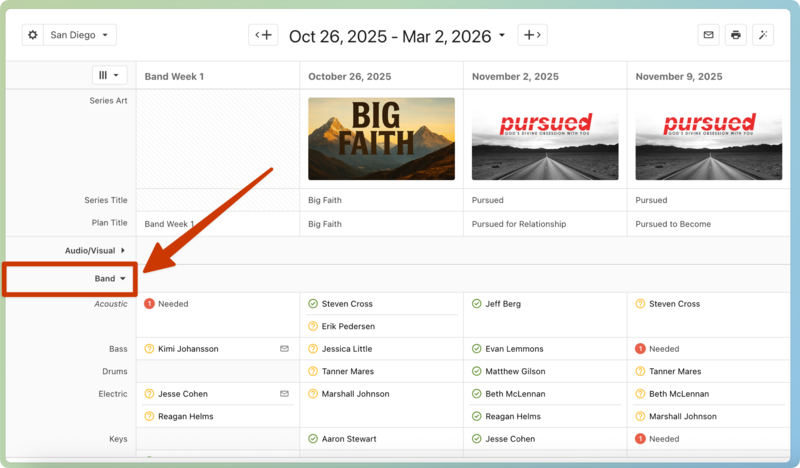
For some reports, only the items that are visible in the matrix will appear in the report. Use the arrows next to each section to expand/hide the sections that you want to include/exclude in your report.
 |
The following standard report options are available from the matrix view:
All Individual Plan Reports: Shows all the plan flows with times and item notes. A plan report is compiled for each day that you have loaded in the matrix.
Blocked Out People (open teams) Report: Shows anyone in the matrix who declined due to a blockout date.
Multi-campus Song Comparison Report: Compares the scheduled songs for the listed plans.
People Calendar (open teams) Report: Shows all people scheduled to teams and positions for each plan in the matrix. It also shows their status.
Sample-Matrix Report: Shows any sections displayed in the matrix.
Matrix with Times Report: Adds the times for each plan to the top of the report.
Sample-Vertical Matrix Report: Shows any sections displayed in the matrix in a column-based report.
Song Led By (Song Leader Assignments): Shows a list of songs and keys led by anyone assigned as a song leader on the plans displayed in the matrix.
Songs Led by Each Leader Report: Shows a list of songs led by people based on the position name. If anyone is scheduled for a position called Worship Leader or Leader, the person scheduled to that position is listed with the songs done in that plan.
Statuses of People Scheduled Report: Shows a breakdown of people who are confirmed, unconfirmed, and have declined in this matrix.
Teams with Positions: Shows all the potentially available teams and positions for all service types in the matrix, including those currently shown.
Timecard Report: Shows the total amount of time each person has spent serving the date range of the matrix.
Times Report: Shows all the times and titles for each date.
All People Report: Shows everyone scheduled for every team, even if they're not in the matrix.
If people have confirmed for a plan, their name will appear in bold.
If they have not yet replied, their name will appear gray and they will have a ? symbol next to their name.
If people have declined, their name will not show up at all.
Custom reports
Custom reports are available if you know some HTML. These reports will be listed at the top, under your church name reports.
To add or edit your church's custom reports:
Open the matrix view for which you'd like to generate a report.
Select the 🖨️ print icon in the top right of the matrix.
Select the Report dropdown.
Select Edit Custom Reports at the bottom of the list.