Refund payments
If someone needs a refund after they've paid, you can issue it from their registration details.
Warning
If your settings allow attendees to cancel their own registration, they will not receive a refund automatically. You must issue them a refund manually.
Select Signups from the top navigation.
Choose the signup you need from the list.
Select the Registrations tab.
Choose the name of the attendee needing a refund from the list.
Select Issue refund under the payment section.
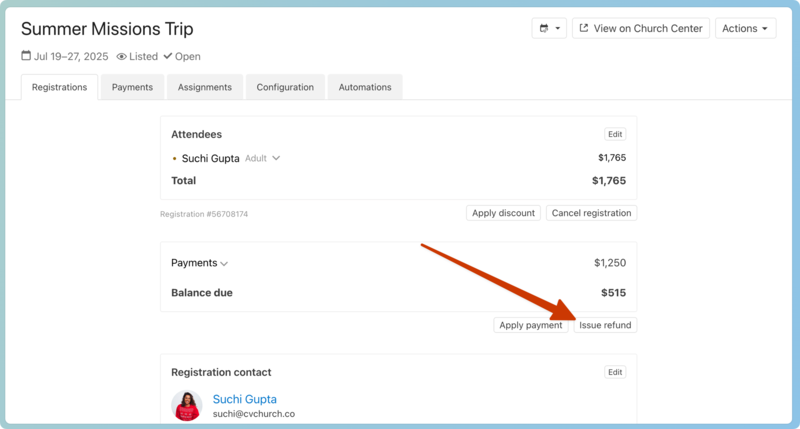
Choose how you'll issue the refund and enter all necessary details.
Cash: Enter the refund amount, and a note such as the initials of the person who handed over the cash and the reason for the refund.
Check: Enter the amount and check number of the refund check, and leave the initials of the person who issued the refund, as well as a note explaining why the refund was issued.
Other: Choose Other for situations when you need to transfer funds from one registration to another. Enter the amount and leave a note.
Credit/Debit Cards: Select a card and up to the amount initially paid by this payment method. Card refunds may take 5-7 business days to be credited to a recipient's account. Enter a note stating the reason for the refund and the initials of the person who issued it.
ACH/Bank Transfers: Select a bank account where the refund will be sent, up to the amount initially paid by this payment method. Enter a note stating the reason for the refund and the initials of the person who issued it.
Scholarships: Choose a scholarship to refund money to, up to the amount originally used from the fund. Enter a note stating the reason for the refund and the initials of the person who issued it.
Important
Any money from a scholarship will be added back to the scholarship total automatically if a registration is canceled.
Select Submit to issue the refund.
After a refund is issued, the registration will show there is a balance due. To avoid this, cancel the registration or change their selection type and add-ons before issuing the refund.
Refund an add-on
If you need to issue a refund because a person no longer wants an add-on, first remove the add-on from the attendee's registration details by editing their Add-Ons and unchecking the box for the add-on you're refunding.
Select Signups from the top navigation.
Choose the signup you need from the list.
Select the Registrations tab.
Choose the name of the attendee you need to edit add-ons for from the list.
Select Edit in the Add-ons section.
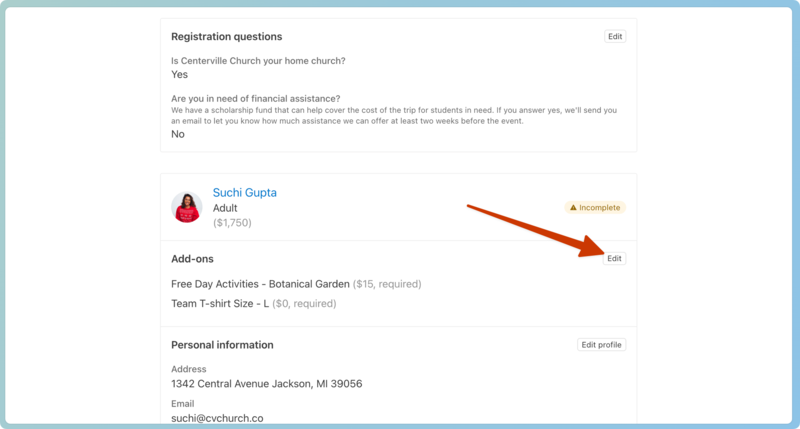
Uncheck the box next to the add-on that needs to be removed.
Select Save.
If the add-on wasn't paid for when it was removed, the registration total will adjust to remove it from the remaining balance. If an add-on was paid for when it was removed, the registration will show a refund is due.
If multiple payments were made toward the registration total, expand the list of payments to see which method should be refunded. Hover over the circle with three dots to see any administrator notes about a specific payment.
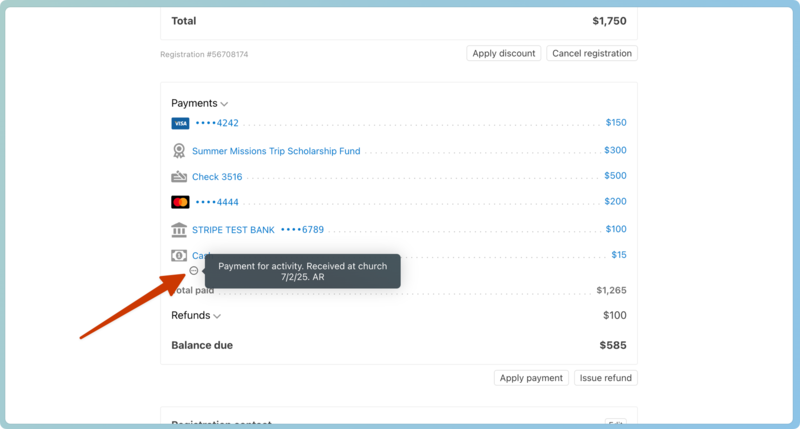 |
When you issue a refund, the funds are deducted from your pending account balance. If you issue a refund in excess of your account balance, the funds will be deducted from your connected bank account, which may slow your payout schedules. You can either maintain an account balance to cover refunds or add funds to your account balance to cover upcoming refunds. Your account balance can be seen on the Payouts tab on the Payments page in Account settings.
There is no fee to refund a payment, but, in most cases, the fees from the original charge aren’t returned.