View workflow cards in toolbar
In addition to completing tasks, administrators often need to follow up with people involved in workflows. If you have access to workflows, you can use the toolbar to navigate to a workflow card quickly. You can access workflow cards assigned to you by selecting the clipboard icon in the toolbar of any product page and choosing the Workflows tab.
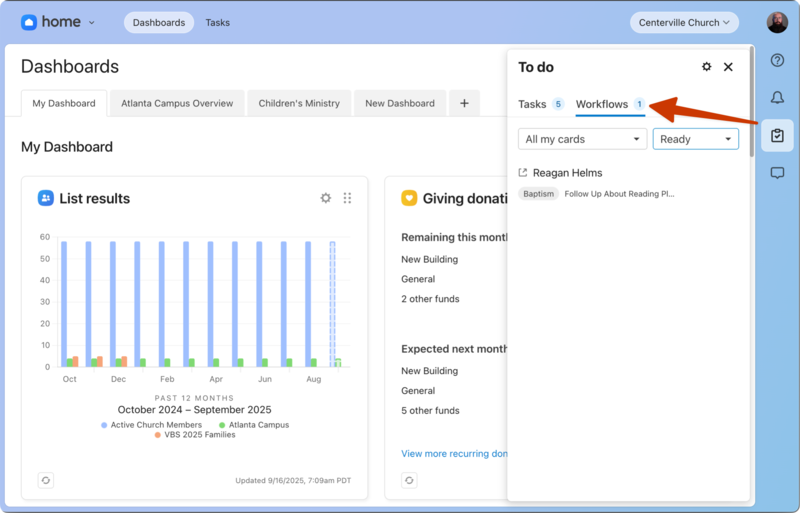
Select the 📋 clipboard icon in the toolbar.
Select the Workflows tab. The number next to Workflows includes all your ready and overdue cards.
(Optional) Use the dropdowns at the top of the list to filter by specific workflows or by Ready or Overdue only status.
Select a card from the list to open it in People.
All actions, including completing the step, sending an email, or adding a note, take place within the card in People.