Manage a workflow
Workflows can be shared between team members, transferred to new staff, updated to reflect a new process, or deleted as needed.
You must have access to manage a workflow to edit or delete it.
Edit a workflow
Select the Workflows page from the top navigation.
Select the workflow you want to edit from the list.
To edit the workflow's title, select the Actions dropdown in the top right and choose Edit title.
Select the Settings tab to edit collaborators and add category and campus filters:
In the Collaborators section, add or remove people's access to the workflow. Assign access to permissions groups, such as all managers or individuals. For more information, check out Workflow permissions.
In the Filter settings section, add a campus or category for the workflow to filter to on the main Workflows page.
View incoming automations for a workflow
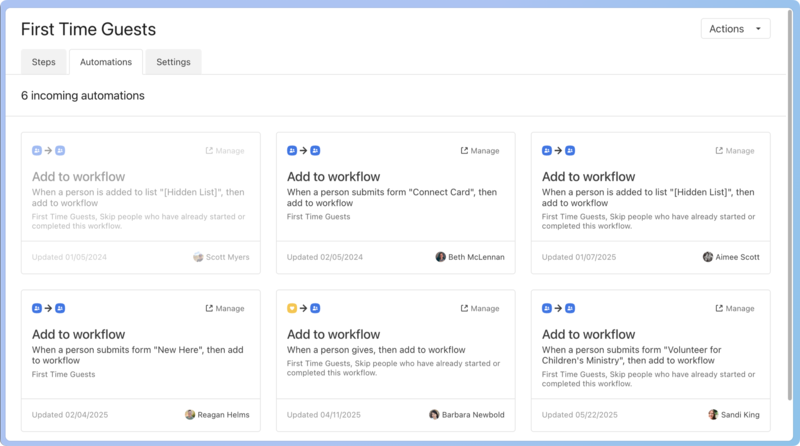
You can set up automations that add or remove cards and complete steps in your workflow. The workflow's Automations tab will show you all incoming automations.
The product in which the automation was created, and other details about how it was made, will be shown, which can help you track down the culprit if people are getting added to a workflow multiple times, even when the Skip this step in some conditions option is enabled when editing the workflow.
Handle a failed automatic action
If an automatic action fails—for example, if the email template it was configured to send has since been deleted—the card stays in the step instead of advancing, and it's assigned to that step's backup assignee. Follow these steps to resolve the error:
Find and fix the underlying issue. For example, restore the deleted template or choose a different one.
Select the affected cards in the step.
Select the ✏️ bulk actions option.
In the pop-up, select the correct application and action to perform.
Export a CSV report for a workflow
People with permission to export CSVs and reports can generate a workflow report that contains the following information on the 10,000 most recent cards:
Person details: Full name and profile URL.
Card details: Card URL, date added to the workflow, and total days in the workflow.
Current progress: Current step, number of days in the current step, and card status (active, overdue, or snoozed).
Assignee info: Current assignee and their profile URL.
Follow-up context: Number of days overdue (if applicable) and snoozed-until date (if snoozed).
Select the Workflows page from the top navigation.
Select the workflow you want to generate a report for.
Select CSV Export in the top right.
(Optional) In the pop-up, select the Include completed cards checkbox if you want to see how long it took people to move through the workflow.
Select Generate and download.
Duplicate a workflow
Select the Workflows page from the top navigation.
Select the Actions dropdown to the right of the workflow you want to duplicate.
Choose Duplicate from the dropdown.
The new workflow will have the same steps, descriptions, step settings, campus, and category as the original. It will have the same name plus (copy).
Cards and collaborators from the original workflow are not copied.
Automations from the original workflow do not add people to the new workflow. You must create new automations to add people.
Archive a workflow
Archiving a workflow removes it from the list of workflows. Access archived workflows by selecting the Archived workflows option in the Filter menu.
Select the Workflows page from the top navigation.
Select the Actions dropdown to the right of the workflow you want to archive.
Choose Archive from the dropdown.
To unarchive a workflow, select Unarchive workflow from the Actions dropdown.
Delete a workflow
Select the Workflows page from the top navigation.
Select the Actions dropdown to the right of the workflow you want to delete.
Choose Delete from the dropdown.
Select Delete workflow in the warning pop-up.
All information from the cards is deleted when the workflow is deleted, but any emails sent or notes added to profiles through this workflow remain on those profiles.
Recover a workflow
You can recover workflows that don't have a manager or have been deleted.
Unmanaged workflows
If a workflow doesn't have a manager, it cannot be edited until someone is assigned to manage it. Organization administrators can make themselves managers of these unassigned workflows.
Select the Workflows page from the top navigation.
Select the Unmanaged option at the top of the page.
Select a workflow from the list.
Select Add manage permissions for yourself on the left.
Deleted workflows
You can recover a workflow within 30 days of deleting it. If it's been more than 30 days, you'll need to contact Planning Center Support, who can recover workflows within 90 days of deletion.
Select the Workflows page from the top navigation.
Select Filter at the top left.
Select the Recently deleted option in the Status section.\
Select the Actions dropdown to the right of the workflow you want to recover.
Select Recover workflow.
When you recover a workflow, all the workflow steps and cards, along with their history and assignments, are restored.