Manage notifications
You'll receive a notification whenever you're added to a workflow, form, or note. Read on to learn how to manage notifications, as well as add other people to a notification list.
Notifications
Everyone who can log into Planning Center can view their notifications across all Planning Center products by selecting the 🔔 bell icon in the toolbar. Selecting a notification takes you to that product. Or, if you select the three-dot button next to the notification, you can either mark it as read or add it as a task in your To do list. You can filter your notifications by selecting Show read or Hide read at the top of the toolbar.
Workflow notifications
You'll receive an email notification when a card has been assigned to you, which will include a link to the workflow and list the step with the new card. All your new cards are bundled into a single email, sent after no new cards have been assigned to you for ten minutes.
You'll also receive a one-time notification when a card becomes overdue.
Important
You won't receive an email notification if you assign a card to yourself.
Notifications are only sent when cards are assigned from someone else, as a result of an automation, or due to the end of a snooze.
Turn off notifications
By default, workflow notifications are turned on for everyone. To turn them off, you can unsubscribe from any notification email or manage them on the Workflows page.
Select the Workflows page from the top navigation.
Select Notification preferences in the left sidebar.
Deselect the Send me an email when new cards are assigned to me option.
Select Save.
Undelivered emails
View a list of the emails sent to a person through Planning Center, including those that are undelivered, from the Communication tab on their profile.
Search for a person's name using the 🔎 search icon in the top right.
Select their profile from the results.
Select the Communication tab on their profile.
Open an email highlighted in red to see if it failed or was dropped. You can hover over the failed indicator to view the error code.
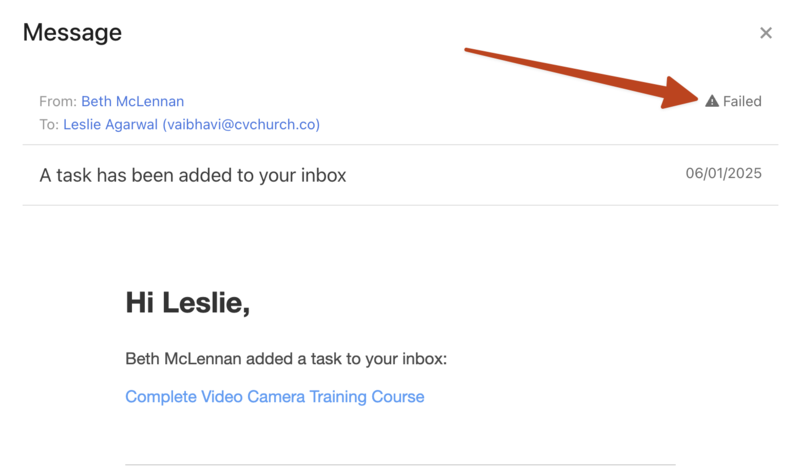
If someone mentions they didn't receive an email, or you see that an email failed to be delivered to them, check in Planning Center People to make sure their email address isn't blocked.
If they still do not receive emails after unblocking their email address, contact support for additional troubleshooting by selecting the question mark (?) in the toolbar in Planning Center.
Form notifications
If you're on the notification list, you'll receive an email each time a form is submitted.
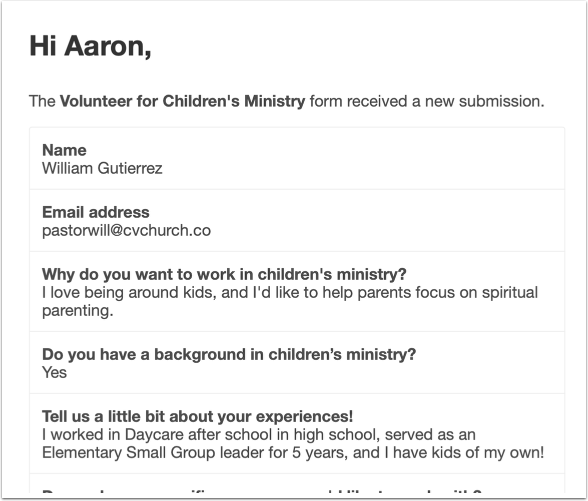
Add people to the notification list
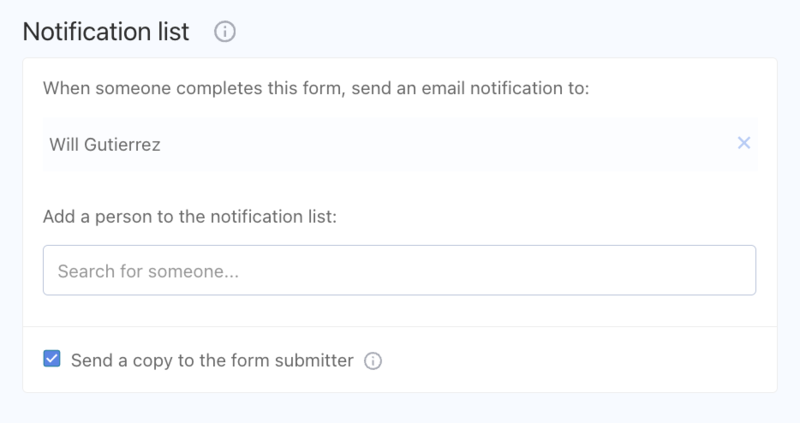
From form settings, you can add people to the notification list so that they receive an email each time someone submits that form.
Note notifications
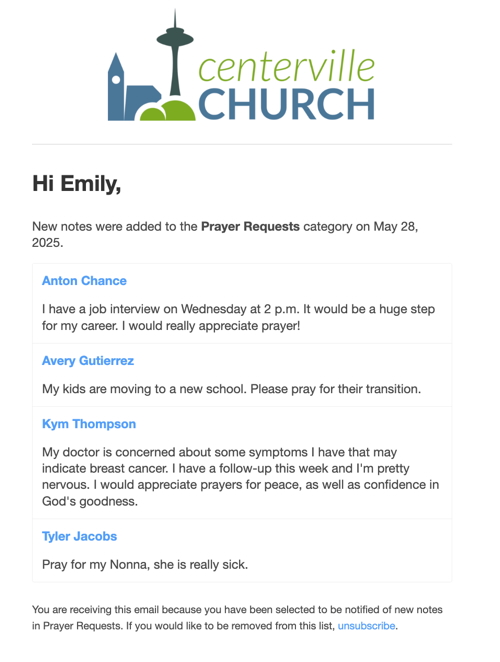
If you're on the notification list for a specific note category, you'll receive a daily email containing all new notes. This email is sent at 6 a.m. in the organization's time zone.
Add people to the notification list
From the note category, you can add people to the notification list so that they receive an email with all the notes added to the category.
Select the Overview page from the top navigation.
Select the Profile notes tab.
Select the All categories button under Note category.
Choose Manage note categories from the dropdown to open the Category settings page.
Use the search box in the Notifications section to add someone to the notification list.