Follow up with people
Create a process for your welcome team, deacons, or elders to follow up with people. You can choose to allow anyone to follow up with any person, or assign specific team members to specific people.
Important
In order for the team members to follow this process, they will need to be given permissions in People.
If you don't have a preference about who follows up with people, follow these steps.
Create a workflow and give access to people who will be following up.
Add people to the workflow.
Create a list of people who have already been through the workflow.
Create an automation to send the list people to the assigned workflow.
Create a workflow
Create a workflow with the steps you want people to walk through when they follow up with others.
Tip
If you want to make sure cards are distributed evenly, you can create the first step as Assign Card and make the default assignee someone who will assign people to each card that comes through.
Give Edit all cards permissions to anyone who will be following up with people.
Each step must have a default assignee, so choose someone to assign the step to.
Add people to the workflow
You can add people to a workflow individually or from a list in bulk.
Individually
From the Workflow, select Add someone to workflow, and then enter the name of the person.
In bulk
From a list or in the People tab, use bulk actions.
Set the Action dropdown to Add to workflow.
Set the Workflow dropdown to the workflow you just created.
Create a list
After you've added people to your workflow, create a list that will make sure those people are still followed up with, even if they've been through the process before.
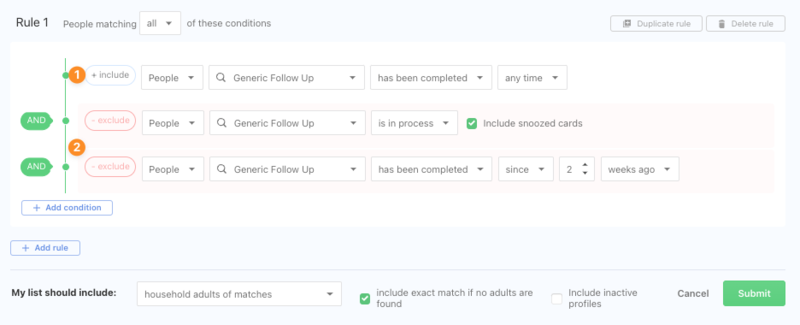
Find people who have completed the workflow already.
Exclude people who are already in the workflow and who have already completed it in a specific time frame.
Tip
If you want to reach out to households instead of individuals, set Results will show to just the primary contact.
Set automation
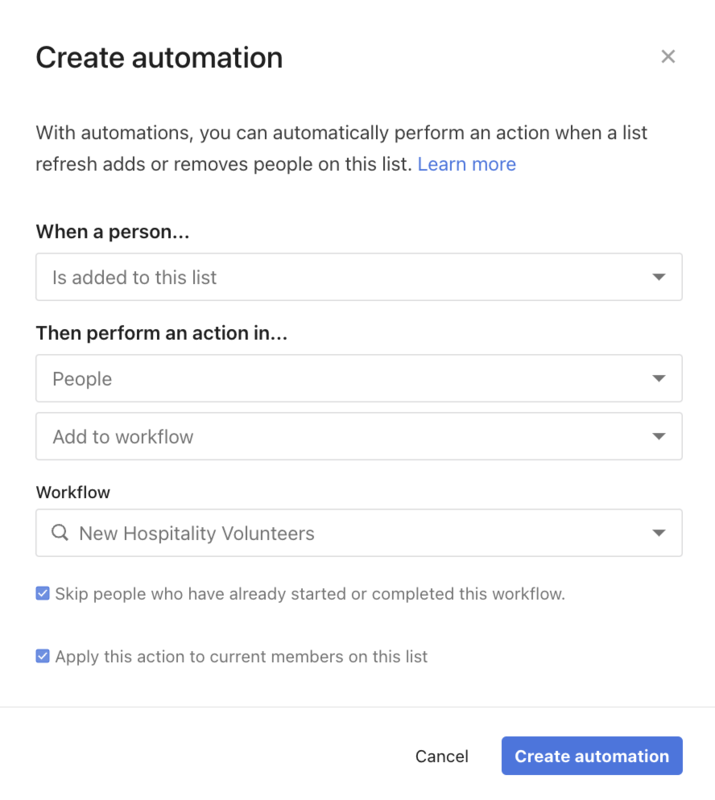
From the list, create an automation to add them to the appropriate workflow.
Tip
In order for people to go through the workflow multiple times, uncheck the box to Skip people.
To ensure this automation runs regularly, enable auto-refresh in the Settings.
If you are assigning people to a designated contact person, like an elder, deacon, or someone from a Welcome Team, follow these steps:
Set up custom fields to assign people to.
Create a workflow for each team member.
Create a list of people to assign.
Create an automation to send the list people to the assigned workflow.
In this case, you'll create a list and workflow for every caller.
Set up custom field
Set up a custom field for the people who will be following up with others.
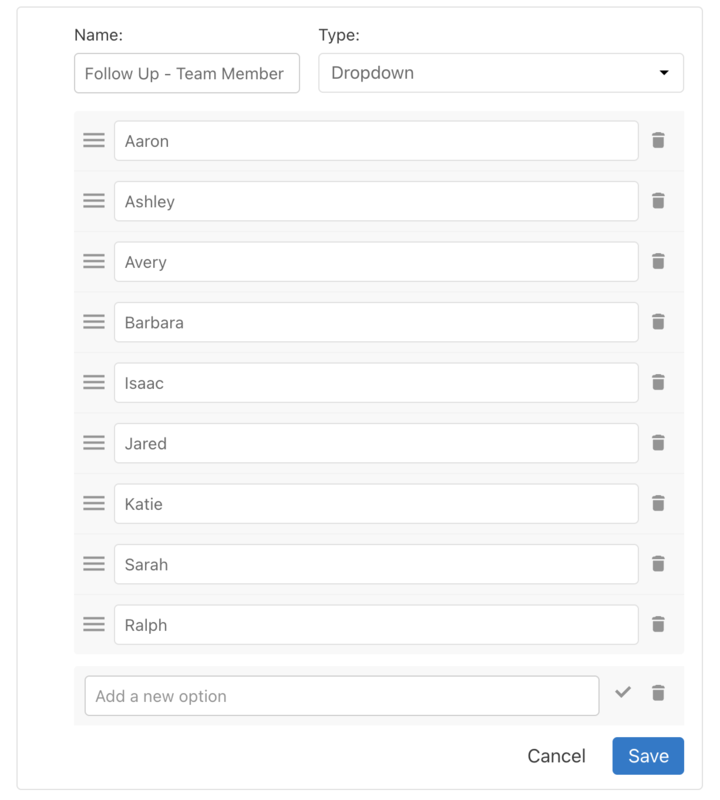
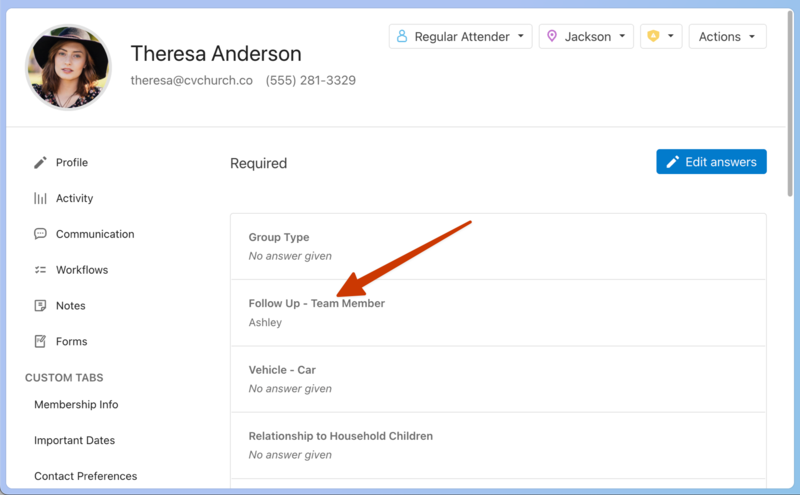
On a person's profile, assign them to a contact person who will follow up with them.
Create a list based on attributes of who will be contacted.
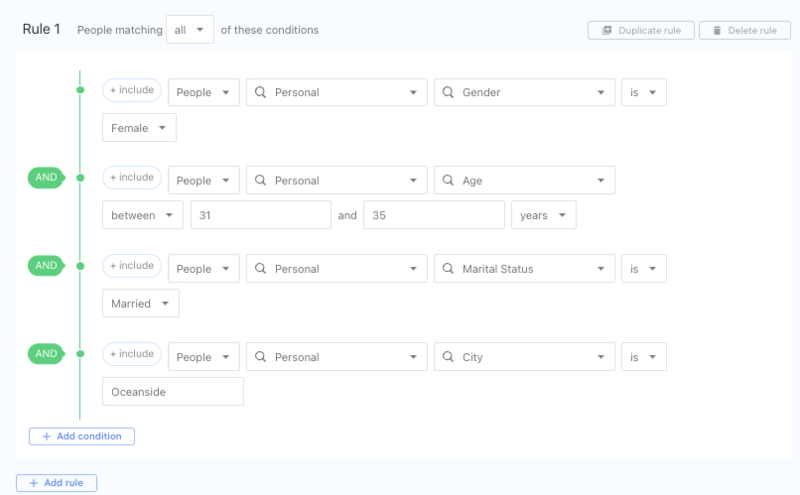
Create an automation to assign the results to the appropriate contact person.
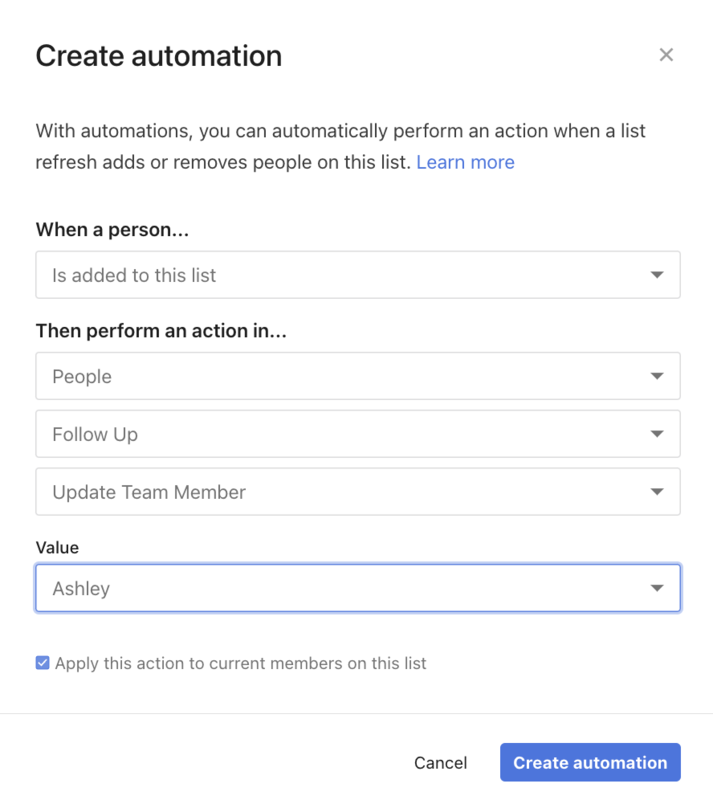
Create workflows
Create workflows for each individual contact person in a category of their own.
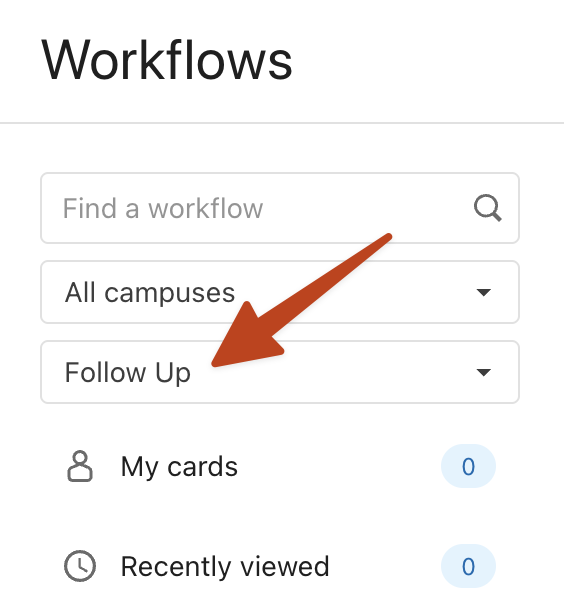 |
Each workflow needs to be accessible to the contact person, so set the visibility and defaults appropriately.
Give permission to the contact person to Edit assigned cards.
Add the contact person as the default assignee.
Create a list for contact person
Create a list to find those who are not in the workflow.
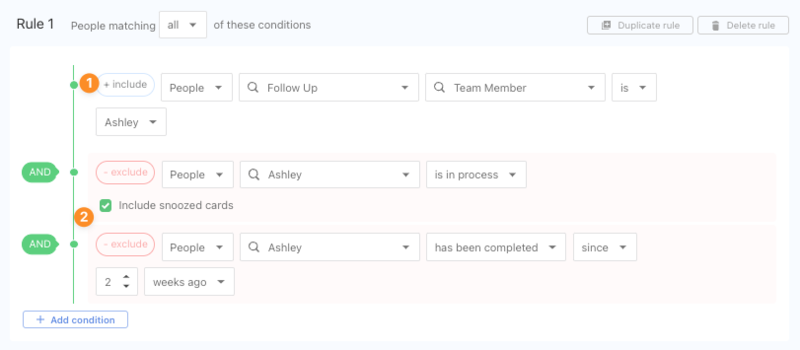
Find people who are assigned to the contact person already.
Exclude people who are already in the workflow and who have already completed it in a specific time frame.
Tip
Once you've created your list, you can duplicate it to quickly create the next contact person lists by clicking the Duplicate list button.
Set automation to contact person
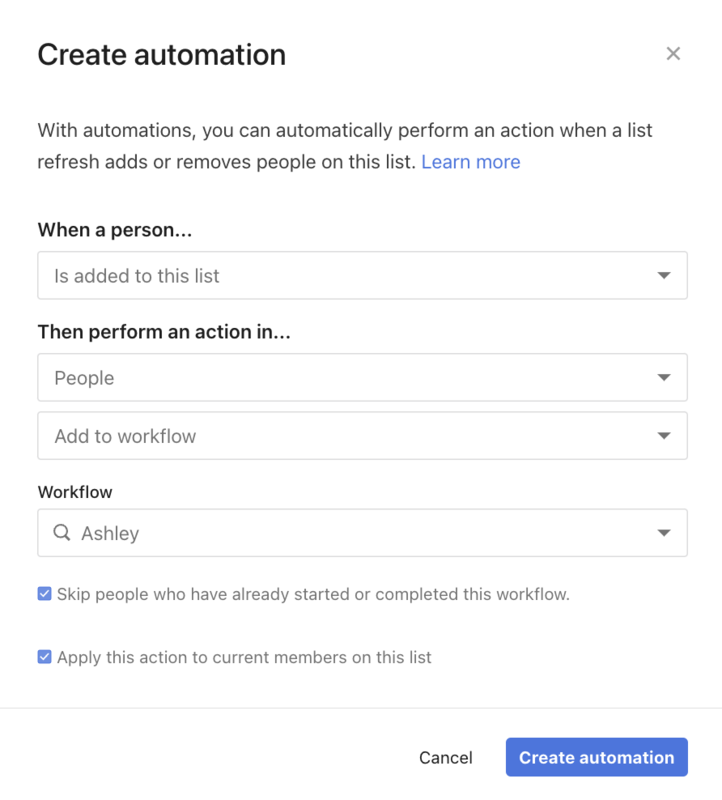
From the list, create an automation to add people to the appropriate workflow.
Tip
For people to go through the workflow multiple times, uncheck the box to Skip people.
To ensure this automation runs regularly, enable auto-refresh in the Settings.