Tracking engagement
Many churches have a group of classes they'd like their people to attend as a next step for serving, membership, or just knowing about the church. Follow the steps below to track when someone attends those classes to help them take the next step!
Track attendance dates
Before the classes begin, create a custom tab with fields showing the date of when someone completes those classes.
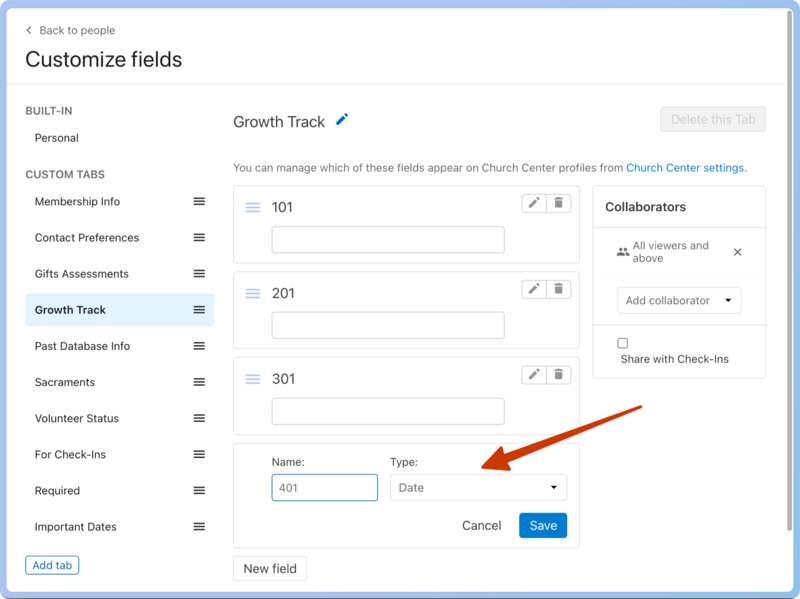
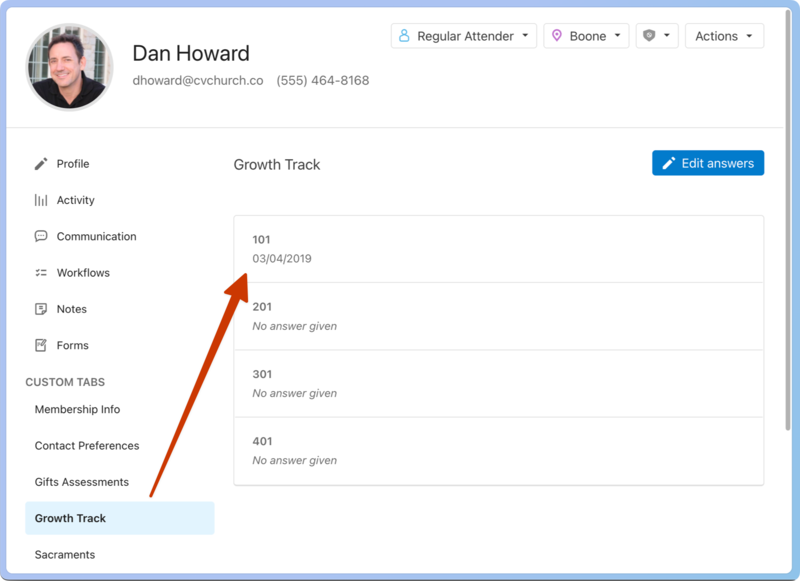
As people attend the classes, the automations below will fill in the date on their profile.
Take attendance
Since these classes rarely have the same people in them, the best way to track their attendance is through a Check-ins event.
Tip
If you use Registrations for people to sign up for Growth Track, here are the steps to take attendance.
You can create a location for each class to know when a person attended which class.
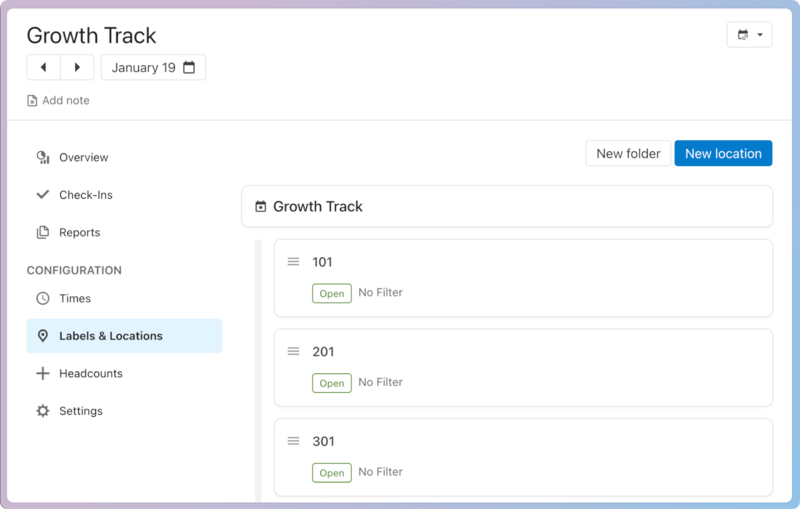
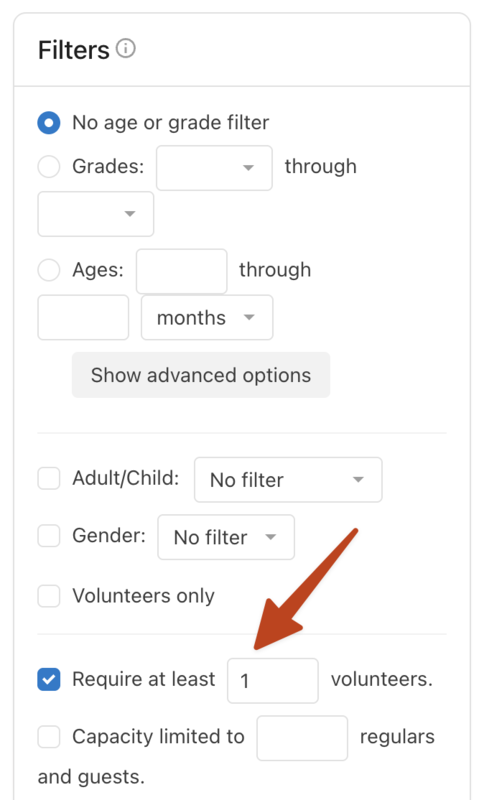
If you require at least one volunteer to be checked in, the location will not be available unless the person leading the class has checked in, which is helpful if the classes are only on certain dates.
Add dates to each field
Once people check in to the event, you can automatically add that date to their profile with a list.
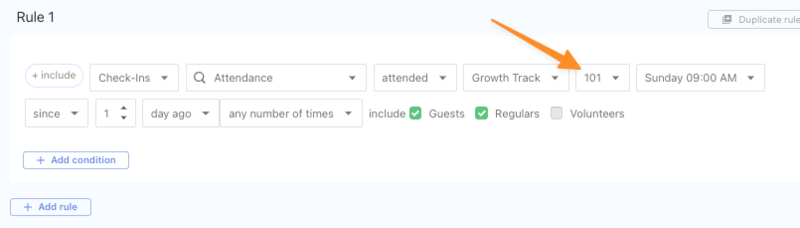
Create a condition that shows all the people who attended the class, based on the location they checked in to.
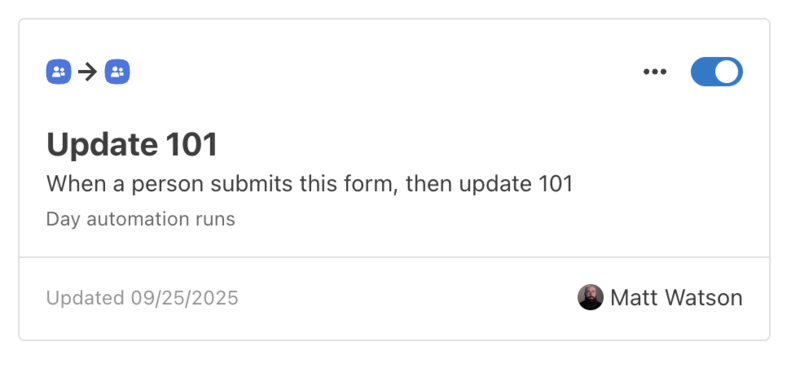
Create an automation that will update the custom field to the date the automation runs.
Set the list to auto-refresh every night, so the automation will run when a person is added to the list.
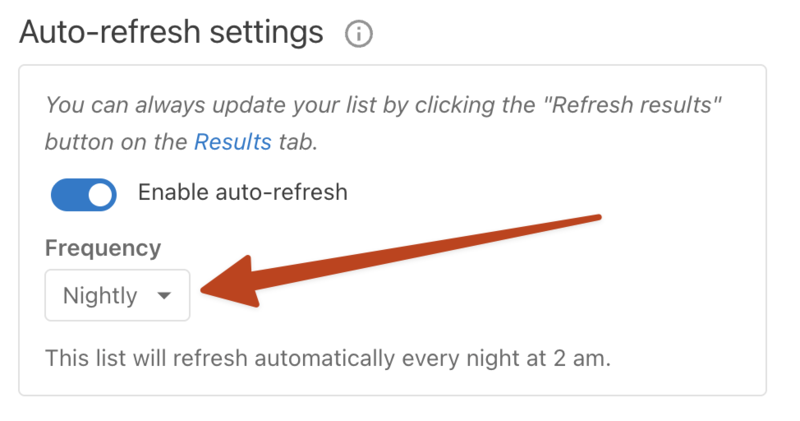
Because the list refreshes at midnight every day, the date on the field will actually be the day after they attend the class.
Duplicate the list for each class using the duplicate icon, and then update the conditions and automations to match each class.

Create a category to find lists
Create a Growth Track category to see all the lists associated with Growth Track.
Select the Lists page from the top navigation.
Select the All categories button in the left sidebar.
Choose Manage list categories from the dropdown.
Type 'Growth Track' in the Type your category name... text field.
Select Create category.
Select Done.
Add lists to this category in the Filter settings section of each list's Settings tab.
Add to workflow upon completion
Once a person has completed all the classes, they can be added to the appropriate workflow, which will take them to their next step.
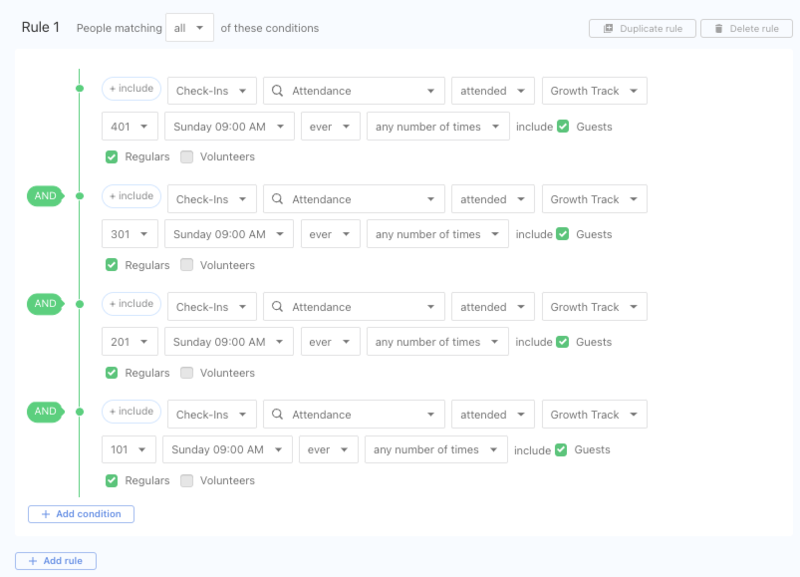
Create a list showing people who have attended all the locations.
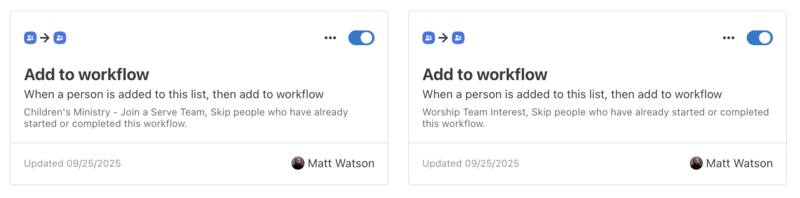
Create an automation to add those people to the appropriate workflow based on the next step you want them to take.
Tip
Check the box to Skip people who have already started or completed this workflow, so people aren't added to it twice.
After you've gone through these steps, people who attend your Growth Track classes will be added to a workflow that lets you help them take the next step!