Send reminder emails
If you want to remind your group members about an upcoming event and ask them to RSVP, send them a reminder email from the event page!
Important
Emails are sent to the primary email address, except for Account settings. Account settings sends an email to every email address listed on an organization administrator's or billing manager's profile.
Send automatic reminder emails
Set up reminder emails to go out automatically up to 10 days before your events! You can choose an event reminder setting when creating or editing an event, or when managing your group's event default settings.
Important
You can only send one automatic reminder email per event.
Send a manual reminder
To send a manual reminder email for any upcoming event:
Select the Groups page from the top navigation in Groups.
Select a group from the list.
Select the Events tab from the left sidebar.
Scroll down to the event for which you'd like to send a reminder.
Select Send now in the event's Reminder column to immediately email all group members, regardless of RSVP status.
Important
Manually sending a reminder overrides and cancels any scheduled reminders.
Add a custom message
To send out a manual reminder email with a custom message:
Select the Groups page from the top navigation in Groups.
Select a group from the list.
Select the Events tab from the left sidebar.
Select the event for which you'd like to send a custom message.
Select Send now in the Reminders section.
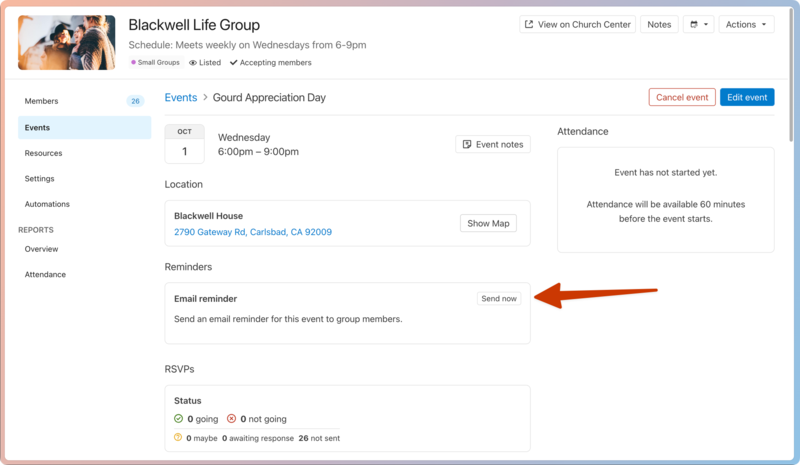
Enter your message in the popup.
Select Send to email your members. If the event's settings are set to Ask for RSVPs, the email will include RSVP options.
Remind specific members
After sending a scheduled or manual reminder email, you can choose to contact specific members again.
Select the Groups page from the top navigation in Groups.
Select a group from the list.
Select the Events tab from the left sidebar.
Select the event for which you'd like to send a custom message.
Select Options... in the Reminders section. This button only appears if you've already sent a reminder email for this event.
In the popup, choose who should receive another reminder email.
Enter your message in the popup.
Select Send to email the selected members. If the event's settings are set to Ask for RSVPs, the email will include RSVP options.