Filter and sort groups
Sometimes, you need to see specific groups to spot trends or view reports, events, or resources. You can filter groups and then sort them based on the information you need most.
Important
The filters you select will stay applied as you switch between the Groups, Calendar, and Reports pages using the top navigation.
Filter groups
You can apply filters on the main Groups page:
Select the Groups page from the top navigation in Groups.
Select Filter in the top left of the group list to open the filter sidebar.
Choose whether to filter by General categories or by Tags.
If you chose the General tab: Apply filters by group type, campus, status, meeting schedule, Church Center visibility, and enrollment.
Group type: Choose a group type from the dropdown to see the view for just that group type. The results on the page will only reflect the selected group type.
Important
Administrators can filter by all group types, but group type managers can only filter for group types they manage.
Campus: Check the boxes to view groups for a specific campus or multiple campuses. Check the All Campuses box to view groups that haven't been assigned to a specific campus.
Status: Active groups are selected and shown by default, but you can choose Archived groups or All groups.
Has meeting schedule: Choose to show groups based on whether they have a meeting schedule. The Meeting Schedule column doesn't appear unless you have checked that box in the column dropdown.
Church Center: Not all groups are shown on Church Center. Filter the page to see which ones are listed or unlisted. To bulk update, check the box next to the relevant groups and use the ✏️ edit icon to select a different visibility setting.
Enrollment: Show groups based on enrollment. To bulk update, check the box next to the relevant groups, and then use the ✏️ edit icon to change the enrollment status.
If you chose the Tags tab: Use the checkboxes to choose which tags to include in your filter. Only groups with the selected tags will appear in the list. Tags can also be used along with other criteria to filter lists of group members.
(Optional) Select the X next to a filter in the filter bar to remove it from your view. To clear all filters, select the X in the far right of the filter bar.
Sort groups
You can sort groups on the main Groups page by using the different column options.
Select the Groups page from the top navigation in Groups.
Select the three vertical lines icon in the top right.
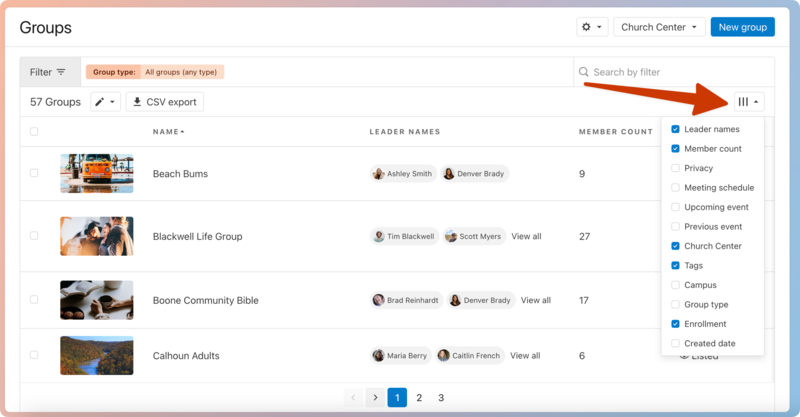
Check the boxes next to the columns you'd like to include in your view.
Select a column name at the top of the list to sort the group list by that column. By default, groups are sorted alphabetically by group names.
Tip
Sort your groups using the Meeting Schedule column to ensure that all groups have entered their meeting schedule. If they haven't, you can select Add meeting schedule in the column to add a schedule for that group.
The meeting schedule is shown on the public page and allows Groups administrators to create bulk events. Newly created events for that group will default to that date and time set here.