View the People page in Groups
The People page in Groups shows administrators how many active group members there are. You can filter the page, email the list of members, or print/export the group list as a PDF or CSV file.
Select the People page from the top navigation in Groups to view a list of group members in your account.
Each person's name and contact information are listed, as well as the groups they belong to. Any groups a person leads are highlighted.
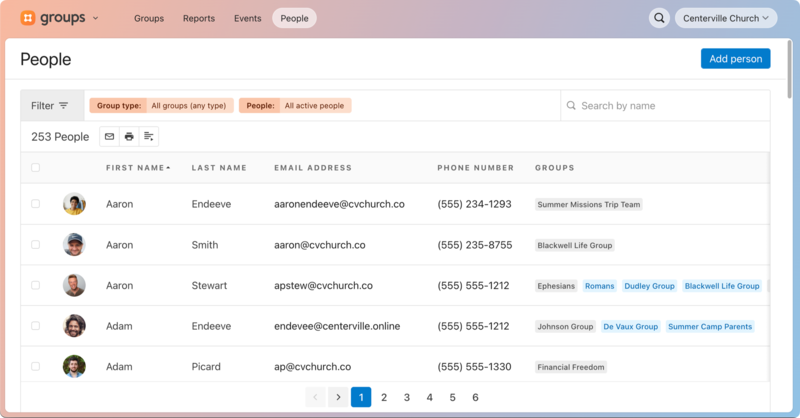
Select Filter in the top left to open the filter sidebar. Switch between the General and Tags tabs, depending on what types of filters you want to apply.
By default, the All groups (any type) and In an active group filters are applied. This shows how many people count toward your plan limit.
Use the dropdowns and checkboxes to choose which filters to apply to the list. You can filter by group type, campus, profile status (active or inactive), role, permissions, or tags.
Tip
If you need to follow up with removed or past members, select the Only in an archived group Status filter to view anyone who was in an active group at some point but is not currently.
Use the 🔍 search box in the top right to search for someone by name.
Use the icons at the top of the list to ✉️ send an email, 🖨️ export a PDF, or ⬇️ download a CSV file of everyone on the list.
Select a person's name to open their profile, where you can see their groups, communication log, and permissions.