System logs
When something changes in your Giving database, the change is tracked in the system logs. Review the logs from time to time, or if you have concerns about something within Giving.
Select Manage in the top navigation.
Select the Logs tab on the left.
Select a specific log to expand it and view details of the logged change.
Each log entry shows:
Date the event occurred.
Who made the change. (Either a system change, administrator change, or donor change.)
Type of change: creation, update, or deletion.
Additional details of the change, such as donor information or donation details.
Donation adjustment logs
When a donation has been edited, a blue bar appears next to the donation on the By donation report and a donor's profile.
To view more information about an edited donation, select the donation from the list.
 |
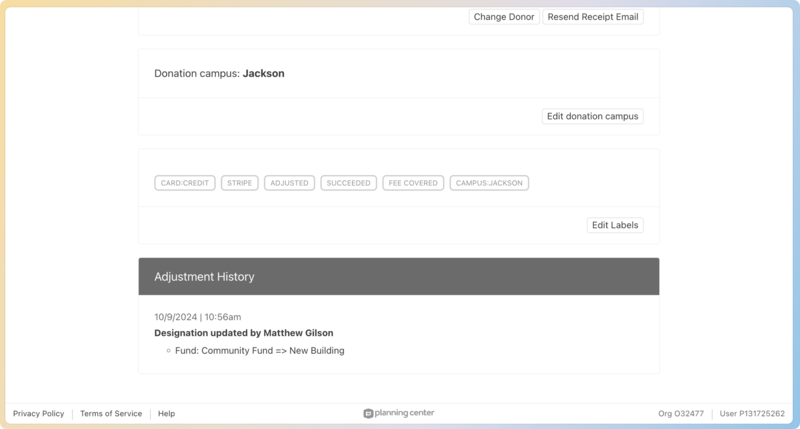
At the bottom of the donation, you'll see the Adjustment History, which shows the person who made the change, and the time, and the details of the change.
 |
User logs
Giving administrators can view the activity of a specific person from the User Logs tab of their profile in Giving. The table on this tab provides an overview of a person's activity within batches, donations, funds, and labels. These logs are also included in the overall system logs.