Check in with a form
If you'd like people to check in, even if they're not physically on campus, you can create a form for them to fill out, and then check in individuals using a form automation or check in households using lists.
Important
This process requires access to People. If you don't have access, ask another administrator to take these steps or to give you permission.
Create a form
To find out who attended your service, create a form with a dropdown or checkbox field to allow people to mark their attendance.
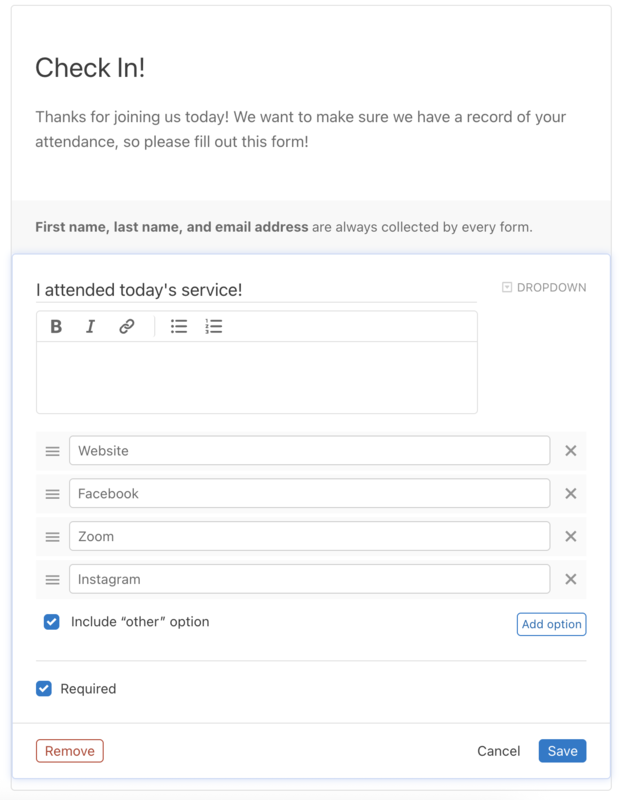
You could also add more fields to find more information. Here are some examples:
Dropdown: Who watched the service?
Myself
All Household Adults
All Household Members
Dropdown: What time did you watch the service?
9:00am
11:00am
5:00pm
Check in individuals
If you want each individual to fill out the form, make sure to communicate that! Set up a form automation to check in people who fill out the form.
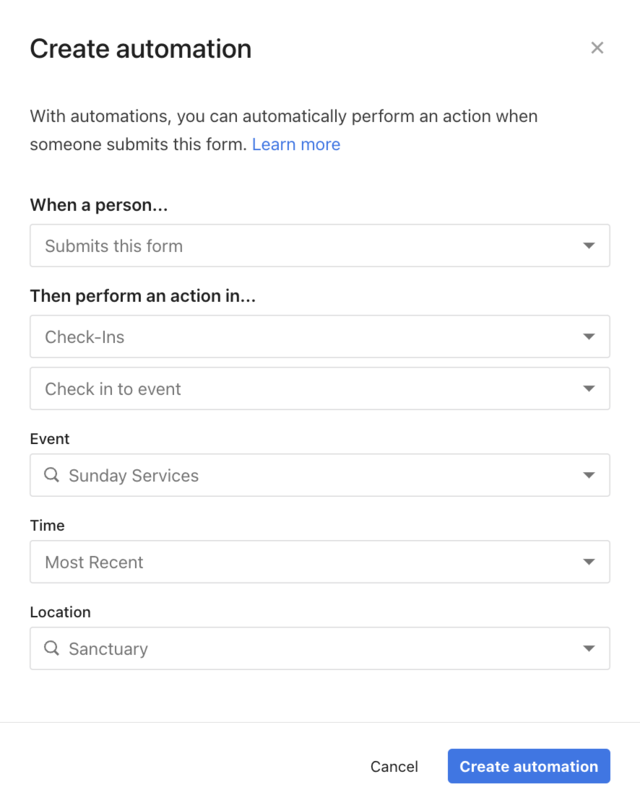
Form automations run when the person fills out the form, so the Most Recent option checks the person into the next upcoming time based on when they submit the form.
Check in households
If you want just one member of the household to fill out the form, create a list to check in the rest of the family members, and then check them into the correct time.
Create a list
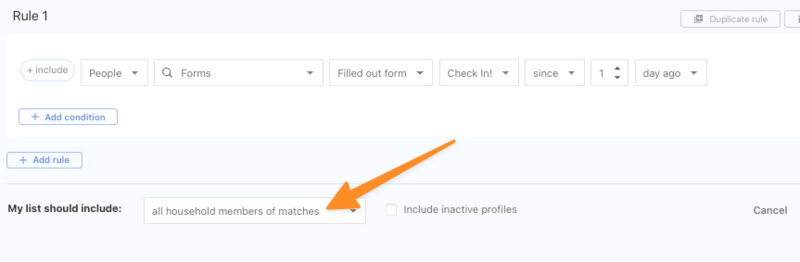
To find family members of the person who filled out the form, create a list with a rule looking for people who filled out the form, and choose all household members.
How many times are in your event?
You will use a different feature to check people into the correct time. Expand the number of times you have in your event to take the right next step.
From the list, go to the Automations tab, and create an automation to check people into the correct event, time, and location.
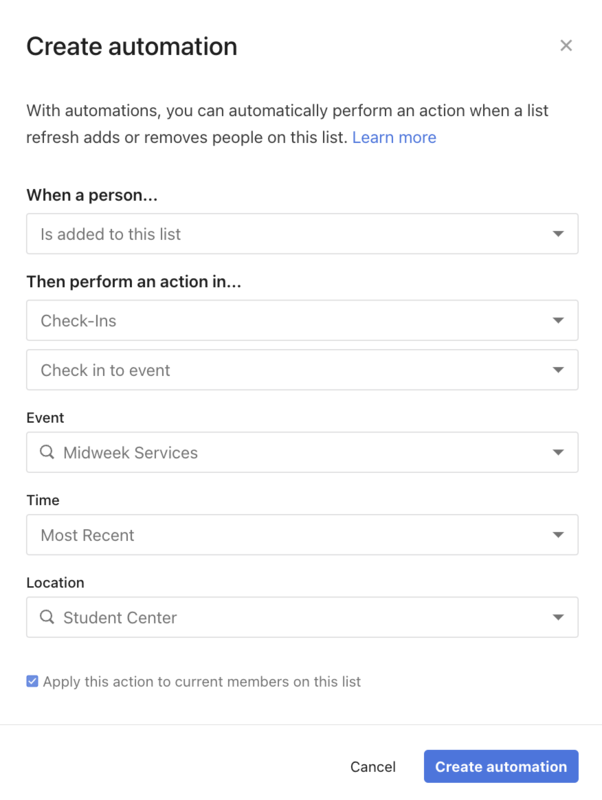
Set the list to Auto-refresh every night from the List settings, and it will check people in for you to view the next morning!
Tip
If you want to check people in manually, you can use the bulk update button from the list and check in everyone at once!
If you have multiple times in your event, you can use the bulk update button to check people in at the end of each time.
Important
Why can't I just use an automation?
List automations run at 2am in your time zone, and they will check people into either a selected time or the most recent time, which will be the last time of your event. If you use an automation, you will not be able to specify a time to check people into.
From the Results tab, select the ✏️ bulk edit icon at the top of the page.
Use the dropdowns to check people into the correct event, time, and location.
Duplicate the list for other times
For any service after, duplicate the first list to add a condition that excludes people who checked into the first time.
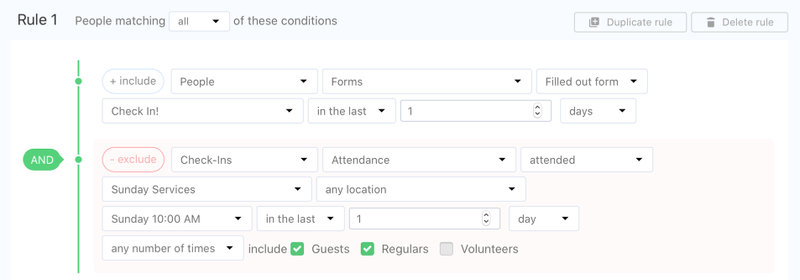
Keep creating lists that exclude times, so people are checked into the correct time. Then, run the bulk update at the end of each service time to check people in!