Print photo permissions on label
Some people cannot have photos taken of them. Use an option or a custom field to gather this information, and then add it to a label to let your photographers know who should not be photographed.
Add as an option
If the parent is accustomed to checking a box when checking in their child, add No Photos as an option that they can manage at a station.
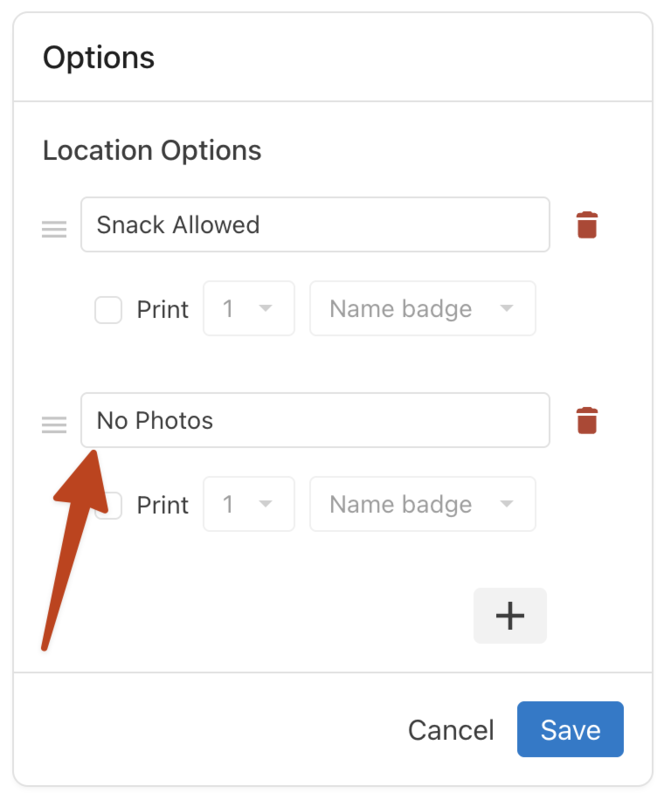
After they choose this option once, it will remain selected until they deselect it.
Add a custom field
If you want to permanently assign the No Photos option, create a custom field in People, and add that custom field to your label.
Create a custom field
In People, you can create custom fields that are saved to a person's profile.
Important
This step requires access to People. If you don't have access, ask an organization administrator to take these steps or to give you permission.
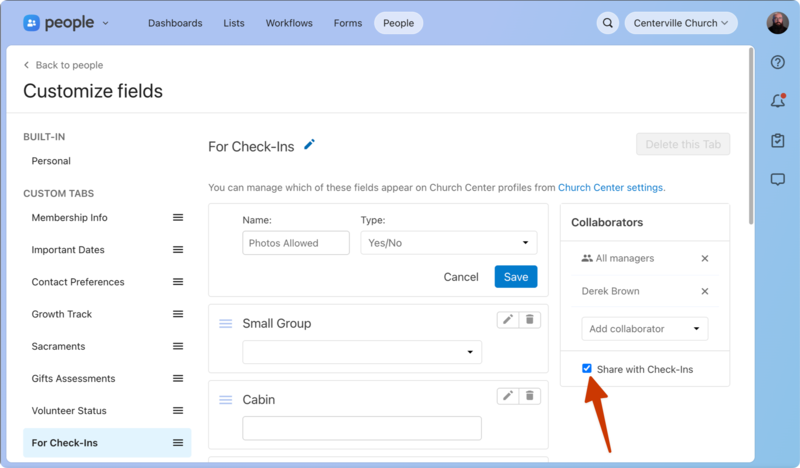
Create a Yes/No custom field in People.
Ensure Share with Check-Ins is enabled for the tab, allowing you to select a field from this tab when creating a label.
Once the custom field is created, you can answer the question on a person's profile in People, or send a form to people with the custom field listed in the form.
Add field to label
Edit a label to add a People block with your Photos data field.
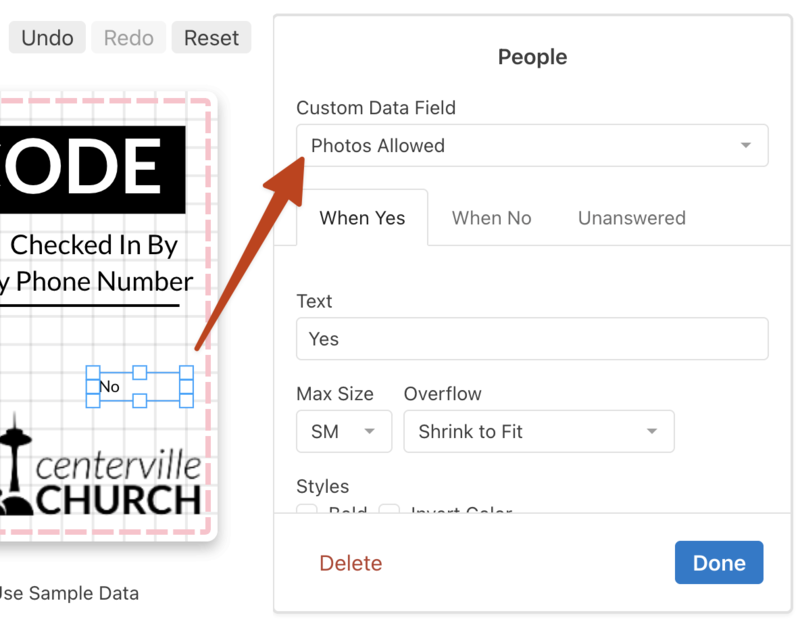
Fill in the text for Yes, No, Unanswered, and it will show on the label when the person checks in.
To remove the section for everyone, delete the field from the label.
To remove the answer for one person, change the answer on their profile in People.