Manage event requests
Now that you've created an event request form, you need a workflow to manage event requests as they come in. This article explains the typical workflow for approving event requests and the different ways you can view and manage pending events.
Event request workflow
Event requests have multiple phases and require collaboration between your requester, event owner, and approvers. Understanding this workflow ensures that all the details are communicated to the right people at the right time.
Here are the steps that typically need to happen in the event request workflow:
The requester submits initial information about the event's needs on the event request form.
The event owner (or another event administrator) applies the requested rooms and resources to the pending event, which then sends a request to the corresponding approval groups.
The event must then receive two levels of approval from the corresponding approval groups:
Room and resource approval: Once rooms and resources are applied to the event, the assigned approval groups decide whether those rooms or resources can be reserved for the event. If a room or resource is rejected, the event itself can still happen with different rooms or resources.
Event-level approval: The form's approval groups grant final approval for the requested event. This determines whether the event can happen at all. Form approvers can approve or reject a request at the event level using the banner at the top of a pending event page.
Important
If multiple approval groups are assigned to the event request form, the event remains pending until all approval groups have responded.
If any assigned approval group rejects the event, the entire event is automatically rejected and must be resubmitted.
To learn more about the approval process, check out the article on how to approve or reject requests.
View event request submissions
You can view all of a form's related event requests on the Submissions tab:
Select the Forms page from the top navigation in Calendar.
Select a form from the list to open the individual form page.
Select the Submissions tab to review requests related to this form:
Use the dropdown in the top left to filter between Pending,Approved, and Rejected requests.
Use the column selector (three vertical lines icon) in the top right to choose which submission information to display.
Select View submission in the far right column of an event request to view the original form submission details.
Select an event name to open the pending event page. The event owner, managers, and event administrators can reschedule and make other edits to a requested event before or after approval.
Warning
Once a request is rejected, the pending event is deleted. You can view the original form submission details by using the Rejected filter, but the pending event page cannot be viewed or recovered.
Event request form feeds
You can also view pending events on the Events page by toggling the Event Requests feed in the filter menu. Only forms with pending requests appear as feed options.
Event request form feeds are automatically toggled on for the default event owners and approvers, so pending events are included in their calendar view and filtered out for everyone else until they're approved.
As requests come in, they are added to the form's feed for the default event owner and members of the assigned approval group.
Manage a pending event page
Whenever a requester completes an event request form, a pending event page is created. You can open pending events in a few different ways:
Email Notification: If you're an event owner or form approver, you'll receive an email notification once a form is submitted. Select View Request from the email to open the pending event page.
Approvals Tab: Select the Events page in the top navigation, then go to the Approvals tab. Choose an event from the Event Requests section to open the pending event page.
Form Submissions Tab: Select the Forms page in the top navigation, then choose a specific form. Select an event request title from the list to open the pending event page.
You can take the following actions on a pending event page to move the request along:
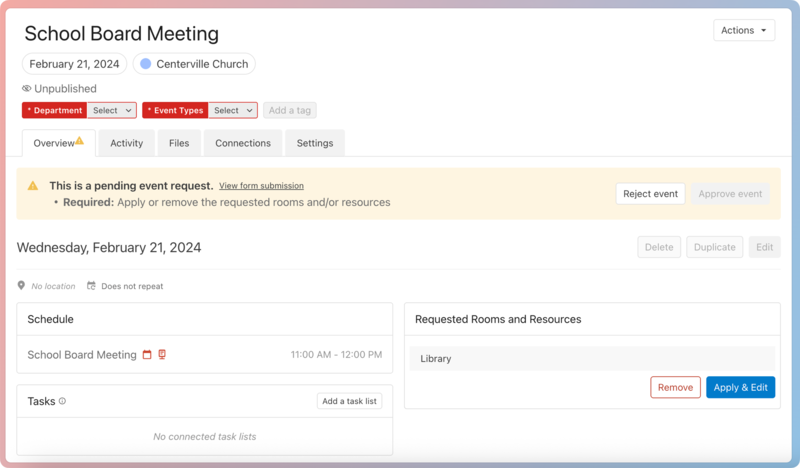
Review submission details: Select View form submission in the top banner to review the original form submission details. Check if there are any setup/teardown times or other relevant notes on the submission, and then add those details to the event.
Apply rooms and resources: If the requester selected rooms and resources on the form, you must select Apply & Edit in the Requested Rooms and Resources section to apply them to the event before it can be approved.
Until then, the requested rooms and resources are essentially in a "penciled-in" state. This allows you to make changes before sending official requests to the corresponding room and resource approval groups.
Important
Only event owners or people with event administrator permissions can apply rooms and resources to an event. The event request cannot be approved until the requested rooms and resources are applied.
Communicate with the requester: To ask for more details or suggest alternatives if the requested rooms and resources are unavailable, select the Activity tab to communicate with the requester. Take the following actions on the Activity tab:
Select Send email to communicate with requesters who don't have Calendar access. These requesters will interact via email, and their email replies will be added to the event activity feed.
Select Add internal comment to communicate with the event owner, managers, and approval group members in Calendar. The event owner, managers, and subscribers can respond with internal notes. You can edit your internal notes at any time.
Reject the event: If you already know this event can't happen during the requested times, you can select Reject event without applying the requested rooms and resources.
Important
If you only need to reject specific dates from a recurring event request (e.g., the event can happen every Tuesday except for February 3rd), you can choose to approve the request anyway and manually delete the event instances that can't happen.
Make sure to communicate this to the requester using the Activity tab.
Approve the event: Once the corresponding approval groups have approved the requested rooms and resources, you can give final approval for the event by selecting Approve in the top banner.
If you know this event can happen at the requested time, regardless of where it happens, you can approve the event before the rooms/resources are approved (as long as they've been applied). That way, the event can be published even while you work out the room and resource details.
Important
If multiple approval groups are assigned to the event request form, the event remains pending until all approval groups have responded.
If any assigned approval group rejects the event, the entire event is automatically rejected and must be resubmitted.