Set up chat
Use chat to keep members of groups and Services teams connected. Chat includes moderation and other safety features to help protect your teams.
Teams: Chat is on for all teams and plans. Only leaders and Services administrators (editor or higher) can start conversations.
Groups: Chat is off by default. Group administrators choose which group types can use it, and administrators and leaders choose whether it’s on for an individual group in the group's settings.
Organization administrators can:
Turn on direct messages: Direct messages are turned off by default. Once enabled, anyone using chat can send a direct message to people they share a group or team with.
Add moderators: Anyone can report an inappropriate message; set up moderators to review reports and take action. If there are no moderators, reports will go to the team or group leader.
Turn on direct messages
Allow anyone 18 or older to message up to nine people they share a group or team with. Teens can join a conversation if at least two adults are in it, but can’t start one. Anyone can opt out in their chat settings.
Select the product name in the top left corner of Planning Center to open the product switcher.
Choose Account settings at the bottom of the dropdown.
Select Chat in the left sidebar.
Toggle on Allow direct messages.
Add a chat moderator
Anyone in a chat can report a message for reasons like spam, scams, harassment, or sharing private information. Add trusted individuals to monitor the reports and take action.
Select the product name in the top left corner of Planning Center to open the product switcher.
Choose Account settings at the bottom of the dropdown.
Select Chat in the left sidebar.
In the Moderation section, search for and select the name of the person(s) you want to add as a moderator.
When a message is reported, moderators receive an email with the reason for the report, who reported it, who sent the message, and which conversation it came from. They can select View the reported message in the email to open the report in Planning Center admin pages.
Important
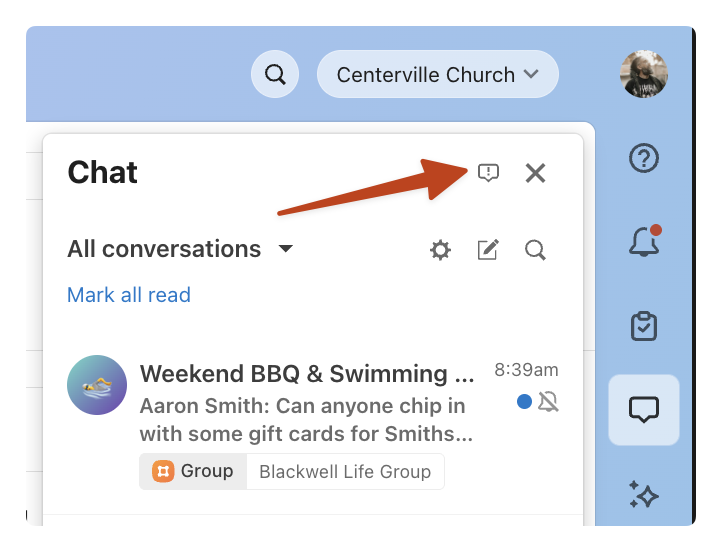
Moderators can select the ⚠ moderation dashboard icon at the top of chat in the Planning Center toolbar to see all reported messages, filtered by status. The moderation dashboard is only available on the web. It isn’t available in Church Center or the Services mobile app.
Review reported messages
The moderation dashboard shows every reported message in one place, so moderators can see what still needs attention and avoid duplicating another moderator's work.
From any product page, select the 💬 chat icon in the toolbar on the right side of the page.
Select the ⚠ moderation dashboard icon at the top of the chat window.
Select the Needs review dropdown and choose which reports to view. The number next to each status shows how many reports have that status.
Needs review: No moderator has acted on these yet.
Message deleted: Reports where a moderator deleted the message.
Conversation disabled: Reports where a moderator disabled the conversation.
Dismissed: Reports a moderator resolved without taking action.
All reports: Every report, regardless of status.
Select a report to see who sent and reported the message, the reason it was reported, and which conversation it came from.
Select an action:
Dismiss report to leave the message visible. Dismissed reports can be reopened later.
Delete message so no one else in the conversation sees it.
Disable conversation, which stops new messages for everyone in it. Participants see a note where the message field usually appears. Moderators can re-enable the conversation later if needed.