
Media player overview
If you have access to audio files, you can use the media player in Services Mobile to help you rehearse. Learn music more efficiently by pulling up a song's lyrics, chord charts, and notes while keeping the media player open.
Want to watch a video before you get started? No problem! This three-minute video will show you the concepts in this article in action.
Access the media player
You can open the media player from any plan page where you have file access:
Go to the plan page for which you're scheduled.
Select the Order tab at the top of the page.
Tap the ▶️ Play button in the top left to open the media player.
Switch between the tabs at the top of the player depending on which song information you want to see:
List: View a playlist of all audio and video files attached to this plan's songs. If you're assigned to lead a song, your profile icon appears next to the song name. Tap a song file to start playing it.
To skip a file in the playlist, swipe it to the left until you see Skip. The song will bounce back into place, and the file icon will be grayed out, removing it from your playlist. The app remembers your skip settings the next time you return to the playlist.
To add a file back to your playlist, swipe left on it again until you see Play.
Important
Songs you've skipped on the web media player will automatically be skipped in the app, and songs you skip in the app will show as skipped on the web.
Song: View the current song's cover art and song details. If you're assigned to lead a song, your profile icon appears next to the song name.
Lyrics: View lyrics that have been added to the current song using the Lyrics & Chords editor.
Docs: Open the current song's attached files, such as lyric PDFs, chord charts, or any other documents.
Notes: View notes that have been added to the current playing song item.
Use the media controls at the bottom of the player to pause, play, and skip through the songs on the playlist.
(Optional) Tap the metronome icon at the bottom of the player to open the built-in metronome.
Swipe down on the media player to exit.
If you exit the player while an audio file is still playing, the mini player appears at the bottom of the page.
Tap the mini player to open the full-screen media player.
Swipe across the song's progress bar to scrub (skip forward or backward) through the track.
To close the mini player, swipe left on the mini player and tap the red X that appears.
Audio files, YouTube, and Vimeo links are visible in the media player, but third-party links to Spotify and Apple Music are not included.
Tip
If you're using iOS 12 or higher, you can add a Siri shortcut to open the media player.
Loop audio
From the full-screen media controls, tap the 🔁 loop icon next to the song's timeline, and then drag the handles to the section of the song you'd like to loop.
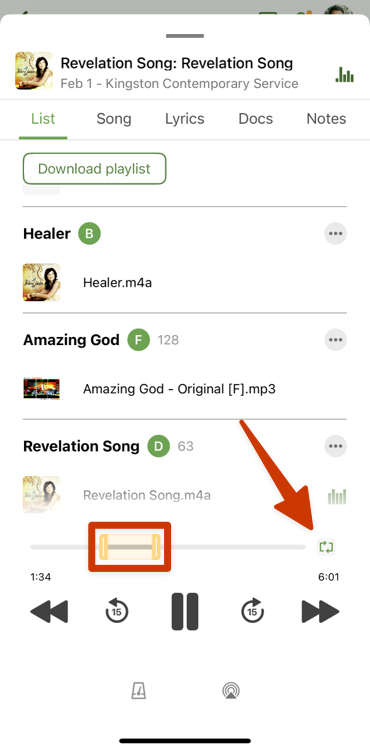
When you enable looping for that song in the future, the app remembers your custom looping positions.
Important
Depending on your device, looping may not be supported while your screen is locked or when you leave the app.
Download all files
Rehearsing music usually means listening to the same songs multiple times. You can download your music files to have them available if you won't have a good Wi-Fi connection when you need to play them later.
Go to the plan page for which you're scheduled.
Select the Order tab at the top of the plan page.
Tap the ▶️ Play button in the top left to open the media player.
Select the List tab at the top of the media player.
Tap the three-dot icon next to a song title to choose which file(s) to download for that song.
Tap a file name to choose whether or not to include it in the download. Files with a ✅ green check mark icon will be included in the download.
Tap Download playlist at the top of the playlist to store these files in your app.
Once you download the playlist, your audio files are temporarily stored (cached) in the app until 30 days after the date of the plan it was used for. However, you can manually remove downloaded files if you need space on your device.
Load another plan's playlist
If you're listening to a song from one plan and then open the media player in another plan, you'll see an option to load the playlist from the plan that you just opened.
Select the List tab at the top of the media player.
Tap the You've switched to a different plan banner at the top.
Tap Switch playlist to play the current plan's playlist, or tap Dismiss to keep listening to the previous playlist.
Play YouTube videos
If you've linked YouTube videos to your song arrangements, they will automatically play from the media player playlist when it's in full-screen mode.
If you exit the media player by returning to the plan, leaving the app, or locking your phone, videos will not play automatically. As your playlist moves from an audio file to a YouTube video, you'll hear a notification indicating that you must open the app to play it.
Apple CarPlay and Android Auto
If your vehicle has an Apple CarPlay or Android Auto compatible display, you can use the Services mobile media player to listen to songs while you drive!
Video files, such as YouTube links, are not supported for playback while using Apple CarPlay or Android Auto.
Select the Services mobile app from your vehicle's interface to open the media player.
Choose whether to open a playlist from the Current Plan or Upcoming Plans:
Current Plan: Open a playlist from the next upcoming plan date for which you're scheduled.
Upcoming Plans: Choose a a future plan date for which you're scheduled to open the corresponding playlist.
Important
You can only view plans in the account you're currently logged into.
Choose an audio file from the playlist to open it in the Now Playing view.
If limited file visibility is set up in your service type, you can only see files to which your position has been assigned.
Songs you've previously skipped on the web or mobile media player will automatically be skipped and can't be added back from your vehicle's interface.
Use the playback controls in the Now Playing view to play, pause, move to the previous/next file, or skip backwards/forward 15 seconds.