- Planning Center Help
- Services
- Services Mobile
- Scheduling and rehearsal widgets
Scheduling and rehearsal widgets
Add Services Mobile widgets to your device so you can quickly access scheduling and rehearsal information without searching for it in the app!
Add widgets to your device
You must have the latest version of Services Mobile installed on your Android device to use widgets. Instructions for installing Android widgets are available on the Google support site.
Check out the list below for descriptions of each widget!
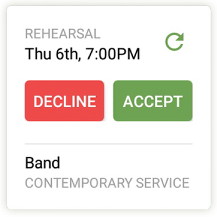
Next Up: The Next Up widget shows the next assigned time on your schedule. If you haven't confirmed your request yet, you can tap Accept or Decline to respond. If you have linked accounts, you'll see your next assigned time across all accounts.
Rehearse: The Rehearse widget shows the list of songs and keys for your next scheduled plan. If you haven't responded to the request yet, tap Accept first so you can see the list.
Tap the song list to open that plan's service order in the Services Mobile app, or tap Media Player to open the mobile media player if you're using a larger widget.
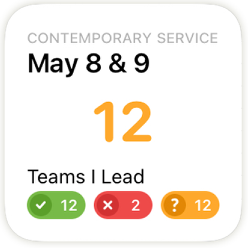
Scheduler: If you're a team leader, the scheduler widget helps you track scheduling statuses for the teams you lead so you can make sure all those question marks turn into check marks!
If you lead more than one team in a plan, smaller versions of the widget will total the statuses into one row for Teams I Lead, and larger versions of the widget will show each team separately.
Tap a team to see your team members in the Services Mobile app. If you're using a larger widget, you may see a Text Message button to send a text from the app.
Scheduler & Rehearse: Choose this widget to view scheduling statuses and the upcoming plan's song list in one place.
Services Schedule: View a list of upcoming plans for which you've been scheduled or requested. Tap the list to open your My Schedule page.
You must have the latest version of Services Mobile installed on your iOS device to use widgets, and your device must be running iOS 14. Instructions for installing iOS widgets are available on the Apple support site.
Check out the list below for descriptions of each widget!
Next Up: The Next Up widget shows you the next assigned time on your schedule. If you haven't confirmed your request yet, you can tap Accept or Decline to respond. If you have linked accounts, you'll see your next assigned time across all accounts.
Rehearse: The Rehearse widget shows the list of songs and keys for your next scheduled plan. If you haven't responded to the request yet, tap Accept first so you can see the list.
Tap the song list to open that plan's service order in the Services Mobile app, or tap Media Player to open the mobile media player if you're using a larger widget.
Tip
Small widgets on iOS only allow one-tap actions, but you can tap and hold to edit the widget’s settings to choose where you want it to take you.
Scheduler: If you're a team leader, the scheduler widget helps you track scheduling statuses for the teams you lead so you can make sure all those question marks turn into check marks!
If you lead more than one team in a plan, smaller versions of the widget will total the statuses into one row for Teams I Lead, and larger versions of the widget will show each team separately.
Tap a team to see your team members in the Services Mobile app. If you're using a larger widget, you may see a Text Message button to send a text from the app.
Schedule & Rehearse: Choose this widget to view scheduling statuses and the upcoming plan's song list in one place.
Customize the scheduler widget
If you choose to add the scheduler widget to your device, you can customize which plan information is displayed:
Tap and hold the scheduler widget and open the widget settings.
Tap one of the settings to customize which information to show on the widget:
Next Plan From: Choose whether to show plans from your schedule or from a specific service type.
Teams: Choose whether to show only the teams you lead or all teams in the upcoming plan.
Tap Save Settings to apply your changes.
Tap and hold the scheduler widget.
Select Edit Widget from the dropdown options.
Tap one of the settings to customize which information to show on the widget:
Teams: Choose whether to show only the teams you lead or all teams in the upcoming plan.
Next Plan From: Choose whether to show plans from your schedule or from a specific service type.
Tap anywhere outside of the settings popup to close it and apply your changes.