Attendance reports
It can be helpful to review who attended an event afterward so you can track engagement, keep accurate records, and find opportunities to follow up! Use this table to determine which reporting method best fits your needs for tracking attendance, and refer to the corresponding section below for more information.
Report | What data is reported? |
Attendance roster in Registrations | Registered attendees who attended each day of an event |
Filtered attendee list in Registrations | Filtered view of attendees who attended specific days of an event |
Registrations attendance widget in Home | Attendance totals by event, category, or campus over a set period |
People lists | Lists of attendees compiled by event, category, campus, or date |
Tip
If you took attendance using the Check-Ins Integration, your attendance data can be found directly in Check-Ins.
Attendance rosters
Create attendance rosters that store attendance data directly in your signup. This data lives exclusively in Registrations and cannot be exported.
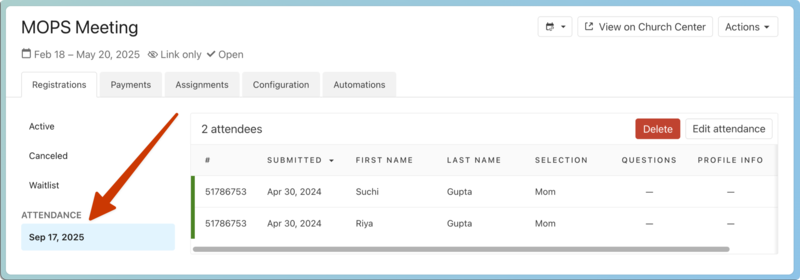
After you've taken attendance, select the event's date under Attendance in the left sidebar on the Registrations tab of your signup to view everyone who attended on that date.
Filtered attendee lists
Use filters to narrow your attendees list by specific dates and other criteria, such as assignments or selections. This method can be used to contact particular individuals or export attendee information in a CSV file.
Select Signups from the top navigation.
Select your signup from the list.
Select Add filter at the top of the list.
In the Filter by popup, choose Attendance from the first dropdown.
Choose Attended from the second dropdown.
Use the checkboxes to select which attendance rosters to include.
Select Add filter at the bottom of the popup.
(Optional) Add any additional filters based on assignments, selections, etc.
Select the Actions button in the top right to send an email or download a CSV file of the list of filtered attendees.
(Optional) If exporting a CSV, choose the information you'd like to export using the column selector.
Registrations attendance widget in Home
The Registrations attendance widget provides an overview of attendance data on your dashboard in Home. Add this widget to display attendance data by event, category, or campus over a determined period.
People lists
People lists can help you perform bulk actions on attendees, such as adding them to a workflow, performing an automation, setting their membership type after an event using a bulk action, updating a custom field, and more!
For example, create a list in People that gathers all attendees who attended a specific event using the following rule:
Set the rule to include.
Set the first dropdown to Registrations.
Set the second dropdown to Attendance.
Set the third dropdown to a specific event.
Set the fourth dropdown to the event whose attendees you want to perform a bulk action on.
Select Save in the bottom right.
Select the ✏️ edit icon at the top of your list results to use the Bulk action popup to perform an action on all attendees.
Warning
Lists can only be created based on overall event attendance, not date-specific data. For example, if an event lasted for five days, a list will return attendees who attended any day of the event, not on a specific date.