Create and manage dashboards
Everyone who can log in to your account has access to their own personal launch pad, called My Dashboard, which brings everything in Planning Center together. In addition to this personal dashboard, you can create shareable dashboards that serve as launch pads for your teams, events, and ministries!
Dashboards contain widgets that give you information across multiple Planning Center products at a glance, ensuring you stay up-to-date with what's happening in your organization.
Want to watch a video before you get started? No problem! This 10-minute video demonstrates the concepts in this article in action.
My Dashboard
The My Dashboard tab is your private dashboard, where you can add, remove, configure, and reorder widgets from every Planning Center product to suit your specific needs. It's the first dashboard that displays when you open Home.
Create a shared dashboard
All collaborators on a shareable dashboard can view dashboard content regardless of their specific permissions. For example, if you add a Check-Ins attendance widget and a certain collaborator doesn’t have access to Check-Ins, they'll still be able to see attendance data on the dashboard as long as it’s shared with them.
Important
If a dashboard's creator loses permissions in a product or no longer has access to an item, such as a service type, team, or group, those widgets will no longer show data and will need to be recreated by someone with the appropriate permissions.
Choose Dashboards from the top navigation in Home.
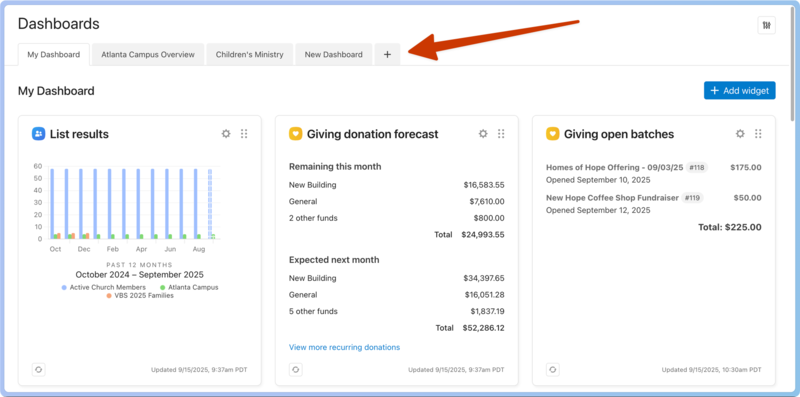
Select the ➕ plus tab at the top of the page to add a dashboard.
Select the ✏️ edit icon to give the dashboard a new name.
Select the three-dot button in the top right corner of the page.
Choose Manage collaborators from the dropdown.
Use the search box to find who you want to share the dashboard with.
Select the person's name to share the dashboard with them.
You can choose whether the person is a viewer or manager of the shared dashboard using the dropdown to the right of their name.
Select the red X to the right of their name to remove a person as a collaborator.
Warning
If you make yourself a viewer, you cannot make any further changes to the dashboard.
Select Done at the bottom of the window. The recipient will receive a notification by email and in their Planning Center inbox. The next time they visit Home, they'll also see a new tab for the dashboard.
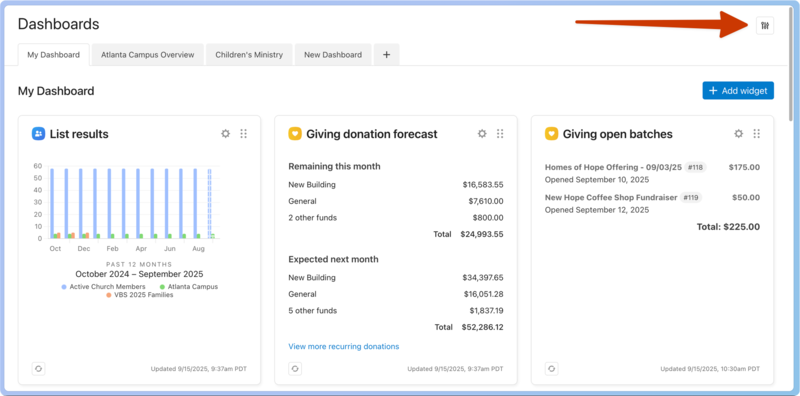
Select the reorder button on the right to rearrange your dashboard tabs on the page. My Dashboard will always be displayed in the far left spot.