Snooze workflow cards
To return to a card in a workflow later, snooze it, and it will be hidden from your view until the selected date and time. Once the snooze expires, the card's assignee will then get an email notification.
Manually snooze a card
Select the Workflows page from the top navigation in People.
Select the workflow from the list.
Select the card.
Select the Select snooze... button in the top right of the card.
Choose the snooze duration from the dropdown.
Select the X in the top right corner to close the card.
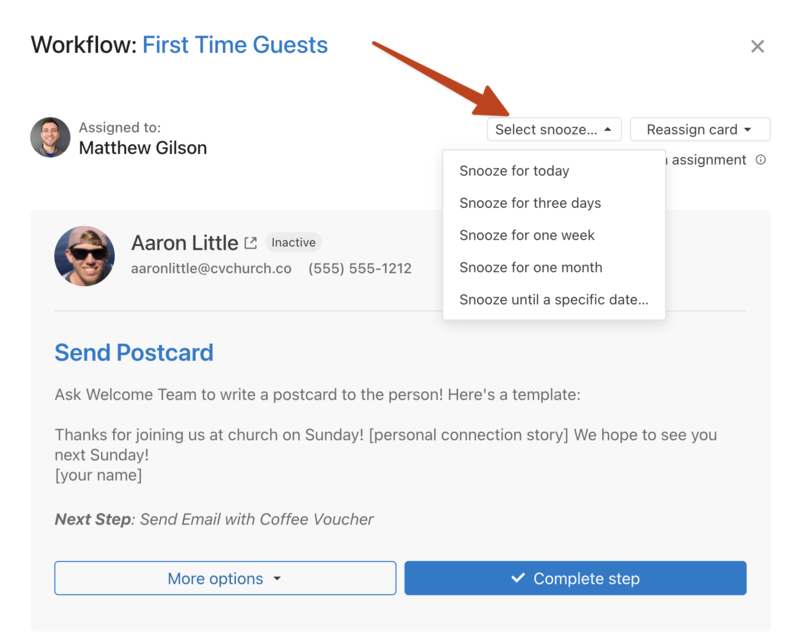
You can manually snooze a group of cards by performing a bulk update.
Automatically snooze a card
You can configure steps to automatically snooze a card after the previous step is completed.
Select the Workflows page from the top navigation.
Select the workflow from the list.
Choose the step you'd like to snooze from the left sidebar.
Select Edit step near the top right corner.
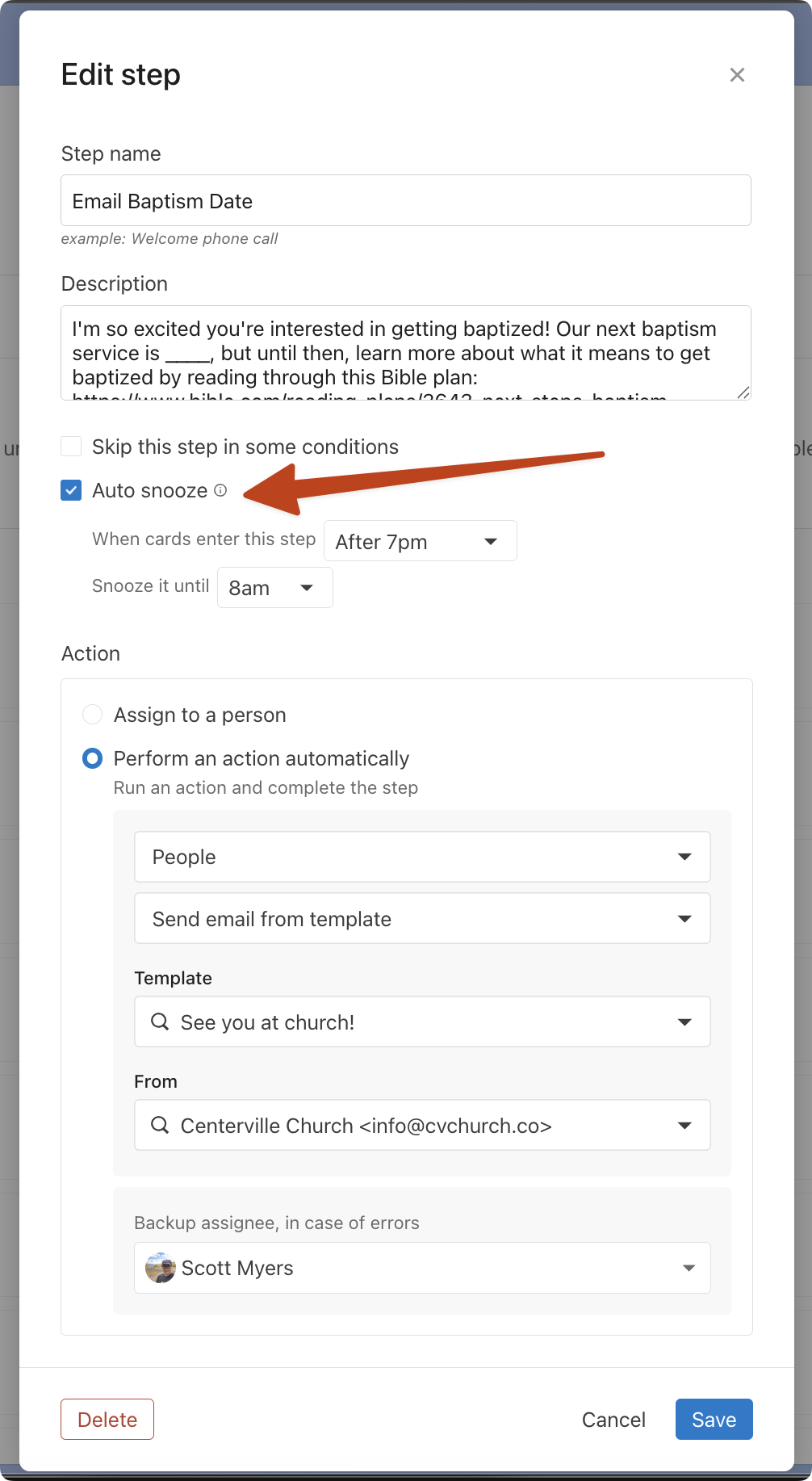
In the Edit step popup, select the checkbox next to Auto snooze.
Use the dropdowns to select how you'd like to snooze cards in this step.
Select Save.
Tip
Auto snooze pairs especially well with automatic action steps. If you have a step that automatically sends an email, you can enable auto snooze to hold any cards that arrive after hours—for example, after 7pm—and unsnooze them the next morning so the email goes out at a reasonable time.
View snoozed cards
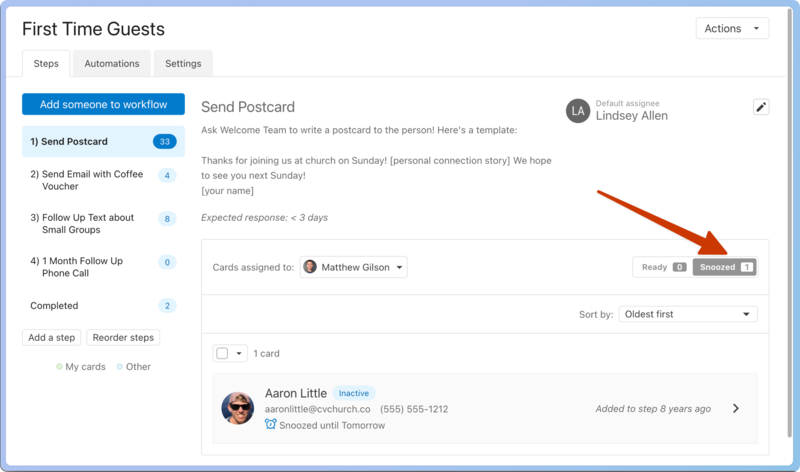
Select the Ready filter button at the top of the page and choose Snoozed from the dropdown to view which cards are snoozed and for how long.
Unsnooze a card
If a snoozed card needs attention before it is due, unsnooze it to send a notification email to the card's assignee, informing them it is ready for action.
If a person replies to an email sent to them through a snoozed card, the card automatically becomes unsnoozed, so you won't need to follow this process in that case.
Select the Workflows page from the top navigation.
Select the workflow from the list.
Choose the step from the left sidebar if necessary.
Select the Ready filter button and choose Snoozed from the dropdown to view snoozed cards in this step.
Select the snoozed card.
Select the Cancel snooze button at the top of the card.
Select the X in the top right corner to close the card.