Profile notes
Create a note on someone's profile about a prayer request, a need, or a meeting you had with them. Add note categories to keep your notes clean, and choose who can view those notes. You can reference notes on a person's profile and also from the Profile notes tab of the Overview page.
Want to watch a video overview before you dive into notes? No problem! This nine-minute video demonstrates the concepts in this article in action.
Create a note
While viewing a person's profile, select the Notes tab.
Select the Add a note or New note button.
Select a Category for the note.
Choose a Date for the note.
Enter the note's content.
Notes appear chronologically and show the date they were added and the person who created them. They can be searched and exported from the Profile Notes tab of the Dashboards page. Notes can be deleted by the person who created them or anyone with Manage permissions in that category.
Create a new note category
Important
You must be a People manager to create a new note category.
Choose Overview from the top navigation in People.
Select the Configuration tab.
Select Manage note categories from the left sidebar.
Select the Add note category button.
Enter the new category's name in the popup menu.
Select Create category to save the new note category.
Edit note category settings
Any People administrator can receive Manage access to any custom category. With this access, they can fully manage the category, including changing the name, adding and removing collaborators, and updating notifications.
Choose Overview from the top navigation in People.
Select the Configuration tab.
Select Manage note categories from the left sidebar.
Select the note category from the sidebar to access that category's settings.
Collaborators
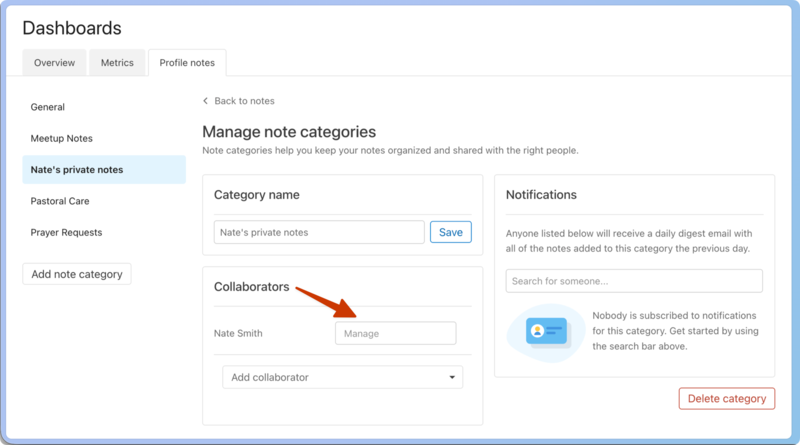
Use the Collaborators section to edit who has access to the category and their level of access.
View only: Can view all notes in a category.
View/Create: Can view all notes in a category, create new notes, and edit their own notes.
Manage: Can view all notes in a category, create new notes, edit their own notes, edit or delete the category, and add or delete notes in the category.
Every category must have at least one person or permission group with Manage access, which is set to All managers by default.
Create a private note category
Managers can make any note category private except for the General category.
Select Add collaborator.
Choose A person... from the dropdown.
Search for the person's name or email address.
Choose them from the search results.
Select View only next to the person's name in the Collaborators list.
Choose Manage from the dropdown.
Select the X to the right of all groups or individuals that you don't want to have access to this private note category. This removes them from the list of collaborators. (You can't remove yourself from a note category. Another manager must do that for you.)
In the example below, Nate Smith is now the only person with access to view or create notes in the "Nate's private notes" category:
Notifications
Use the Notifications section to add anyone who should receive a daily digest email with all the notes added to this category the previous day.
Delete a note category
Warning
Deleting a note category is a permanent actions and notes in a deleted category cannot be recovered.
Choose Overview from the top navigation in People.
Select the Configuration tab.
Select Manage note categories from the left sidebar.
Select the note category you want to delete from the sidebar.
Select the Delete category button in the bottom right.
Select Yes, delete this category in the warning pop-up.