
Utilize the dashboard
The dashboard in People allows you to see multiple types of information about your church at a glance. Use the dashboard to view demographics, membership status, new profiles, and more!
Overview
The Overview tab gives quick information about demographics, membership, profiles, and workflows.
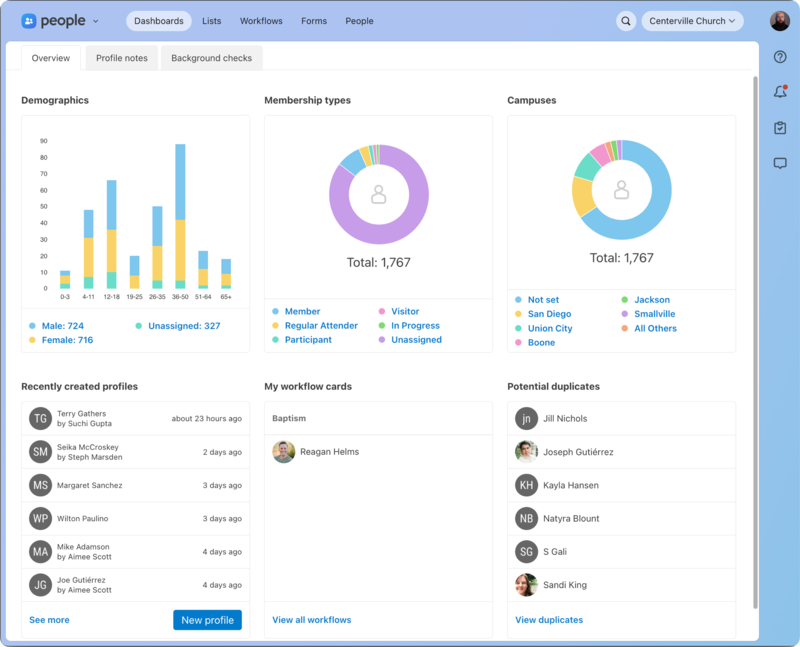
Demographics breaks down the people in your account based on age and gender.
Membership types shows the total number of people in your account based on the top seven membership types.
Campuses shows the total number of people in your account based on the campus set on their profile.
Recently created profiles displays when new profiles were created and by whom. Create a new profile by selecting New profile.
My workflow cards is where you'll find any workflow cards you're assigned to. Select the name to navigate to the card.
Potential duplicates lists profiles that may be a duplicate of an existing profile. To fix these, you can merge duplicate profiles.
Profile notes
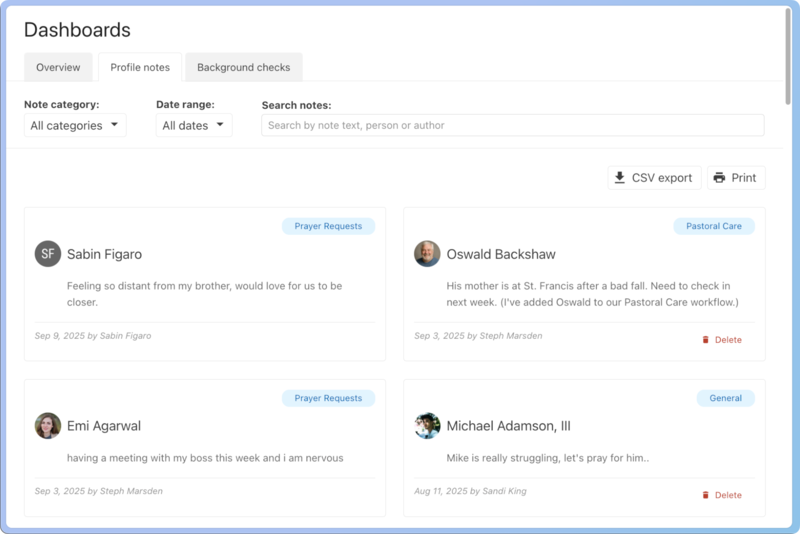
The Profile notes tab houses all your created notes. Use the filters at the top to filter by note category and date range. You can download a CSV file or print using the buttons in the top right.
Background checks
The Background checks tab shows the status of all background checks and allows you to view who has not been cleared.
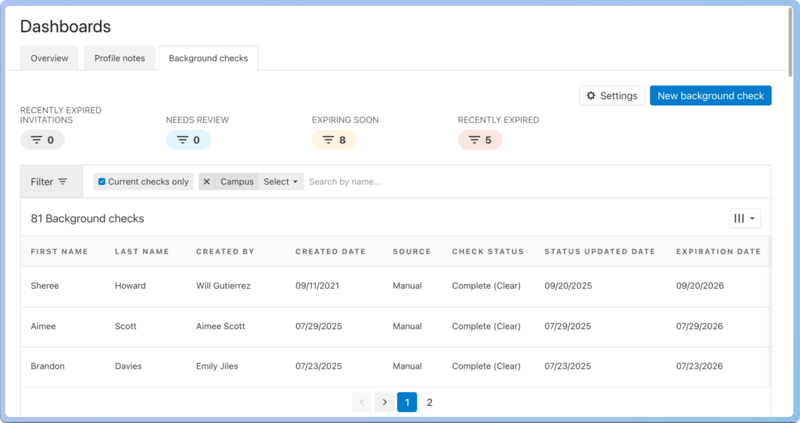
Adjust the background check expiration policy to the number of months necessary to re-run a background check, and add specific administrators who can view the background checks.
Select the New background check button to add a background check from Checkr.
Select a person's name to open their profile.