Send a text to parents or trusted adults
If you're in the US or Canada and need to contact an adult about their child, you can send a pre-written text message from a manned or roster station. Recipients cannot reply to these messages.
Each day, you can text up to 10% of your daily check-in limit. Although you won't be prevented from sending texts if you go over that limit occasionally, you may receive an email if the overages are excessive or frequent.
Tip
Want to see other ways to use texting in Planning Center? Check out our Texting Reference Guide!
Using the Check-Ins app, open your manned or roster station.
Find and check in a child.
If you're using a manned station: Search for the child again.
If you're using a roster station: Select the Here tab.
Select the 💬 Message button to the right of a child's name.
Choose the household adult or trusted person you'd like to text from the Recipients for [Name] list.
If you can't choose a recipient because their phone number isn't valid, edit their profile and make sure the phone number is 10 digits. Check profiles with a People list to ensure people have phone numbers.
People don't need to opt in to receive these pre-written texts.
Important
Whoever is listed as the Checked in by person for the child will be the default text recipient. If the child was checked in on a roster station, you must choose a recipient manually, as no one is selected by default.
Select a pre-written message to send:
Come: “Please come to [location] for [first name].”
Feeding: “[First name] is hungry in [location].”
Diaper/bathroom: “[First name] in [location] needs assistance with a diaper change or bathroom break.”
Medical emergency: “[First name] is having a medical emergency in [location].”
Doing great: “[First name] is doing great!”
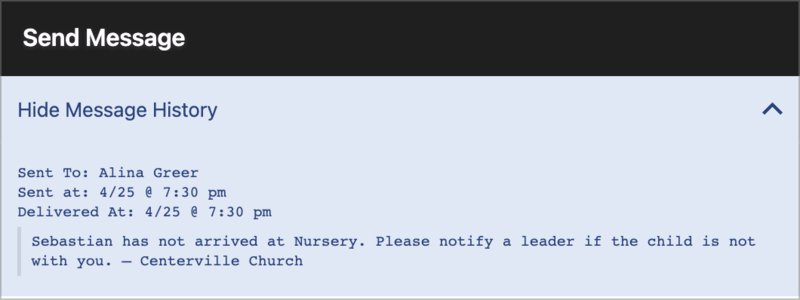
If you're using a roster station with Confirm Check-Ins enabled and you select an Unconfirmed child who hasn't arrived at their classroom, the message will say: “[First name] has not arrived at [location]. Please notify a leader if the child is not with you.” You can't select another option until the child is confirmed on the roster.
Select Send Message in the bottom right corner. If a mobile phone number isn't listed, the message will attempt to send to other phone number types.
Once you send a message, select the 💬 Message button again and use the Show Message History dropdown to view details about the sent message.
 |