Add a barcode or mobile pass
Use barcodes and mobile passes to make your check-ins quicker! Once you add a barcode or mobile pass to someone's profile, they can scan it at a station to check in their entire household.
Volunteers can use a manned station to add a barcode or mobile pass to a parent/guardian's profile. Check-Ins editors can add barcodes and mobile passes to people's profiles while using Check-Ins on a web browser.
Tip
If you use Church Center, encourage your congregants to use the app instead of a mobile pass.
Add a mobile pass from a manned station
Open the Check-Ins app on a manned station device.
Search for a person's name and select their household from the list.
Select Edit next to their household name.
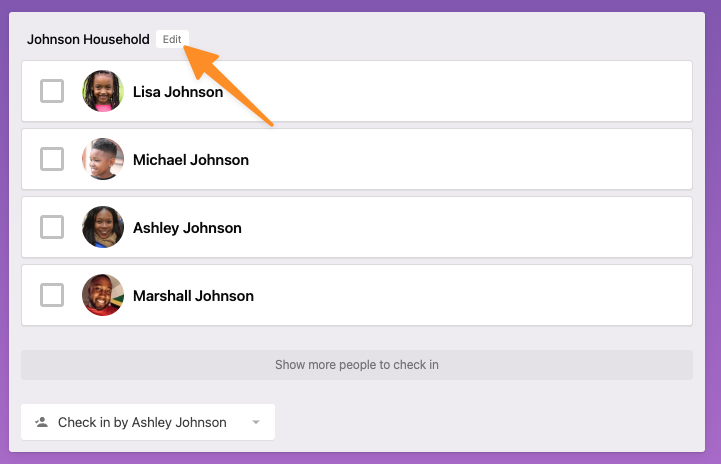
Select the household member you'd like to edit.
Select Show all at the bottom of their profile information.
Select Add in the Barcodes section.
Select Add a pass.
Choose which email address to send the mobile pass to.
Choose Select to confirm the email address.
Select Save Household in the top right to send the mobile pass email.
Once you send the mobile pass email, your congregants can use it to save the pass for easy access. If you've added campus information in account settings, people's mobile passes automatically appear on their phone once they're within a half-mile of the church.
Check out the Use a mobile pass to check in article to see what the process looks like for congregants!
Warning
Passes can only be scanned by 2D compatible barcode readers, such as the camera within the Check-Ins app on your Android or iOS device. However, if you're using an external barcode reader, make sure it can read 2D as well as 1D barcodes.
Add a barcode from a manned station
Open the Check-Ins app on a manned station device.
Search for a person's name and select their household from the list.
Select Edit next to their household name.
Select the household member you'd like to edit.
Select Show all at the bottom of their profile information.
Select Add in the Barcodes section.
Select Add a barcode.
Select the 📷 camera icon next to the Enter barcode field to scan a barcode using a barcode scanner or mobile device camera.
Important
Barcode scanners act as external keyboards to your computer. In order for a barcode to be accepted on this page, the scanner needs to type the equivalent of
enterafter it scans the numbers. Not all barcode scanners do this by default.If your barcodes aren't scanning, most likely
enterisn't being pressed. To test this, scan a code and press enter on your keyboard. If that works, set your barcode scanner to always typeenter(or carriage return) after each scan. Check the manual that came with your device for instructions.(Optional) If you'd like to add another barcode, select Add and then Add a barcode again. You can add as many barcodes as you'd like.
Select Save Household in the top right to save this barcode to the person's profile.
You can follow these steps to add a different barcode to each parent's profile, which allows either of them to check in their family quickly. When you scan the barcode assigned to one parent's profile, that parent will automatically be assigned as the checked-in by person.
Add mobile passes and barcodes on a profile
Check-Ins editors can add mobile passes and barcodes to a person's profile while using Check-Ins on a web browser.
Select the People page from the top navigation in Check-Ins.
Select a name from the list or search for someone's name to open their profile.
Select Actions in the top right of the profile page.
Choose Barcodes & mobile passes from the dropdown.
Choose whether to send a mobile pass or a barcode:
Mobile pass: Select Send mobile pass to generate a mobile pass code that will be emailed once you save your changes.
Barcode: Select Add barcode to manually enter a barcode or use an external barcode scanner.
Important
Barcode scanners act as external keyboards to your computer. In order for a barcode to be accepted on this page, the scanner needs to type the equivalent of
enterafter it scans the numbers. Not all barcode scanners do this by default.If your barcodes aren't scanning, most likely
enterisn't being pressed. To test this, scan a code and press enter on your keyboard. If that works, set your barcode scanner to always typeenter(or carriage return) after each scan. Check the manual that came with your device for instructions.
(Optional) Select the red ⊖ minus icon next to an existing barcode or mobile pass to remove it from this person's profile.
Select Save to apply your changes. If you chose to send a mobile pass, the mobile pass email will be sent to the person's primary email address.
When this person scans their pass or barcode, the whole household will show on self and manned stations.
Tip
Send a mobile pass to several people at once by following the steps in this People article: Update people with bulk actions!
Undelivered emails
View a list of the emails sent to a person through Planning Center, including those that are undelivered, from the Communication tab on their profile.
Search for a person's name using the 🔎 search icon in the top right.
Select their profile from the results.
Select the Communication tab on their profile.
Open an email highlighted in red to see if it failed or was dropped. You can hover over the failed indicator to view the error code.
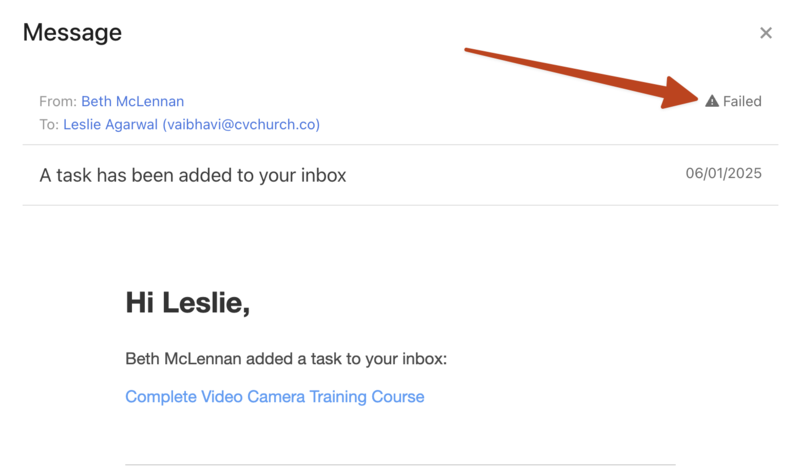
If someone mentions they didn't receive an email, or you see that an email failed to be delivered to them, check in Planning Center People to make sure their email address isn't blocked.
If they still do not receive emails after unblocking their email address, contact support for additional troubleshooting by selecting the question mark (?) in the toolbar in Planning Center.