Common station templates
Group stations together in a template to save time on the day of your event! Check out these commonly used examples to get a better idea of how to set up templates for your situation.
Tip
If you ever get in a bind and need to change a station, make sure you set up Station Keys!
Change for weekday events
If your stations must be used throughout the week, set up a template to automatically convert them to weekday events after you finish checking people in on Sunday.
Set your Sunday template to start before the first location opens.
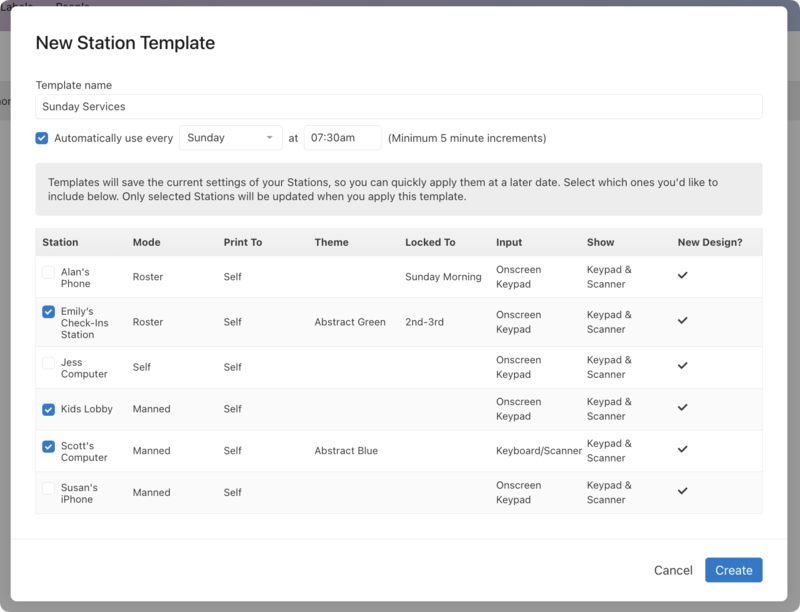
Create another template that locks to the daily event (or no event) and set the time to start when all Sunday events have finished.
The checked stations will change at the selected time, allowing your daily event to be ready to check in the next morning.
Switch to check out
If a station must start the event as a self station because no volunteer is available for check-in, set up templates to automatically switch it to a manned or roster station later so a volunteer can check people out.
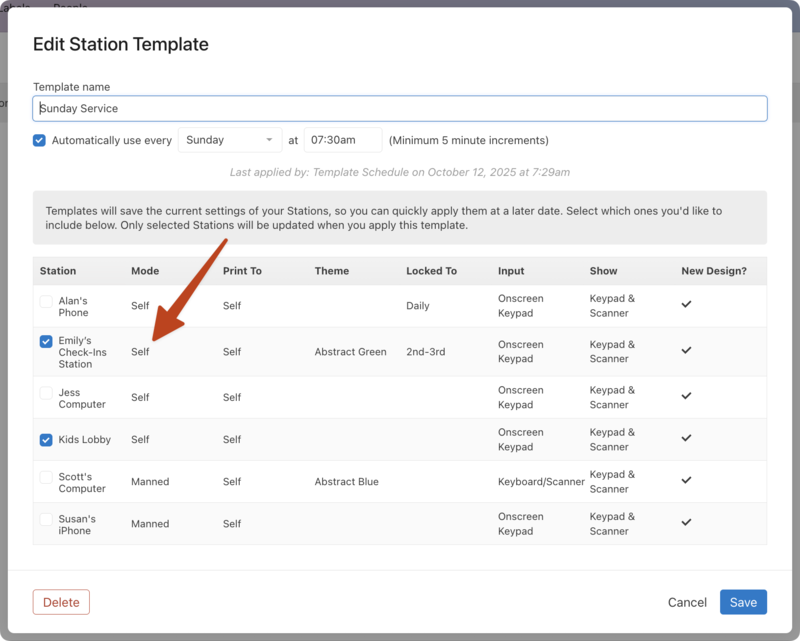
Update the affected stations' settings and make sure they're set to Self.
Create a template that starts before the first location opens and includes all of the event's self stations.
Change the affected stations' settings to Manned or Roster.
Create a second template that starts before people can check out and includes all of the manned/roster stations.
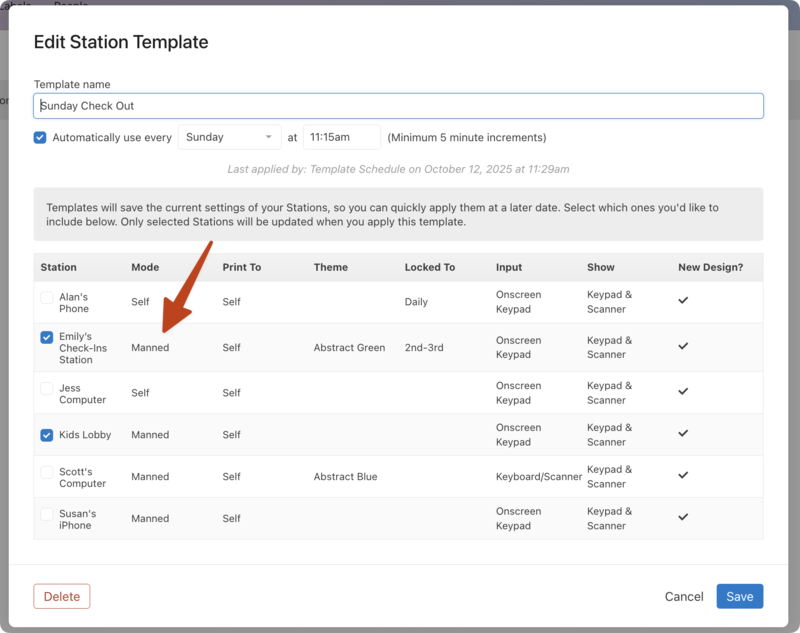
Your stations will automatically switch to manned or roster stations at the selected time.