Accept or decline scheduling requests in Music Stand
Accept or decline your scheduling requests right from the plan page in Music Stand, and see who else is on your team. Your response updates in Services right away.
To respond from Services instead, check out Manage your schedule.
Important
You can only respond to scheduling requests on iOS devices using Music Stand 6 or later.
View your teams on a plan
Tap the circled back arrow < (iPhone) or the sidebar icon (iPad) in the top left to open the sidebar.
Select the Plans tab.
Select a plan date from the list to open it.
Tap a team button under a plan date to view that team. On iPhone: If you're on two or more teams in the plan, tap My teams, then tap a team.
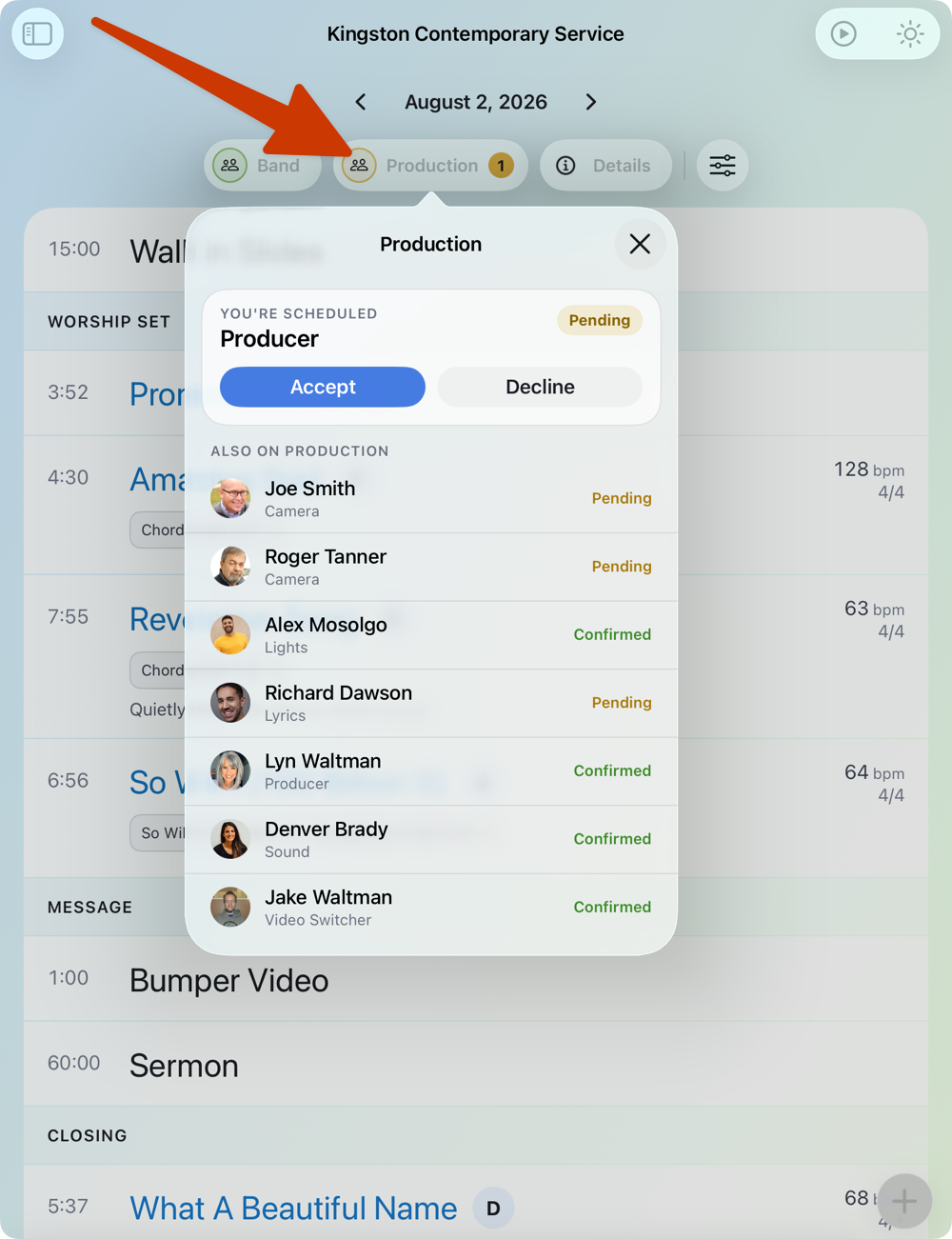
Your position and scheduling status appear at the top of the popup. Below that, you can see everyone else scheduled on the team and their status.
Tap a teammate's name to see their profile picture, position, and scheduling status. Tap the back arrow to return to the team, or tap the X to close the popup.
The ring around each team button shows your status on the plan:
Green: You accepted.
Yellow with a number: You have requests that need an answer. The number shows how many.
Red: You declined.
No ring: You're on the team but not scheduled for this plan.
You can also tap a person in the Leader column of the plan to see their details. Check out View plan details in Music Stand to learn more.
Accept or decline a request
Tap the circled back arrow < (iPhone) or the sidebar icon (iPad) in the top left to open the sidebar.
Select the Plans tab.
Select a plan date from the list to open it.
Under the plan date, tap the team button with a yellow ring. On iPhone: If you're on two or more teams in the plan, tap My teams, then tap a team.
Tap Accept or Decline in the You're Scheduled section.
If you're requested for multiple split team times: Choose a response for each service time, then select Send Response to send all your responses together with one decline reason (if applicable).
If you decline: Enter a reason, then tap Decline to submit your response.
Depending on how you're scheduled, Music Stand may ask for more information:
More than one position: Each position has its own card. Before you submit, Music Stand asks whether your response applies to all of your positions on the plan.
Volunteer replacements: If your team uses volunteer replacements, Music Stand asks who's covering for you when you decline, the same as in Services.
Change your response
If you accepted a request and can no longer make it, change your response to decline:
Tap the circled back arrow < (iPhone) or the sidebar icon (iPad) in the top left to open the sidebar.
Select the Plans tab.
Select a plan date from the list to open it.
Under the plan date, tap the team button with a green ring. On iPhone: If you're on two or more teams in the plan, tap My teams, then tap a team.
Tap the Confirmed dropdown in the You're Scheduled section.
Tap Decline. Depending on how you're scheduled, Music Stand may ask for more information:
More than one position: Each position has its own card. Before you submit, Music Stand asks whether your response applies to all of your positions on the plan.
Volunteer replacements: If your team uses volunteer replacements, Music Stand asks who's covering for you when you decline, the same as in Services.
Enter a reason, then tap Decline to submit your response.
Important
You can't change your scheduling status after declining a request. Contact your team leader if you need to be added back.