View plan details in Music Stand
When using an iOS device, the plan page in Music Stand shows more than the order of service. View plan details and choose which columns to show so the set list includes only what you need.
Important
You can only view plan details on iOS devices using Music Stand 6 or later.
View plan details
Tap the circled back arrow < (iPhone) or the sidebar icon (iPad) in the top left to open the sidebar.
Select the Plans tab.
Select a plan date from the list to open it.
Tap Details under the plan date to view the following details:
Title: The series title and plan title.
Service times: The start time of each service, grouped by day.
Other times: Rehearsals and other times, each listed by name.
Notes: Plan notes, listed by category.
You see the times and notes for the teams you're scheduled on. If you aren't scheduled on the plan, you see all service times.
Choose what shows on the plan page
Tap the circled back arrow < (iPhone) or the sidebar icon (iPad) in the top left to open the sidebar.
Select the Plans tab.
Select a plan date from the list to open it.
Tap the set list options button (sliders icon) under the plan date.
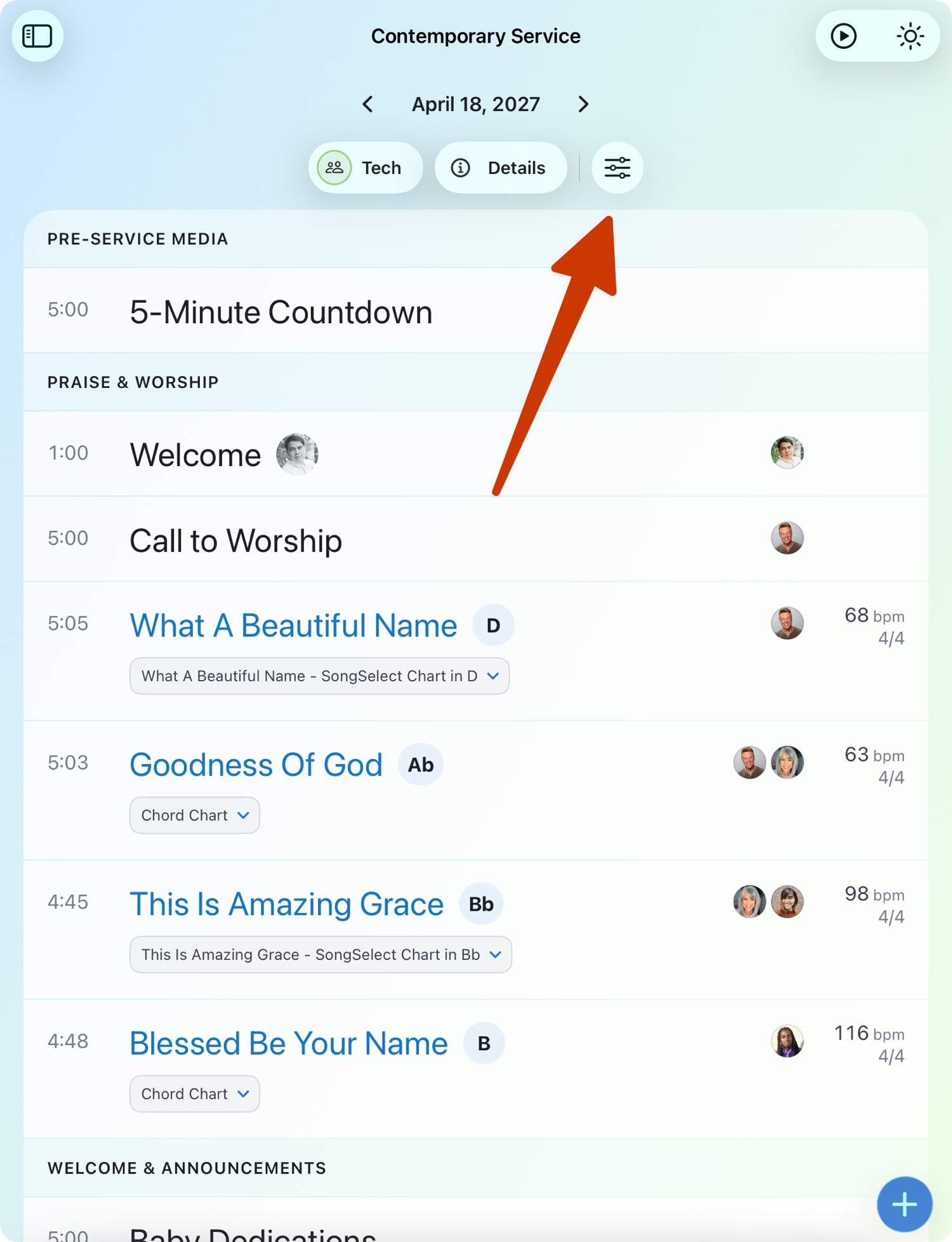
Toggle columns and details on or off:
Timing: Show how long each item is or when it starts. If you toggle on the Timing column, choose between Length and Next start.
If you choose Next start, the set list shows when each item starts in the next service time. After that service time ends, the times automatically switch to the next service time. For example, after the Saturday 5:00 PM service, the times update for Sunday at 9:00 AM.
Leader: Show the profile picture of everyone leading each item. On iPad, leaders appear in their own Leader column with their first name. On iPhone, their pictures appear to the right of an item. Tap a leader's profile picture to see a larger photo.
Important
Your profile picture appears next to any items you're leading, regardless of whether the Leader column is visible.
BPM and Meter: Show each song's tempo and meter.
Sequence: Show each song's sequence on its own row.
Item description: Show descriptions under songs and other items.
These options change only your view, and they're saved on each device. The song title, key, and file always show.