View communication history in Services
Planning Center records every email sent and received through the system for up to three months. You can view a person's email history to make sure everything was delivered.
Only people with Scheduler permissions or higher can send emails from Services.
Tip
You can also view emails sent to lists from the Message history section of the Lists page in People. Check out the Lists overview article for more details.
View your own communication history
View your sent and received email history from the Communication tab in your profile.
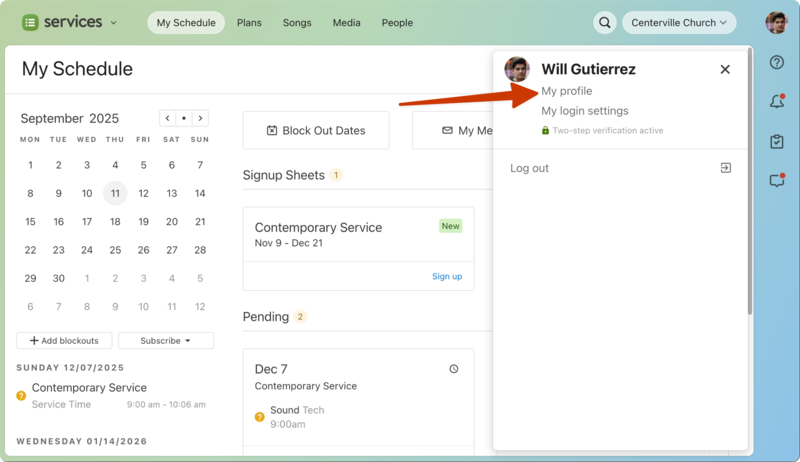
Select your profile picture or initials in the top right corner of any page.
Select My profile.
Select the Communication tab.
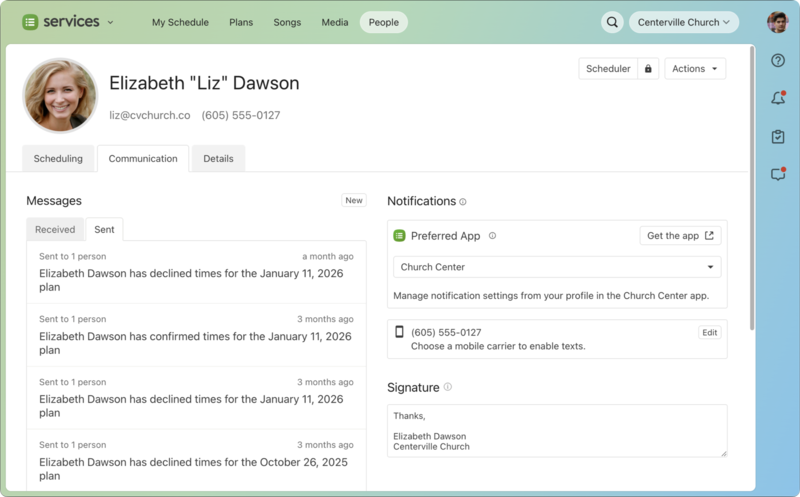
Select the Received tab to view any emails you've received in Planning Center.
Select the Sent tab to view any emails you've sent from Planning Center.
Choose an email to view its contents.
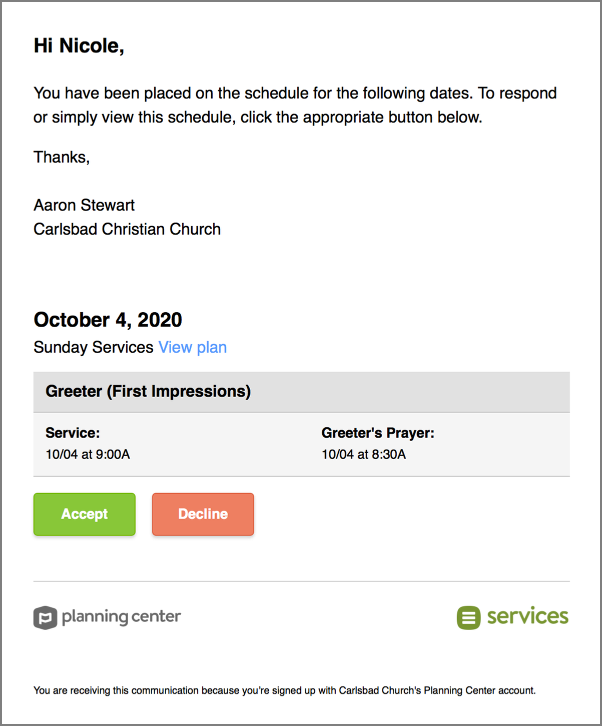
When viewing emails from your profile, you can respond to scheduling requests in emails sent to you. (When you're viewing emails sent to other users, links in the email won't work.)
View another person's communication history
View another person's email history from the Communication tab of their profile.
Search for a person's name using the 🔍 search icon in the top right.
Select their name from the search results.
Select the Communication tab.
Select the Received tab to view any emails they've received in Planning Center.
Select the Sent tab to view any emails they've sent from Planning Center.
Choose an email to view its contents.
Undelivered emails
View a list of the emails sent to a person through Planning Center, including those that are undelivered, from the Communication tab on their profile.
Search for a person's name using the 🔎 search icon in the top right.
Select their profile from the results.
Select the Communication tab on their profile.
Open an email highlighted in red to see if it failed or was dropped. You can hover over the failed indicator to view the error code.
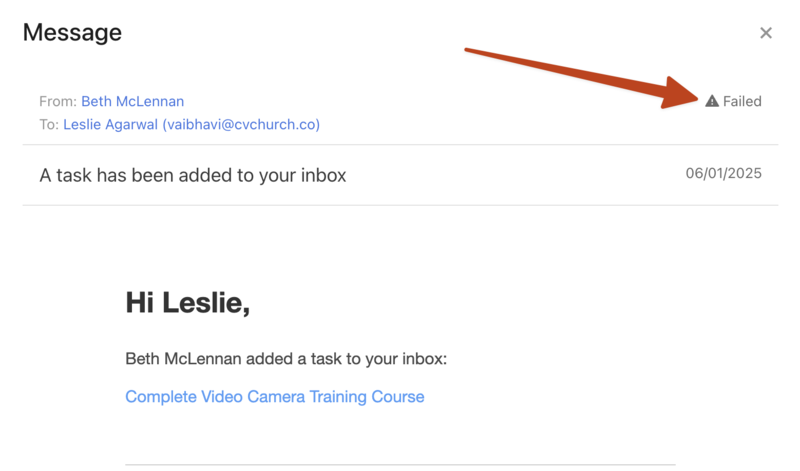
If someone mentions they didn't receive an email, or you see that an email failed to be delivered to them, check in Planning Center People to make sure their email address isn't blocked.
If they still do not receive emails after unblocking their email address, contact support for additional troubleshooting by selecting the question mark (?) in the toolbar in Planning Center.