Respond to scheduling emails
There are three different types of scheduling request emails that you might receive from a scheduler: a single request, a multiple request, or a signup request.
Single request
When you receive a scheduling email requesting only one service, you can accept or decline the request and view the plan.
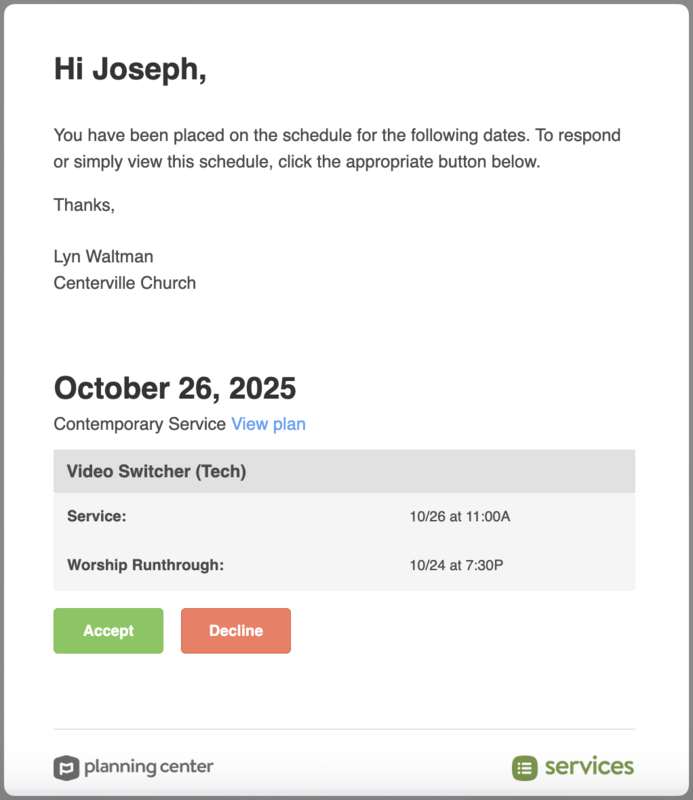
View the date and service type for which you've been requested. Select View plan to open the plan in Services.
The box header shows the position for which you've been requested. The team name is in parentheses.
The box shows your assigned times. Service times are listed before rehearsal times and other times.
Tip
If you've subscribed to your schedule, these times will also be on your calendar.
Select Accept or Decline to send your response to your team leader.
If you accept the request, your response is automatically sent to the scheduler.
If you decline the request, you'll be taken to the Services website, where you can add a decline reason. If the volunteer replacement setting is enabled for your team, you can also select a replacement.
Multiple requests
Your administrator may choose to send you one email for multiple requests. This cuts back on emails for you!
To respond, select Respond To Requests at the bottom of the email. You'll be taken to Services, where you can select the Accept or Decline buttons next to each requested position and/or time. If the volunteer replacement setting is enabled for your team, you can also select a replacement.
Signup sheet emails
If your church allows people to sign themselves up, you might get an email to view a signup sheet. Select View Signup Sheet at the bottom of the email to view the signup sheet in Services and sign up for a position.
Changing your response
You can change your response from Accepted to Declined for positions you previously accepted on your My Schedule page.
Important
Positions that you decline will disappear from your schedule, so if you want to accept a position you previously declined, you will need to contact your team leader to put you back on the schedule.
Select the My Schedule page from the top navigation in Services.
In the Confirmed section, hover over the position you want to decline.
Select the red X that appears to notify your team leader that you've declined the position.