Set up and respond to text notifications
You can choose to get text notifications whenever you receive scheduling requests, reminders, or general emails in Services. These texts are sent through a free email-to-text service called SMS gateway, which is only available through certain mobile carriers. If your mobile carrier is supported, you can respond to scheduling request notifications using a short link in the text notification.
Although these texts can be convenient, many carriers (such as Verizon and AT&T) have stopped supporting SMS gateway texts, making in-app notifications more reliable. You can set up in-app notifications for iOS and Android devices.
Tip
Want to see other ways to use texting in Planning Center? Check out our Texting Reference Guide!
Manage text notification settings
You can manage your notification settings and mobile information from your profile. If you're a team leader or have editor permissions or higher, you can manage other people's settings.
Select your profile picture or initials from the toolbar in the top right corner of any page in Services.
Select My Profile.
Select the Communication tab.
In the Notifications section, select the Edit button to edit the phone number and mobile carrier listed on your profile. To receive text notifications, your profile must include:
An email address.
A Mobile phone number. If you have multiple phone numbers listed, select the star icon next to the number where you'd like to receive texts.
A mobile carrier. Since text notifications are sent through your provider's SMS gateway, you must add a carrier before you can set up notifications.
Select Save to apply your profile changes. Once your profile has all of the required information, your text notification options will appear.
Select the checkboxes next to the types of notifications you want to receive as text messages. If you're a team leader, you'll also see Scheduling Replies as an option.
Responding to text notifications
If your carrier supports SMS gateway texts, scheduling request notifications will include short links for accepting and declining the request.
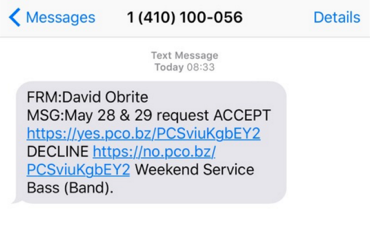
The notification will include the date and position for which you're being requested. Select the appropriate link to either accept or decline the position. You will be taken to the Services site in your mobile browser to confirm your response.