Use Web Music Stand
If you don't have an iOS or Android device, you can use Web Music Stand from within a plan in Services!
Tip
If you're part of a rehearsal team, you can also select the Music Stand icon in the top right of the Rehearse tab.
Open Web Music Stand
To open Web Music Stand:
Select the My Schedule or Plans page from the top navigation in Services.
Select a date to open the corresponding plan page.
Select the Order tab.
Select the ♫ music note icon in the top right.
Choose Music Stand from the dropdown.
Important
Your PDFs might take a minute to load, depending on the number and size of the files.
Use Web Music Stand
Once your PDFs load, you can do a number of things.
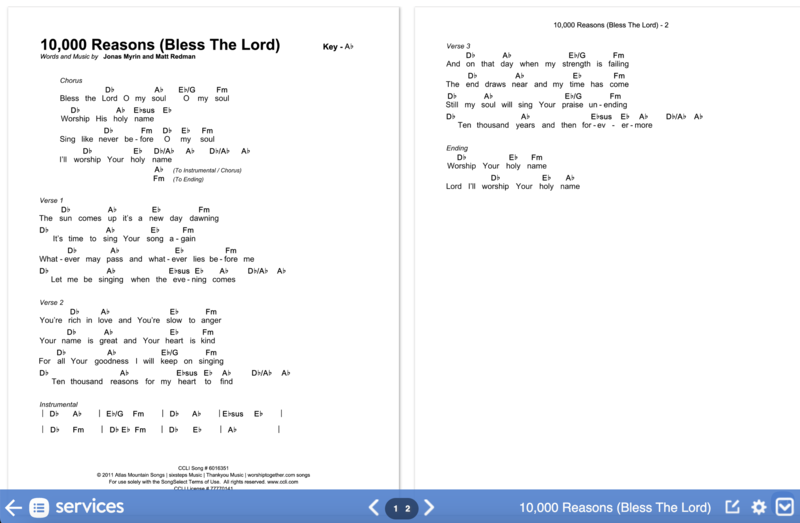
Select the back button in the bottom left to go back to the plan page.
Choose a page number, use the arrows to go between pages, or select the side of the page to switch pages.
Select the ✏️ edit icon in the bottom right to make notes on the PDF or view another person's annotations.
Select the ⚙️ settings icon in the bottom right to rearrange pages or select a different file for the song. Use the dropdowns in the Music Stand Settings popup to select different PDFs or annotations.
Select the down arrow in the bottom right to hide the toolbar. Select the Music Stand logo to reveal the toolbar again.
Annotation tools
When you select the ✏️ edit icon, you can add your own notes to the PDF.
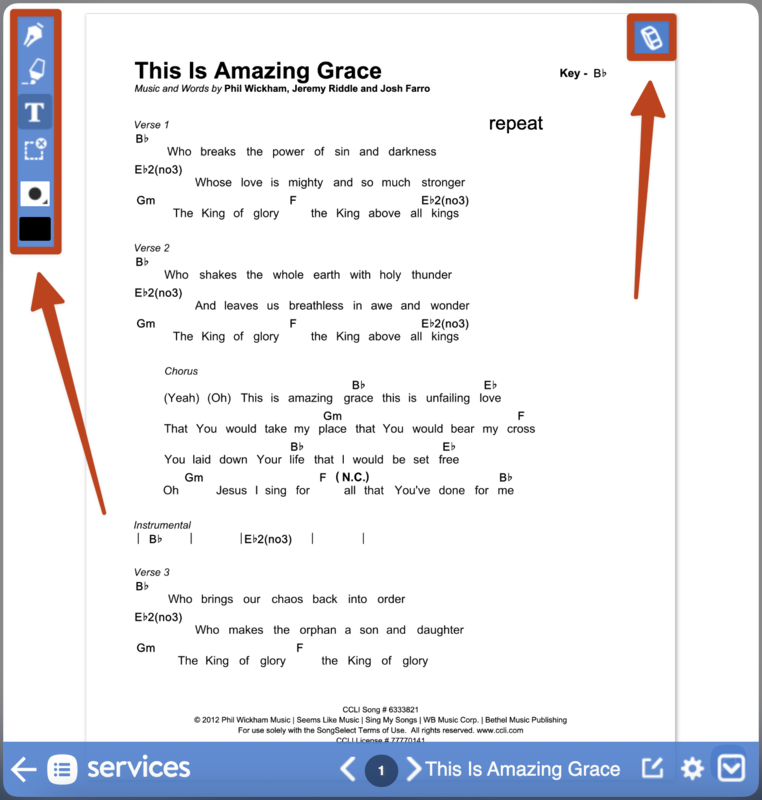 |
Pen: The pen tool allows you to draw freeform.
Highlighter: The highlighter tool highlights any area of the page. As you draw, it appears in front of the text, but after you click the Done button, the highlight blends in with the text.
Text: The text tool allows you to type in text using a keyboard. To move text, tap and hold it until it's outlined in blue, then drag it. To delete, tap and choose delete on the keyboard.
Selective Eraser: Draw a rectangle on the screen to erase any pen or highlighting within the rectangle. When you draw, you can see what will be erased, but it will not erase until you let go. The eraser will not erase text from a text box or the PDF.
Tip diameter: Choose a tip diameter for the pen or highlighter tool.
Color: Change the color of the pen or highlighter tool.
Annotation selector: If other team members have made annotations on this chart, select the 👤 person icon at the bottom of the toolbar to choose whose annotations to view as a read-only chart.
Erase All: Select the eraser icon in the top right to clear all annotations. Once you confirm, you will not be able to undo the action.
Important
In Web Music Stand, you cannot import your own annotations from other files or keys of a song.
Web Music Stand does not support the use of a stylus with touchscreen devices such as Microsoft Surface. To use touchscreen capabilities, use Music Stand on a mobile device.
While in annotation mode, you can go to the next or previous page to continue making notes. When you're finished, select the annotation icon again to close the toolbar
Rearrange pages
You can rearrange pages in the settings popup:
Select the ⚙️ settings icon in the bottom right of Web Music Stand.
Select rearrange pages next to the song you want to rearrange.
Hover over a page in the bottom half and select the ➕ plus icon that appears to add it to the sequence.
To delete a page from the sequence, hover over it and select the red X that appears.
Select Accept when you're finished arranging your pages to save them to the plan.