Exclude items from a service time
If you have two services, and one service has a special element like baptisms or a baby dedication, you can assign that item to just one service time, and it will not contribute to both service times.
Select the Plans page in the top navigation.
If you have multiple folders, select the folder that contains the service type you're working with.
Select the plan you'd like to edit.
Select the Order tab.
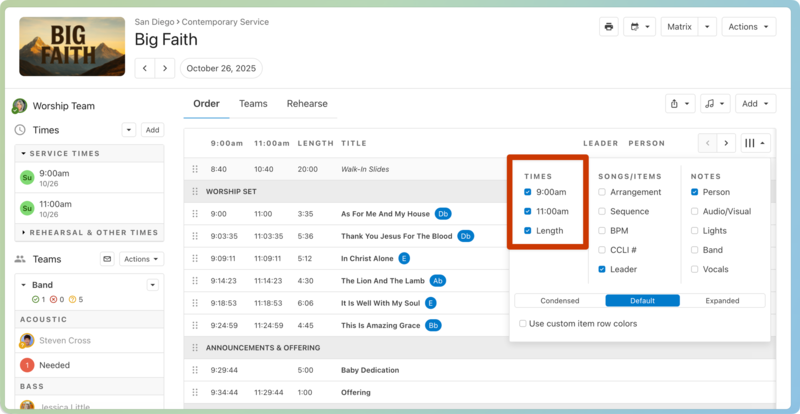
To view service times and the length of each item, select the column icon (three vertical lines) in the top right of a plan, then make your selections in the Times section.
Remove an item from a service time by hovering over it in the appropriate time column and selecting the exclude button that appears. The surrounding times will automatically adjust based on the removed item.
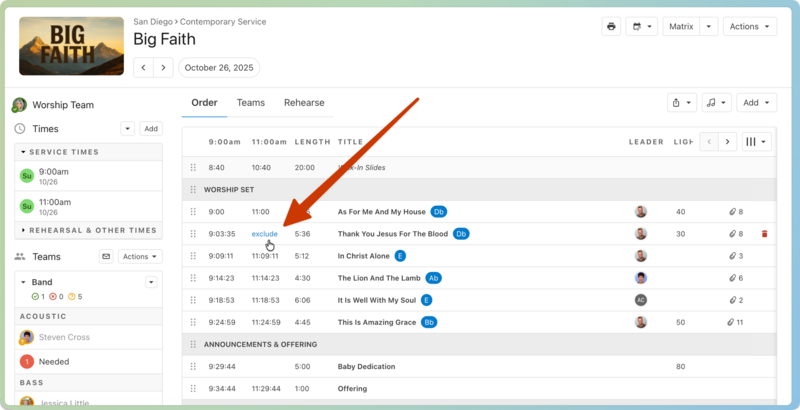
(Optional) To add the item back to that service time, hover over the empty space and select the include button that appears.
If you’d like to see the steps above in action, check out the video below.
Tip
You can create a separate report for each service time using Standard Reports.