Filter media
The filter bar and menu allow you to narrow down items in the media library based on content, tags, and history. Filters are applied instantly and can be pinned so they're automatically applied when you first load the page. Filtered results then allow you to take targeted actions using the action bar.
Search for media
To search for an item in the media library by title, type the title or part of the title into the search bar in the top right, and then press Enter to return a list of media with those words in the title.
You can also search for an item by selecting the Media page in the top navigation and selecting the Add text filter field at the top of the page.
Add filters
To filter the media list using other criteria, select Filter at the top left of the Media page.
Tip
You can also type f to quickly open and close the filter menu.
The Filter menu is broken up into three main tabs. Select a tab to see its filters.
You can filter by any combination of media Type, Creator, or Themes.
You can filter media by Tags or Tag Groups.
Choose any combination of media tags from the dropdowns to filter the media list. You can filter by tags that you want to include or exclude.
Select the arrow next to an applied tag filter to show more tag filtering options.
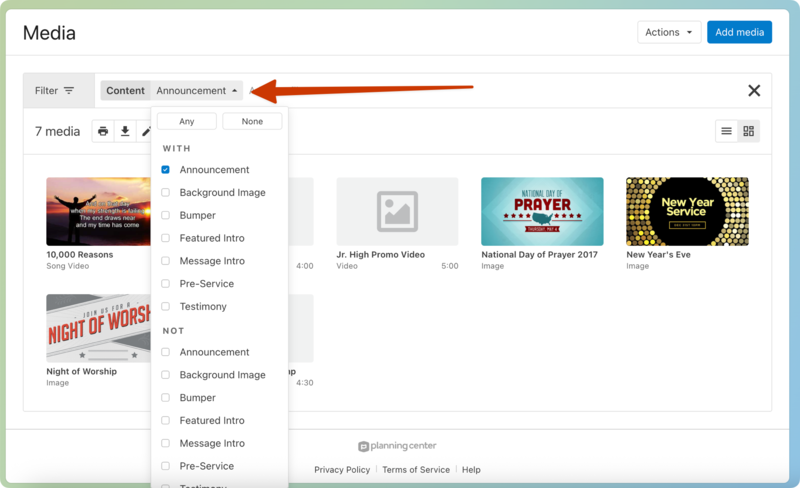
You can edit tags or tag groups using the Edit Tags button at the bottom of the Tags tab of the filter menu.
You can search the history of when media items were last scheduled and when they were created or updated. Check the Show Archived Media box to show archived media items.
Important
When you update filter criteria, make sure that any filters you no longer want to use are removed from the search bar; otherwise, your next search will return incorrect results.
Pinned filters
If you want to pin a filter so that it shows every time you go to the Media page, select the arrow next to a filter in the search box, then select Pin at the bottom of the dropdown. Pinned filters will turn yellow.
To unpin the filter, expand the filter and select UnPin or select Remove to remove it completely.
Filter logic
Knowing the logic of how filters work can help you apply some more advanced filters in different ways.
Sometimes you want to find a media item that has Option A and Option B, and sometimes you want to find a media item with Option A or Option B.
When you add additional filters, you can imagine the word AND between them.
When you select options within a single filter, you can imagine those options are joined together with the word OR.
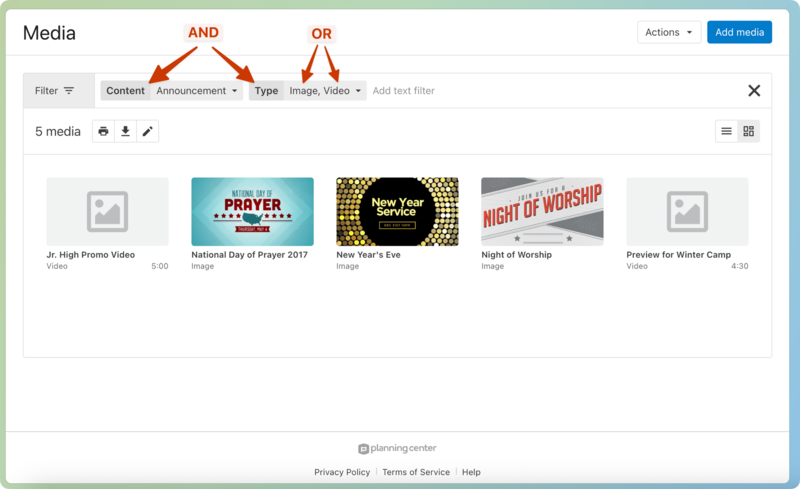
In the above example, Image and Video are part of the same tag type, so selecting both means that the filter returns a list of all media with either of these tags. Announcement is part of a different tag type, so adding this narrows down the list to only images or videos that are also tagged as announcements.