Track file licenses
Planning Center Services helps you keep track of how many licenses you've purchased for copyrighted files and emails you when you've exceeded your purchase licenses.
Important
Only people with editor permissions or higher can manage file licenses.
Why track license files?
Copyrights can be complicated, but Planning Center Services makes this easier with available License Tracking and CCLI Reports. Every music distributor is different, so it's up to you to know if your purchase includes unlimited usage or if you receive a number of licenses with your purchase.
Licenses that need to be tracked individually
Some distributors include a certain number of licenses with each file and require you to purchase more licenses once you've used the existing ones.
For example, most files purchased through PraiseCharts include five licenses for each file. If you want more than five people to access the file, you need to contact them to purchase the additional licenses.
Individually purchased sheet music licenses will most likely need to be tracked individually.
Licenses that don't need to be tracked
Some companies include unlimited usage of files you purchase or provide a bulk reporting tool that requires you to report the individual files, but you don't have to buy individual licenses.
For example, CCLI's Rehearsal License allows users to access copyrighted audio files that typically require individual licenses.
View license information
You can access license information from any file that's been uploaded to a song.
Important
Only people with editor permissions or higher can access file license information. If any of your folder or service type permissions are lower than editor, you won't be able to access these files.
Access license information
To access license information from a song page:
Select the Songs page in the top navigation.
Select a song from the list or search for a song using text filters.
Select an arrangement in the left sidebar.
Hover over a file in one of the arrangement or key sections and select the ✏️ edit icon that appears.
Review the license details in the Edit File Details popup.
Access Log: View the total stream and download activity for the file.
Licenses Purchased: You can edit this field to reflect the actual number of licenses you've purchased.
Licenses Remaining: This is the total number of licenses used, subtracted from the licenses purchased. The number of licenses used depends on how many unique people have accessed the file, regardless of how many times they've accessed it.
If you see a negative number, you've used more licenses than you've purchased and need to purchase more.
License Administrator: This person will be notified when more licenses need to be purchased. The License Administrator is automatically set to the person who enters a number in the Purchased field, but you can make another person the administrator.
You can also find license information by hovering over a file on the Files page and selecting the ✏️ edit icon.
Important
Until you enter a number into the Purchased field, your file is ignored for licensing purposes. Usage is always tracked so you can see how many people have accessed it, but you won't be notified of license overages unless you enter a number in the Purchased field.
License overages
Files will never become unavailable to your users just because you are out of licenses; users can still access the files, and the License Administrator will be notified when licenses are overdrawn.
License overage emails
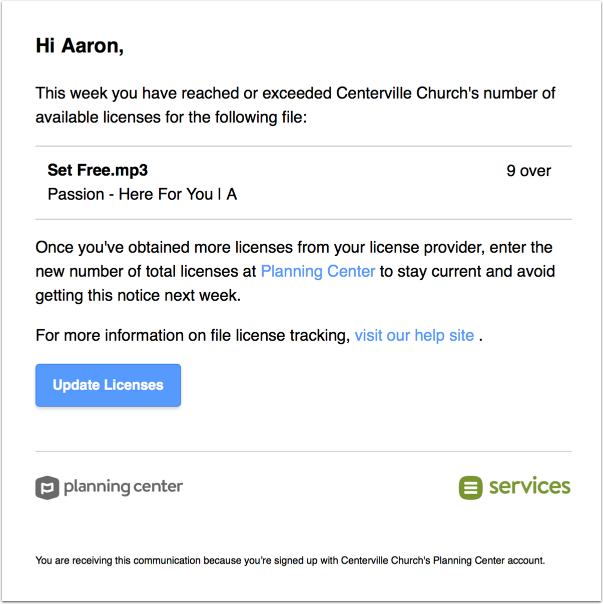
Once a week, license overage emails are sent out to any License Administrators whose files need new licenses. These emails will list all files assigned to them and provide a link to log in to the Files page, where they can update their licenses.
Important
If you no longer need to track individual licenses because you've purchased a different type of copyright, or if you enabled this feature accidentally, you'll need to delete the file to stop tracking.